

Introduction
Prerequisites
Create Modern Pages under your Team Spaces Hub with the name of the different team subsites. Also, add them as a news post so that they are reflected under the News Modern WP.
Steps to Follow
Go to O365 Admin Centre https://admin.microsoft.com/AdminPortal/Home#/groups
Create a new O365 Group with the 1st Team subsite name here:
ASIAPACTest@<Tenant Name>.onmicrosoft.com
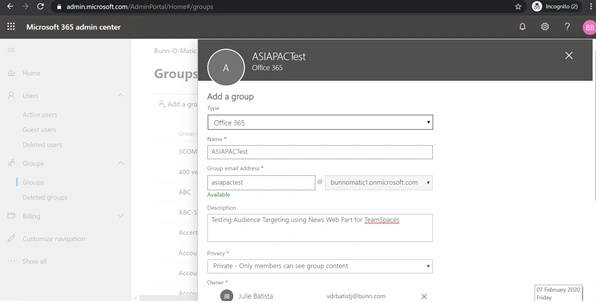
Add a Group owner and other settings as shown in the below snapshots:
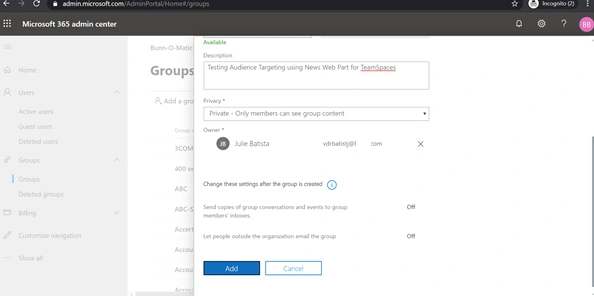
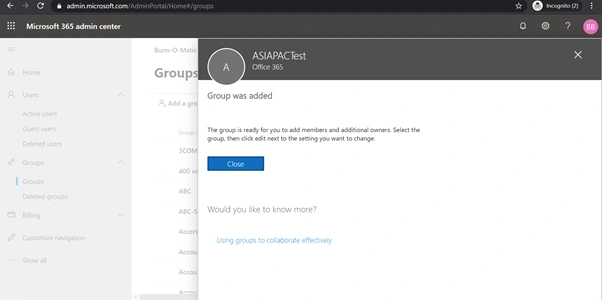
Go to the site page library under the MyTeamSpaces Hub >> Library Settings >> General Settings >> Audience Targeting Settings >> Enable Audience Targeting.
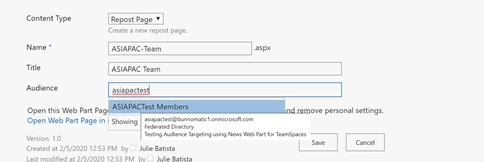
Goto the Site Pages Library again. Select the Modern Site Page of the subsite created for your News Posting. Just right-click, and select More>>Properties.
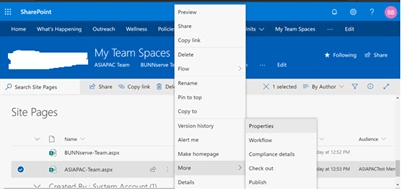
In the Audience Field value, just add the Newly Created Office 365 Group for the Security Trimming Concept implemented across the selected Modern Page. This again gets reflected in the News Modern Web part that has all the posts of the created subsites related to Modern Pages.
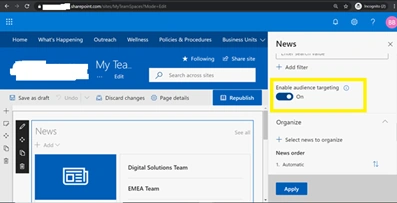
Go to the news modern web part which has already available modern site pages related posts included on them.
Edit news modern web part and enable audience targeting.
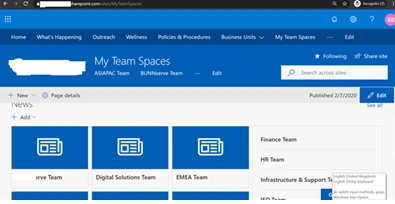
You can see the audience targeting changes reflected clearly on the modern news web part. Users who are only part of the above Office 365. Group either Owners/Members can have the above site page post visible in the news modern web part while the others can’t see it through the security trimming concept implementation.
Note: We can only create audience targeting on the news modern web part unlike the other modern web parts using the above simple OOTB concepts.
Join the conversation! Your thoughts help the community grow.