I developed the ChatBot that integrates with SharePoint On Premise. When I debug the ChatBot in emulator, it work. But When I debug on Web Emulator in Azure and Website Hosted in Company Website by using DirectLine, it did not work.
Does anyone know how to solve it?
I had try different method from last Month December 2019 until now , but still cant solve it.
You may review the my source code at StackOverflow.
https://stackoverflow.com/questions/59205348/chatbot-did-not-work-in-web-emulator-but-work-well-in-local-bot-framework-emulat
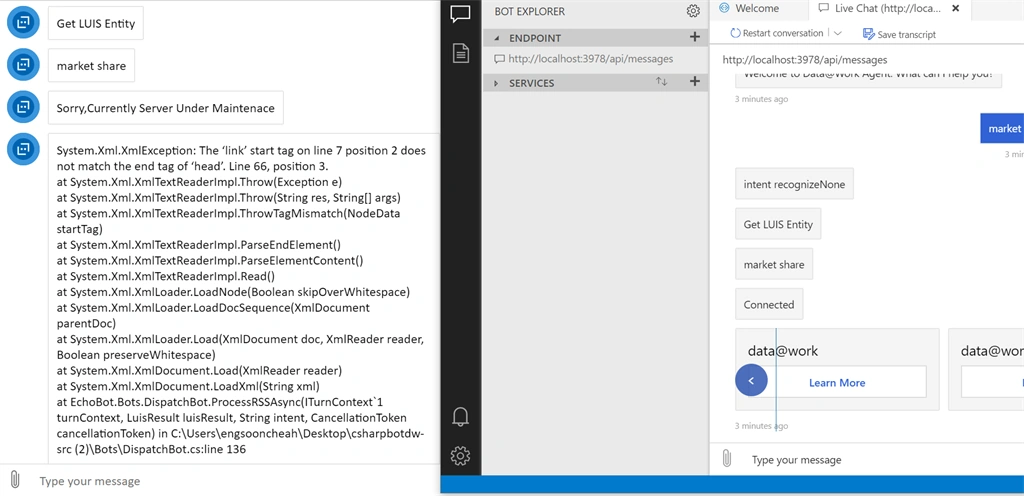
Herewith my screenshot. Left hand side is from Web Emulator, Right hand side is from local Bot Framework Emulator
Sandhiya PriyaPosted Oct 29, 2025, 10:07 AM
That’s a very common and tricky issue — especially when a Bot Framework bot works perfectly in the local Bot Emulator, but fails to respond when integrated via Direct Line on a hosted web app (Azure, SharePoint, or company site).
Let’s carefully go through why this happens, what’s really going on, and how to fix it — step by step.
Understanding the Issue
When debugging:
Local Emulator ? works fine
? because it calls your bot directly via
http://localhost:3978/api/messages.Web Chat (Direct Line) ? fails
? because Direct Line calls your bot via public HTTPS endpoint, not localhost.
So, the issue is usually one of these categories:
Step-by-Step Troubleshooting Guide
Step 1: Verify Bot Channel Registration
Go to your bot in Azure Portal ? Channels ? Direct Line.
Copy the Direct Line Secret.
Use it in your Web Chat code:
Make sure the bot’s messaging endpoint is HTTPS and accessible publicly (not localhost or internal IP).
Example:
Not allowed:
Step 2: Test the Endpoint Directly
Use Postman or a browser to test:
with a small payload (e.g., a sample Activity JSON).
If it returns 401 Unauthorized or 502 Bad Gateway, then your web service is not reachable or requires authentication.
If your bot is hosted on SharePoint On-Prem, ensure you’ve exposed it via a public-facing HTTPS reverse proxy (like Azure Relay, ngrok, or IIS ARR).
Step 3: Ensure HTTPS & CORS Are Enabled
If your web app is hosted on a company site (like SharePoint On-Prem):
Enable HTTPS binding in IIS.
Add CORS policy to allow requests from
https://webchat.botframework.comor your domain.In Web.config (or Startup.cs):
Step 4: Check App ID and Password
In your bot project’s
appsettings.jsonor Web.config:These must match the credentials in Azure ? Bot Channels Registration ? Settings.
If they don’t, Direct Line will silently fail to authenticate.
Step 5: Try Using ngrok
If your bot is still hosted internally (like in SharePoint On-Prem):
Install ngrok (https://ngrok.com).
Run:
You’ll get a public HTTPS URL:
Update your bot’s endpoint in Azure Bot Channels to:
Now test again — Direct Line should connect successfully.
Step 6: Enable Debug Logs
In
Web.config(or appsettings.json):Or in your Web Chat page:
Then open F12 ? Console to check if messages are failing with
403,401, or CORS errors.Real-World Scenario: SharePoint On-Prem + Direct Line
If your bot runs inside SharePoint On-Prem, your endpoint is likely internal (not public).
Azure Direct Line cannot reach it directly.
Solution:
Host your bot externally (Azure Web App, IIS with reverse proxy).
Or use Azure Relay / Hybrid Connection to expose the internal endpoint securely.
Example guide:
Expose On-Prem Bot via Azure Relay
Quick Checklist
Example Web Chat Embed
Summary
Works locally ? because local emulator connects directly
Fails via Direct Line ? because of endpoint / security / authentication
To fix:
Host bot externally with HTTPS
Use correct Direct Line secret
Enable CORS
Match App ID/Password
Check firewall or proxy configuration