

I have also mentioned how to solve errors most people have faced when starting with PRISM.
Prerequisites for this Project
Visual Studio 2010 onwards and Active Internet Connection (To download PRISM).
In this project I have used Visual Studio 2015.
What is PRISM?
Prism provides guidance to help you more easily design and build, flexible, and easy-to-maintain client business apps that run on Windows Runtime, Windows Presentation Foundation (WPF) desktop, Silverlight, or Windows Phone . These apps may start small and evolve over time.
Using design patterns that embody important architectural design principles, such as separation of concerns and loose coupling, Prism helps you to design and build apps that embody significant presentation and business logic that typically interact with back-end systems and services and, using a layered architecture, may be physically deployed across multiple tiers. It is expected that the app will evolve significantly over its lifetime in response to new requirements and business opportunities. In short, these apps are "built to last" and "built for change." Apps that do not demand these characteristics may not benefit from using Prism.
-MSDN
The article is divided into three parts:
- PART 1: Install PRISM and create a PRISM window.
- PART 2: Create UI Regions.
- PART 3: Create Modules and map them to predefined regions.
Legend:
- Focus of the step is highlighted in YELLOW.
- Error that could occur are in RED.
- Code and XAML starts with highlighted GREEN.
PART 1: Install PRISM and create a PRISM window
- Create a new WPF Application : Name = IntroToPrism

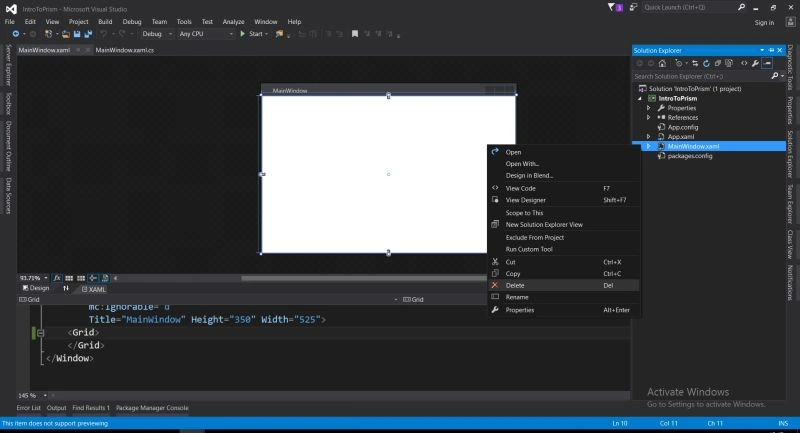
- Remove the default MainWindow.xaml
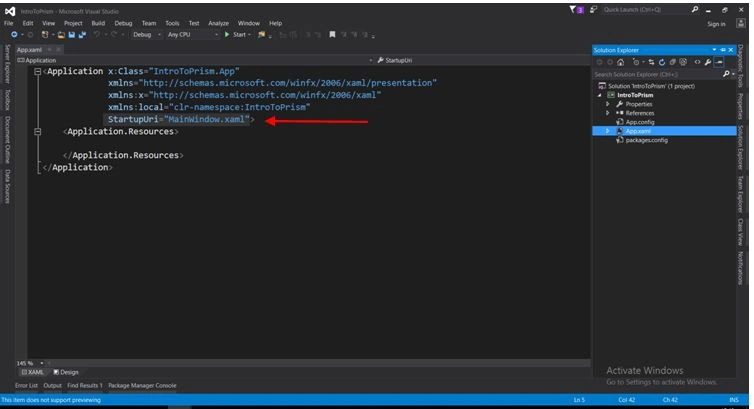
- Remove StartupUri="MainWindow.xaml" from the App.xaml file.
- Go to Tools - Nuget Package Manager - Package Manager Console.

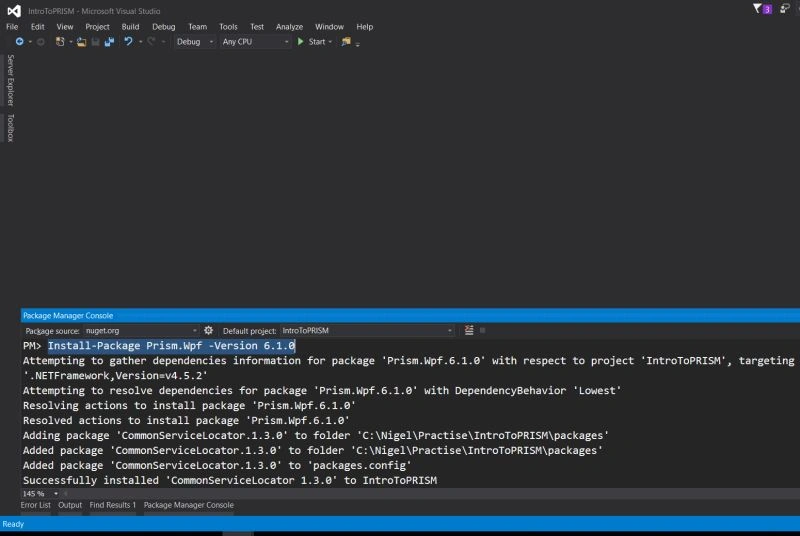
- First we will add Prism.
- Type Install-Package Prism.Wpf -Version 6.1.0 and press enter.
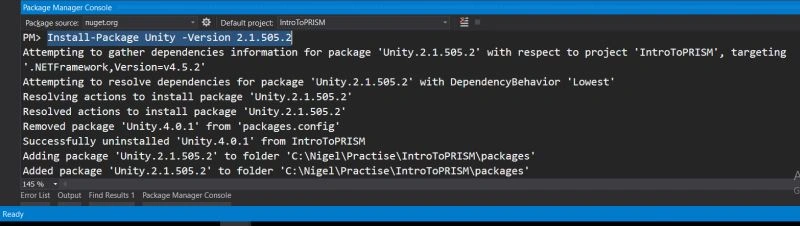
- Then add Prism.Unity Package.
Type Install-Package Unity -Version 2.1.505.2. (Note: Specific versions are required)
- Then add Unity.Extensions,
Type Install-Package Prism.UnityExtensions -Version 4.1.0,
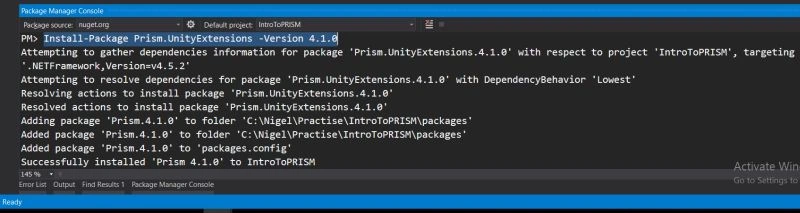
When using certain versions they may throw error asking for a specific version of Unity , to resolve add the requested version of Unity. Here I have used 2.1.505.2.
- Now add a new WPF Window and name it PrismAppShell.xaml.
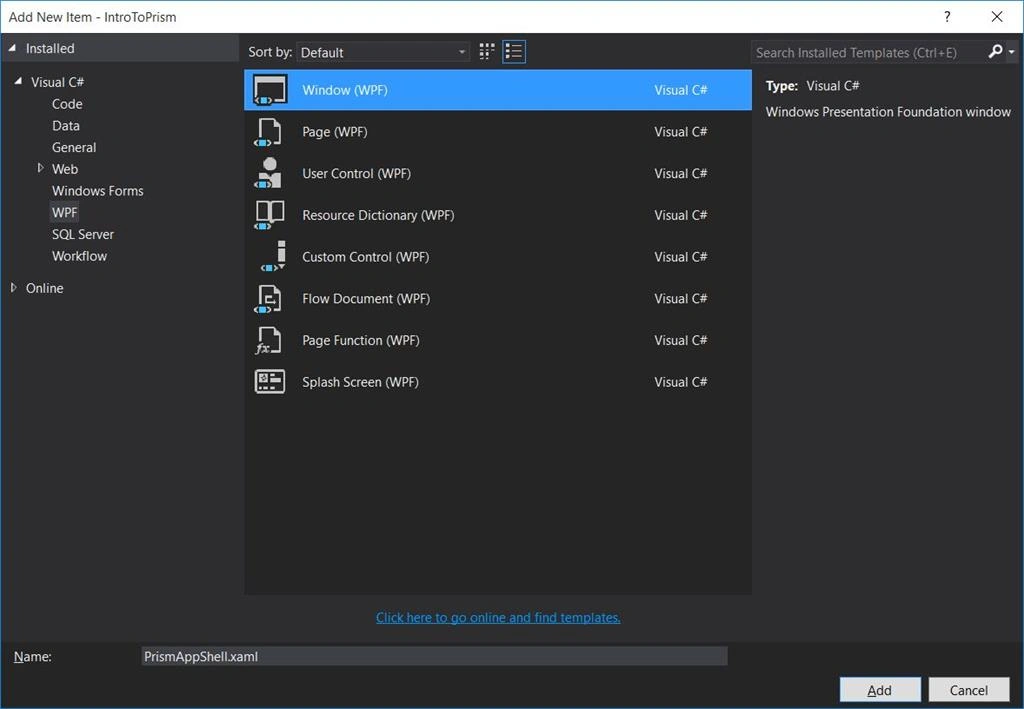
- Create a new class Bootstrapper.cs.
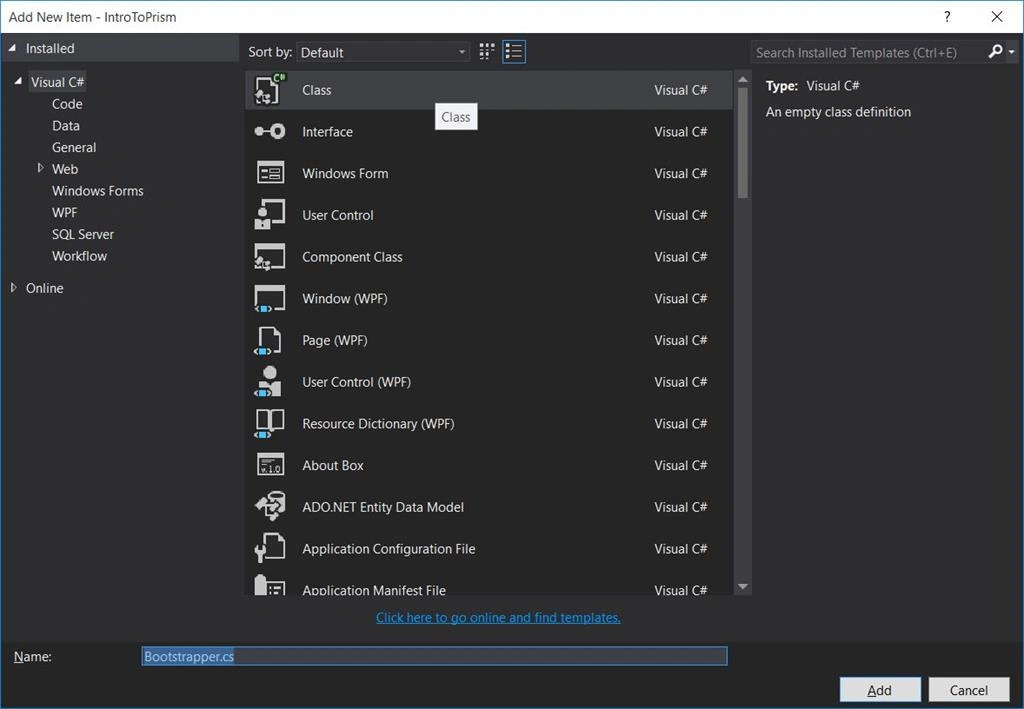
- Then derive the Bootstrapper class from UnityBootstrapper class, i.e. UnityBootstrapper is now the base class.
Override two methods of UnityBootstrapper in Bootstrapper class.
InitializeModules
ConfigureModuleCatalog
Implement the abstract method CreateShell in Bootstrapper class.
You may have to add the following using statements also.
Code
- using Microsoft.Practices.Unity;
- using Microsoft.Practices.Prism.UnityExtensions;
- public class BootStrapper: UnityBootstrapper
- {
- protected override System.Windows.DependencyObject CreateShell()
- {
- return this.Container.Resolve < PrismAppShell > ();
- }
- protected override void InitializeModules()
- {
- base.InitializeModules();
- App.Current.MainWindow = (PrismAppShell) this.Shell;
- App.Current.MainWindow.Show();
- }
- protected override void ConfigureModuleCatalog()
- {
- base.ConfigureModuleCatalog();
- this.ModuleCatalog.AddModule(null); // (Placeholder)
- }
- }
- Now Goto - App.xaml.cs,
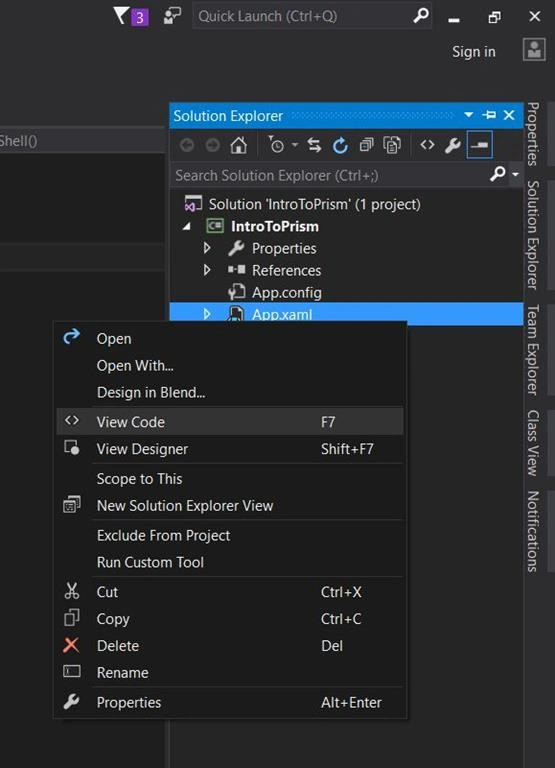
- Override method OnStartup.
Code:
- public partial class App: Application
- {
- protected override void OnStartup(StartupEventArgs e)
- {
- base.OnStartup(e);
- BootStrapper bootstrapper = new BootStrapper();
- bootstrapper.Run();
- }
- }
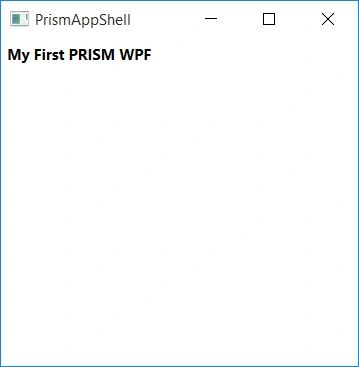
- In the PrismAppShell.xaml add a Label with any Text.
- Now Run the program, your new window will show.

PART 2 : Create UI Regions
- Now in PrismAppShell.xaml - add namespace
- xmlns:prism="http://www.codeplex.com/prism"

- xmlns:prism="http://www.codeplex.com/prism"
- Now we will create three regions Header, Body and Footer.
So add Content Controls to the window.
Give grid a name LayoutRoot
XAML:
- <Grid x:Name="LayoutRoot">
- <DockPanel LastChildFill="True" HorizontalAlignment="Stretch"
- Name="dockPanel1" VerticalAlignment="Stretch">
- <StackPanel Orientation="Horizontal" DockPanel.Dock="Top"
- Background="#FFCCD4F8" Height="25">
- <ContentControl prism:RegionManager.RegionName="HeaderRegion" Background="#FF93E094"></ContentControl>
- </StackPanel>
- <StackPanel Orientation="Horizontal" DockPanel.Dock="Left" Background="#FFD9E1EF" >
- <ContentControl prism:RegionManager.RegionName="BodyRegion" Background="#FFB5E4E1"></ContentControl>
- </StackPanel>
- <StackPanel Orientation="Horizontal" DockPanel.Dock="Bottom" Background="#FFD9E1EF" Height="25">
- <ContentControl prism:RegionManager.RegionName="FooterRegion" DockPanel.Dock="Bottom" Background="#FFF4B0B0"></ContentControl>
- </StackPanel>
- </DockPanel>
- </Grid>
- Now run the application.

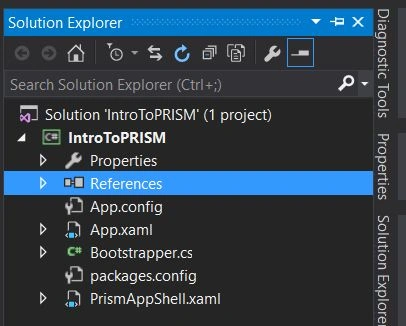
In case you get any error on region, go to - References and delete Prism.dll
NOTE: You can create any combination of regions.


Vinos NadarPosted Mar 9, 2021, 7:36 PM
Awesome article on PRISM. The best I have seen till now. Cheers :)
Linux CharboPosted Nov 16, 2018, 2:48 PM
Nigel, I'm new to PRISM. Is there a reference that explains what the various lines of code actually does? Do you have any recommended reading material for beginners to PRISM and Unity?
Emmanuel BrunetPosted Jan 25, 2016, 4:27 AM
In my case, instead of using <<xmlns:prism="http://www.codeplex.com/prism">>, the <<xmlns:cal="http://www.codeplex.com/CompositeWPF">> namespace must be used, and also the <<cal:RegionManager.RegionName>> property. Otherwise, the regions were not created.
Santhakumar MunuswamyPosted Jan 23, 2016, 2:20 AM
Thanks for nice article
Raja TPosted Jan 20, 2016, 10:52 PM
Nice, Thanks for sharing
sreenivasa kPosted Jan 20, 2016, 1:22 PM
nice