
Introduction
JavaScript is language of Web. This series of articles will talk about my observations learned during my decade of software development experience with JavaScript.
Before moving further let us look at the previous articles of the JavaScript series:
- Voice of a Developer: JavaScript Data Types - Part One
- Voice of a Developer: JavaScript Objects - Part Two
- Voice of a Developer: JavaScript Engines - Part Three
- Voice of a Developer: JavaScript Common Mistakes - Part Four
- Voice of a Developer: Editors - Part Five
- Voice of a Developer: VSCode - Part Six
- Voice of a Developer: Debugging Capabilities of VSCode - Part Seven
- Voice of a Developer: JavaScript OOP - Part Eight
- Voice of a Developer: JavaScript Useful Reserved Keywords - Part Nine
- Voice of a Developer: JavaScript Functions - Part Ten
- Voice of a Developer: JavaScript Functions Invocations - Part Eleven
- Voice of a Developer: JavaScript Anonymous Functions - Part Twelve
- Voice of a Developer: JavaScript Pure And Impure Function - Part Thirteen
- Voice of a Developer: JavaScript Closures - Part Fourteen
- Voice of a Developer: JavaScript Currying - Part Fifteen
- Voice of a Developer: JavaScript Chaining - Part Sixteen
- Voice of a Developer: JavaScript Array Methods - Part Seventeen
- Voice of a Developer: JavaScript ECMAScript 6 - Part Eighteen
- Voice of a Developer: JavaScript ECMAScript 6 Features v1 - Part Nineteen
- Voice of a Developer: JavaScript ECMAScript 6 Features v2 - Part Twenty
- Voice of a Developer: JavaScript Web Workers - Part Twenty One
- Voice of a Developer: JavaScript JSLint v1 - Part Twenty-Two
- Voice of a Developer: JavaScript JSLint v2 - Part Twenty Three
- Voice of a Developer: XMLHttpRequest API - Part Twenty Four
- Voice of a Developer: Web Storage API - Part Twenty-Five
In the last article, we learned about Storage API available in the browser. Now, we will understand cache strategies and offline cache capability of the application. Let me start with an explanation of the short anecdote “First view”.
First view means when you launch a new application and users will be hitting it for the first time. This testing shall ideally be done by clearing your browser cookies and cache to test how ‘first-time’ user will have an experience of the site.
Cache exists in your processor in the form of L1, L2 cache for faster processing. Here we are referring to browser caching. I have created an application in IIS server.
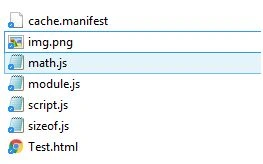
For now, let us focus on few files test.html, img.png and script.js. This site is setup at http://localhost:8079/test.html [however you can configure any other port]
 When I access site the first time, it’s the first view and rendered as:
 Next time when I refresh I get below view because it’s rendered from browser’s cache.
 Browser caches static content like CSS, HTML, images so the webpage loads faster for the repeated visitors. A browser usually reserves certain amount of disk space, like 12MB for caching. There are many ways for cache control in modern browsers.
There are two primary cache headers, Cache-Control and Expires.
Browser caches static content like CSS, HTML, images so the webpage loads faster for the repeated visitors. A browser usually reserves certain amount of disk space, like 12MB for caching. There are many ways for cache control in modern browsers.
There are two primary cache headers, Cache-Control and Expires.
First view
Cache
HTTP cache headers
Cache-Control: you can specify public OR private.
- Public: Can be cached by any proxies in between
- Private: Can be cached only by the end-client and not by proxies in between
You can also mention expiry date along with using max-age in seconds, ex-
Cache-Control:public, max-age=31536000 //31536000 = 1 year
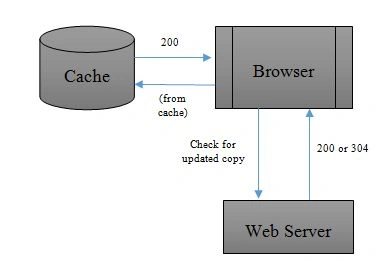
The expiry date tells the browser when to retrieve this resource from the server. It is also called as conditional requests. The process is well explained by below diagram:
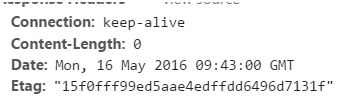
 Here is a sample application you can test at Heroku and review request & response headers
URL: http://http-caching-demo.herokuapp.com/?cache=true
Here is a sample application you can test at Heroku and review request & response headers
URL: http://http-caching-demo.herokuapp.com/?cache=true
 URL: http://http-caching-demo.herokuapp.com/?etag=true
 As the web became advanced the need for applications to work in offline mode arose. Offline? Yes, it is possible via the Application Cache interface. It gives a lot of advantages, these are:
Offline capability
- Offline browsing
- Server load gets reduced
- Speed improves because network payload is avoided
- User can navigate around incase server/site goes down
Cache manifest file
Structure of manifest file
- CACHE MANIFEST- Files which will be cached after they are downloaded from the web server, ex- jpg, png, html
- NETWORK- Which will not be cached, ex- aspx, asp, PHP files
- FALLBACK- If a particular file/page is inaccessible then leverage file mentioned under this section. It is fallback option.
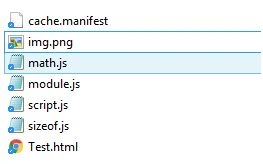
cache.manifest file: I am caching three static files here:
CACHE MANIFEST
/img.png
/test.html
/script.js
You have to refer cache.manifest file in HTML tag, ex, in test.html.
Refer manifest file
- <!DOCTYPE html>
- <html manifest="cache.manifest">
- <head>
- <meta http-equiv="content-type" content="text/html; charset=UTF-16">
- <meta name="robots" content="noindex, nofollow">
- <meta name="googlebot" content="noindex, nofollow">
- <title>JS</title>
- </head>
- <body style="background-color:white ">
- <script src="script.js"></script>
- <imgsrc="img.png">
- <script>
- </script>
- </body>
- </html>
Configure manifest file at Web Server
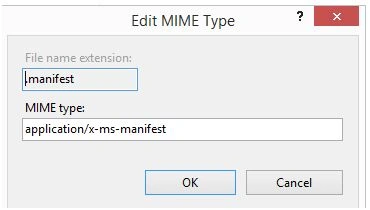
Run website
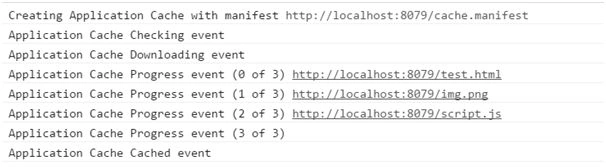
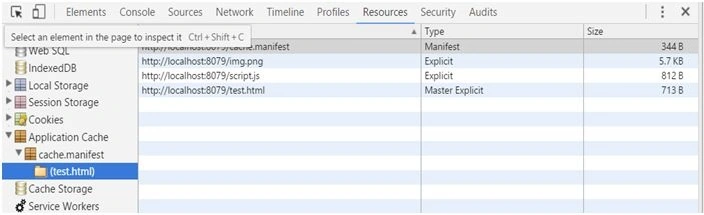
Use Application Cache
- Go to IIS and Stop the website
- Run the site again and it’ll work fine
Guest UserPosted Jun 7, 2016, 9:08 PM
thnx guys
Debasis SahaPosted May 18, 2016, 10:21 AM
Good One..
Ketak BhalsingPosted May 18, 2016, 8:20 AM
Very Well Written.....
Neeraj KumarPosted May 17, 2016, 2:59 PM
Nice article
Bhuvanesh MohankumarPosted May 17, 2016, 2:20 PM
Good one
Kuppurasu NagarajPosted May 17, 2016, 10:53 AM
Nice sharing..
Debasis SahaPosted May 17, 2016, 9:47 AM
Nice one..