

Note: this article is published on 12/20/2021.
This is a series of articles for SQL server installation issues and bugs:
- SQL Server Installation: 2019 Developer Edition --- Custom
- SQL Server Installation: 2022 Developer Edition --- Basic
A - Introduction
This article is to discuss an common issue when we try to install SQL Server 2019 Developer Edition, custom mode.
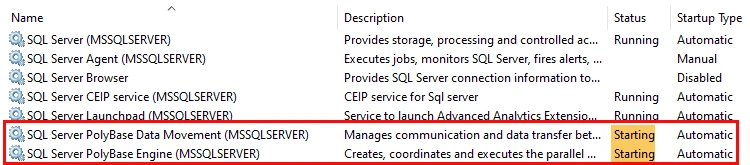
Usually, we install SQL Server by default, it works just fine. However, sometimes, we might face some problems in the new version installation. I got an issue when I installed the SQL Server Developer Edition 2019, that is related to a PolyBase issue. This article will introduce the problem, the reason and the fix. (SQL Server 2019 Developer Edition Installation see here)
The table content of this article:
- A - Introduction
- B - Problem
- C - Reason
- D - Fix
Note:
This issue heppened for SQL Server 2019, but still exists for SQL Server 2022. We could treat it as a SQL Server installation bug that the default installation is conflict to the default Windows configuration.
B - Problem
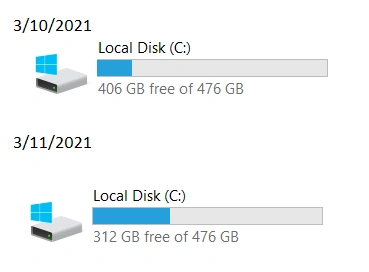
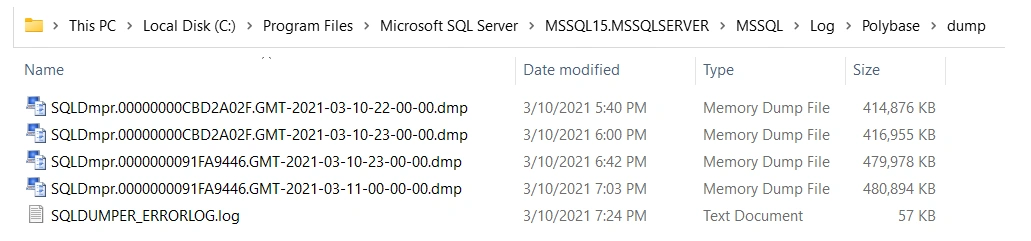
Once in 2020, after I installed an instance of SQL Server 2019 Developer Edition, I found my machine hard disk was eaten very fast. The following is what I met this situation again early this year, one can see the hard disk reduced close to 100 GB in just one day.
C - Reason
I am not SQL Server database administrator, I do not want to debug it, and I do not care about the real reason, I just want to have a fix on it. By online searching, I found the solution from one excellent article, in which one can get the real reason and debugging process, what I will introduce here is just the conclusion.
Join the conversation! Your thoughts help the community grow.