

Introduction
In this article, we are going to create a web application using ASP.NET Core 2.0 and React.js with the help of Entity Framework Core database first approach. We will be creating a sample Employee Record Management system and performing CRUD operations on it. To read the inputs from the user, we are using an HTML Form element with required field validations on the client side. We are also going to bind a dropdown list in the HTML Form to a table in the database using EF Core.
We will be using Visual Studio 2017 and SQL Server 2014.
Prerequisites
- Install .NET Core 2.0.0 or above SDK from here.
- Install the latest version of Visual Studio 2017 Community Edition from here.
- Download and install the latest version of Node.js from here.
- SQL Server 2008 or above.
Source code
Before proceeding, I recommend that you get the source code from GitHub.
Creating Table
We will be using two tables to store our data.
- tblEmployee: Used to store the details of employees. It contains fields such as EmployeeID, Name, City, Department, and Gender.
- tblCities: This contains the list of cities and is used to populate the City field of the tblEmployee table. It contains two fields CityID and CityName.
Execute the following commands to create both tables.
CREATE TABLE tblEmployee (
    EmployeeID int IDENTITY(1,1) NOT NULL PRIMARY KEY,
    Name varchar(20) NOT NULL,
    City varchar(20) NOT NULL,
    Department varchar(20) NOT NULL,
    Gender varchar(6) NOT NULL
);
GO

CREATE TABLE tblCities (
    CityID int IDENTITY(1,1) NOT NULL PRIMARY KEY,
    CityName varchar(20) NOT NULL
);
GO
Now, we will put some data into the tblCities table. We will be using this table to bind a dropdown list in our web application from which the desired city can be selected. Use the following insert statements.
INSERT INTO tblCities VALUES ('New Delhi');
INSERT INTO tblCities VALUES ('Mumbai');
INSERT INTO tblCities VALUES ('Hyderabad');
INSERT INTO tblCities VALUES ('Chennai');
INSERT INTO tblCities VALUES ('Bengaluru');
Now, our Database part has been completed. So, we will proceed to create the MVC application using Visual Studio 2017.
Create MVC Web Application
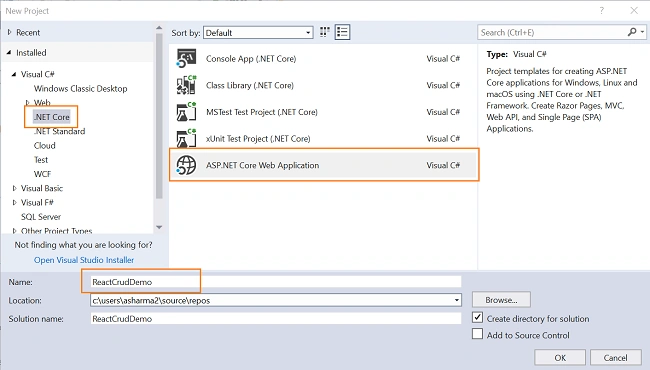
Open Visual Studio and select File >> New >> Project. After selecting the project, a "New Project" dialog will open. Select .NET Core inside the Visual C# menu from the left panel.
Then, select “ASP.NET Core Web Application” from the available project types. Put the name of the project as ReactCrudDemo and press OK.
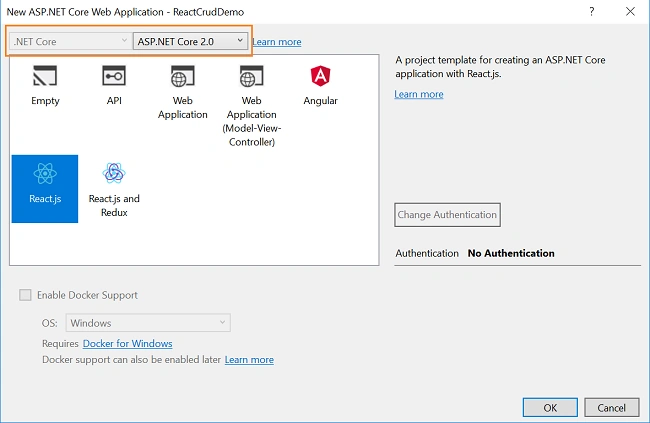
After clicking on OK, a new dialog will open asking you to select the project template. You can observe two drop-down menus at the top left of the template window. Select “.NET Core” and “ASP.NET Core 2.0” from these dropdowns. Then, select “React.js” template and press OK.
Now, our project will be created. You can observe the folder structure in Solution Explorer as shown in the below image.
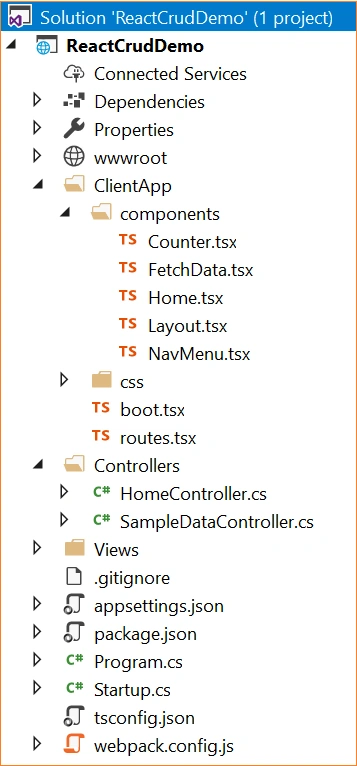
Here, we have our Controllers and Views folders. We won’t be touching the Views folders for this tutorial since we will be using React.js to handle the UI. The Controllers folders will contain our Web API controller. The point of interest for us is the ClientApp folder where the client side of our application resides. Inside the ClientApp/components folder, we already have a few components created which are provided by default with the React.js template in VS 2017. These components will not affect our application, but for the sake of this tutorial, we will delete fetchdata.tsx and counter.tsx files from ClientApp/app/components.
Adding the Model to the Application
We are using Entity Framework core database first approach to create our models. Navigate to Tools >> NuGet Package Manager >> Package Manager Console.
We have to install the package for the database provider that we are targeting which is SQL Server in this case. Hence, run the following command.
Install-Package Microsoft.EntityFrameworkCore.SqlServer
Since we are using Entity Framework Tools to create a model from the existing database, we will install the tools package as well. Hence run the following command.
Install-Package Microsoft.EntityFrameworkCore.Tools
After you have installed both packages, we will scaffold our model from the database tables using the following command.
Scaffold-DbContext "
Your connection string here
" Microsoft.EntityFrameworkCore.SqlServer -OutputDir Models -Tables tblEmployee, tblCities
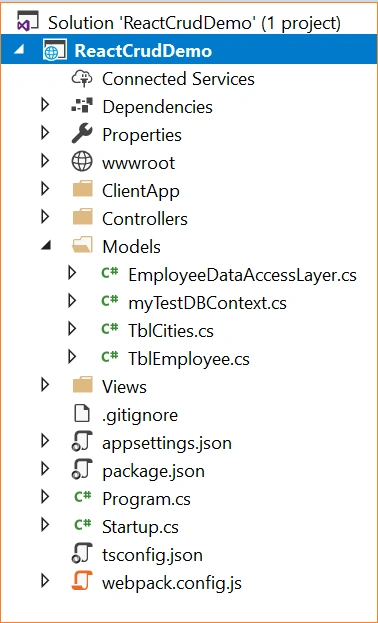
Do not forget to put your own connection string (inside " "). After this command is executed successfully you can observe a Models folder has been created and it contains three class files myTestDBContext.cs, TblCities.cs and TblEmployee.cs. Hence, we have successfully created our Models using the EF core database first approach.
Now, we will create one more class file to handle database-related operations.
Right-click on the Models folder and select Add >> Class. Name your class EmployeeDataAccessLayer.cs and click the Add button. At this point in time, the Models folder will have the following structure.
Open EmployeeDataAccessLayer.cs and put the following code to handle database operations.
using Microsoft.EntityFrameworkCore;
using System;
using System.Collections.Generic;
using System.Linq;
using System.Threading.Tasks;

namespace ReactCrudDemo.Models
{
    public class EmployeeDataAccessLayer
    {
        myTestDBContext db = new myTestDBContext();

        public IEnumerable<TblEmployee> GetAllEmployees()
        {
            try
            {
                return db.TblEmployee.ToList();
            }
            catch
            {
                throw;
            }
        }

        // To Add new employee record
        public int AddEmployee(TblEmployee employee)
        {
            try
            {
                db.TblEmployee.Add(employee);
                db.SaveChanges();
                return 1;
            }
            catch
            {
                throw;
            }
        }

        // To Update the records of a particular employee
        public int UpdateEmployee(TblEmployee employee)
        {
            try
            {
                db.Entry(employee).State = EntityState.Modified;
                db.SaveChanges();

                return 1;
            }
            catch
            {
                throw;
            }
        }

        // Get the details of a particular employee
        public TblEmployee GetEmployeeData(int id)
        {
            try
            {
                TblEmployee employee = db.TblEmployee.Find(id);
                return employee;
            }
            catch
            {
                throw;
            }
        }

        // To Delete the record of a particular employee
        public int DeleteEmployee(int id)
        {
            try
            {
                TblEmployee emp = db.TblEmployee.Find(id);
                db.TblEmployee.Remove(emp);
                db.SaveChanges();
                return 1;
            }
            catch
            {
                throw;
            }
        }

        // To Get the list of Cities
        public List<TblCities> GetCities()
        {
            List<TblCities> lstCity = new List<TblCities>();
            lstCity = (from CityList in db.TblCities select CityList).ToList();

            return lstCity;
        }
    }
}
Now, we will proceed to create our Web API Controller.
Adding the Web API Controller to the Application
Right-click on the Controllers folder and select Add >> New Item.
An “Add New Item” dialog box will open. Select ASP.NET from the left panel, then select “API Controller Class” from the templates panel and put the name EmployeeController.cs. Press OK.
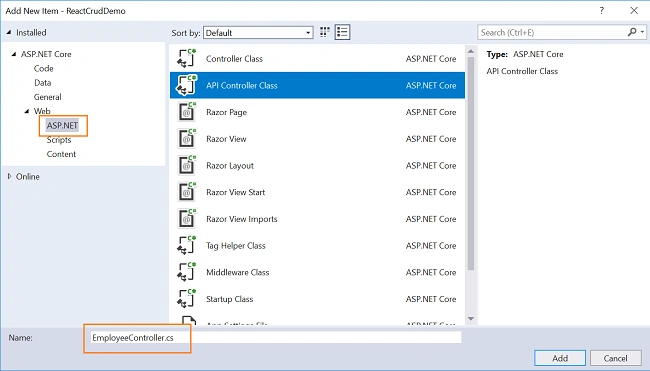
This will create our Web API EmployeeController class. We will put all our business logic in this controller. We will call the methods of EmployeeDataAccessLayer to fetch data and pass on the data to the frontend.
Open the EmployeeController.cs file and put the following code into it.
using System;
using System.Collections.Generic;
using System.Linq;
using System.Threading.Tasks;
using Microsoft.AspNetCore.Mvc;
using ReactCrudDemo.Models;

namespace ReactCrudDemo.Controllers
{
    public class EmployeeController : Controller
    {
        EmployeeDataAccessLayer objemployee = new EmployeeDataAccessLayer();

        [HttpGet]
        [Route("api/Employee/Index")]
        public IEnumerable<TblEmployee> Index()
        {
            return objemployee.GetAllEmployees();
        }

        [HttpPost]
        [Route("api/Employee/Create")]
        public int Create(TblEmployee employee)
        {
            return objemployee.AddEmployee(employee);
        }

        [HttpGet]
        [Route("api/Employee/Details/{id}")]
        public TblEmployee Details(int id)
        {
            return objemployee.GetEmployeeData(id);
        }

        [HttpPut]
        [Route("api/Employee/Edit")]
        public int Edit(TblEmployee employee)
        {
            return objemployee.UpdateEmployee(employee);
        }

        [HttpDelete]
        [Route("api/Employee/Delete/{id}")]
        public int Delete(int id)
        {
            return objemployee.DeleteEmployee(id);
        }

        [HttpGet]
        [Route("api/Employee/GetCityList")]
        public IEnumerable<TblCities> GetCityList()
        {
            return objemployee.GetCities();
        }
    }
}
We are done with our backend logic. Therefore, we will now proceed to code our frontend using React.js.
Creating React Components
We will be adding two React components to our application.
- FetchEmployee component: to display all the employee data and delete an existing employee data.
- AddEmployee component: to add new employee data and edit existing employee data.
Right-click on the ClientApp/components folder and select Add >> New Item. An “Add New Item” dialog box will open. Select Scripts from the left panel, then select “TypeScript JSX File” from the templates panel, and put the name as AddEmployee.tsx. Press OK. This will add a JSX file inside the components folder. JSX stands for JavaScript XML. JSX is a preprocessor step that adds XML syntax to JavaScript.
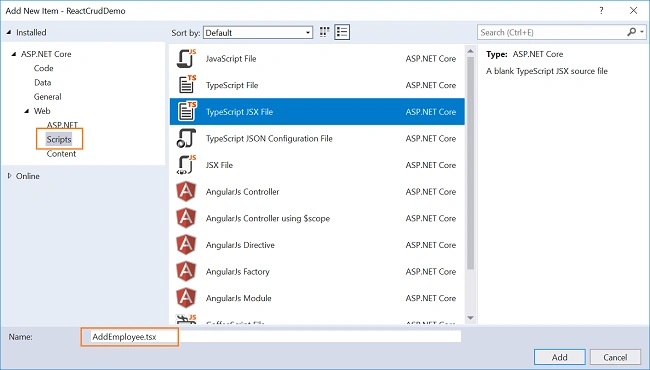
Similarly, add the FetchEmployee.tsx file insideClientApp/components folder.
Now, our ClientApp folder will have the following structure.
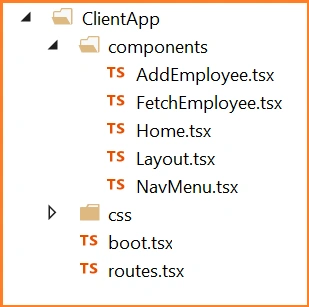
FetchEmployee Component
Open the FetchEmployee.tsx file and put the following code to it.
import * as React from 'react';
import { RouteComponentProps } from 'react-router';
import { Link } from 'react-router-dom';

interface FetchEmployeeDataState {
    empList: EmployeeData[];
    loading: boolean;
}

export class FetchEmployee extends React.Component<RouteComponentProps<{}>, FetchEmployeeDataState> {
    constructor() {
        super();
        this.state = { empList: [], loading: true };

        fetch('api/Employee/Index')
            .then(response => response.json() as Promise<EmployeeData[]>)
            .then(data => {
                this.setState({ empList: data, loading: false });
            });

        // This binding is necessary to make "this" work in the callback
        this.handleDelete = this.handleDelete.bind(this);
        this.handleEdit = this.handleEdit.bind(this);
    }

    public render() {
        let contents = this.state.loading
            ? <p><em>Loading...</em></p>
            : this.renderEmployeeTable(this.state.empList);

        return (
            <div>
                <h1>Employee Data</h1>
                <p>This component demonstrates fetching Employee data from the server.</p>
                <p>
                    <Link to="/addemployee">Create New</Link>
                </p>
                {contents}
            </div>
        );
    }

    // Handle Delete request for an employee
    private handleDelete(id: number) {
        if (!confirm("Do you want to delete employee with Id: " + id))
            return;
        else {
            fetch('api/Employee/Delete/' + id, {
                method: 'delete'
            }).then(() => {
                this.setState(prevState => ({
                    empList: prevState.empList.filter((rec) => rec.employeeId !== id)
                }));
            });
        }
    }

    private handleEdit(id: number) {
        this.props.history.push("/employee/edit/" + id);
    }

    // Returns the HTML table to the render() method.
    private renderEmployeeTable(empList: EmployeeData[]) {
        return (
            <table className='table'>
                <thead>
                    <tr>
                        <th></th>
                        <th>EmployeeId</th>
                        <th>Name</th>
                        <th>Gender</th>
                        <th>Department</th>
                        <th>City</th>
                    </tr>
                </thead>
                <tbody>
                    {empList.map(emp =>
                        <tr key={emp.employeeId}>
                            <td></td>
                            <td>{emp.employeeId}</td>
                            <td>{emp.name}</td>
                            <td>{emp.gender}</td>
                            <td>{emp.department}</td>
                            <td>{emp.city}</td>
                            <td>
                                <a className="action" onClick={() => this.handleEdit(emp.employeeId)}>Edit</a> |
                                <a className="action" onClick={() => this.handleDelete(emp.employeeId)}>Delete</a>
                            </td>
                        </tr>
                    )}
                </tbody>
            </table>
        );
    }
}

export class EmployeeData {
    employeeId: number = 0;
    name: string = "";
    gender: string = "";
    city: string = "";
    department: string = "";
}
Harishsingh KandwalPosted Jan 7, 2019, 6:28 AM
Hi Ankit Great!! post but this solution works in development environment only after publishing it in IIS it doesn’t workGetting this error “AddEmployee.js:26 GET http://localhost:2019/api/Employee/GetCityList 500 (Internal Server Error)”
ajit goelPosted Oct 19, 2018, 7:35 PM
Thank you Ankit, this is a very good article. how would i go about integrating an authentication provider like google with such an application.
Muhammad Khali AfzalPosted Oct 1, 2018, 7:50 AM
I check from debugger it give following error "TypeError: 'caller', 'callee', and 'arguments' properties may not be accessed on strict mode functions or the arguments objects for calls to them"
Muhammad Khali AfzalPosted Oct 1, 2018, 6:46 AM
Hi Ankit, thanks for this article but i have problem i create project same as it is explain in this article but unluckly it doesnot load cities and not save any record. I also set check point on EmployeeController but not go there, can you help me regarding this... [email protected]
sai thejaPosted Sep 29, 2018, 5:52 AM
Hi bro,, pls can u post same application using with js files instead of tsx..
Jose Carlos MacorattiPosted Aug 26, 2018, 9:11 AM
Hi, I'm getting the error on edit and create (PUT/POST) : 415 (Unsupported Media Type).
Clear HatPosted Aug 14, 2018, 11:25 PM
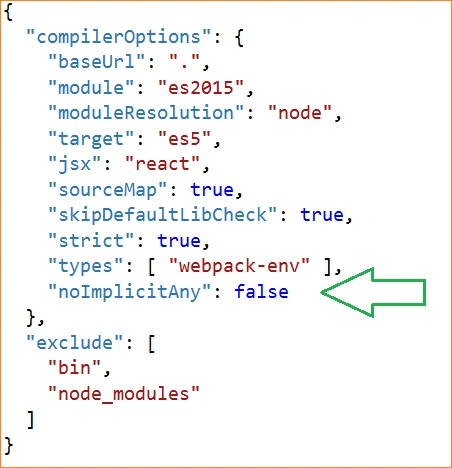
The download from Git did not work for me. Wasn't able to find out what was wrong (more recent Visual Studio?), so I built everything according to instructions above, and with a few tweaks was able to get everything working. Here are the tweaks: ===[TWEAK1]=== On the screen where you select the React.js template, make sure that you select "ASP.NET Core 2.0," since there are numerous breaking changes in 2.1 ===[TWEAK2]=== At this step: "Adding the Model to the Application" do the following. Remove these ten lines from NavMenu.tsx:<li> <NavLink to={ '/counter' } activeClassName='active'> <span className='glyphicon glyphicon-education'></span> Counter </NavLink> </li> <li> <NavLink to={ '/fetchdata' } activeClassName='active'> <span className='glyphicon glyphicon-th-list'></span> Fetch data </NavLink> </li> Then remove these four lines from routes.tsx: import { FetchData } from './components/FetchData'; import { Counter } from './components/Counter'; <Route path='/counter' component={ Counter } /> <Route path='/fetchdata' component={ FetchData } /> ===[TWEAK3]=== Make sure webpack is installed! npm install webpack ===[TWEAK4]=== If you see this error at any point, restart VS, that should clear it up: Error TS2430 (TS) Interface 'ChangeTargetHTMLAttributes<T>' incorrectly extends interface 'HTMLAttributes<T>'. ===[TWEAK5]=== At line 11 of EmployeeDataAccessLayer.cs, replace myTestDBContext db = new myTestDBContext(); with ReactCrudDemoContext db = new ReactCrudDemoContext(); ===[TWEAK6]=== You may need to run npm audit fix --force to get everything working correctly. You may need to run "npm audit fix" a couple times until there are no issues. ===[TWEAK7]=== To align your new project fully with the node modules for this project, here are a couple that are in the Git solution but not mentioned above: npm install --save es6-promise npm install --save ajv-errors ===[TWEAK8]=== This app does not work in IE. Use Edge or Chrome, etc.
ANINAT OthmanePosted Jul 10, 2018, 3:52 PM
Thank you bro for this article; why you dont declase City as City Object ??
Kumaran TPosted Apr 25, 2018, 2:49 AM
Dear Bro, Can you post same concept using Visual Studio Code...Please...
Kumaran TPosted Apr 25, 2018, 2:46 AM
Thank You Ji... It's working for me... Good Job.... Thank You Once again....
Thiago VivasPosted Apr 24, 2018, 11:26 AM
Very nice one, good job Ankit