

Introduction
This article explains the following,
- How to create an SSRS project.
- How to add shared data sources to your Project.
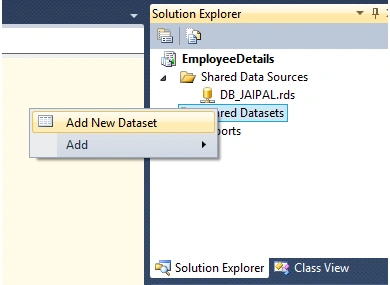
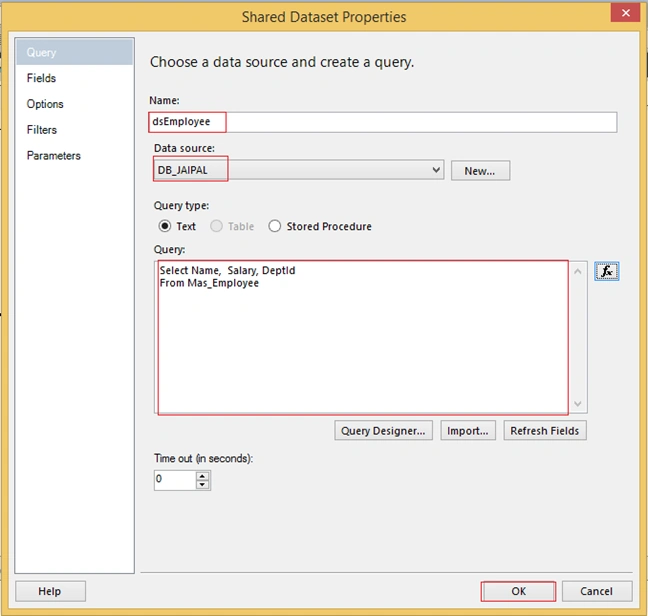
- How to add a shared dataset to your Project.
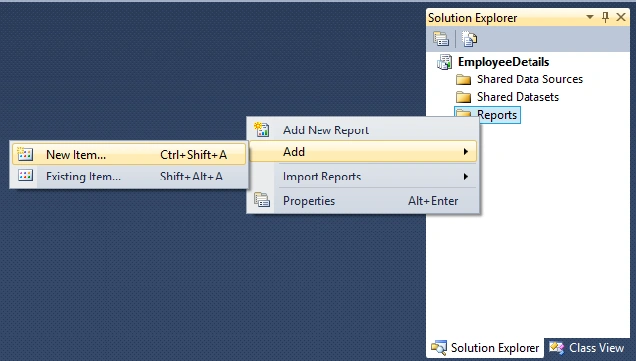
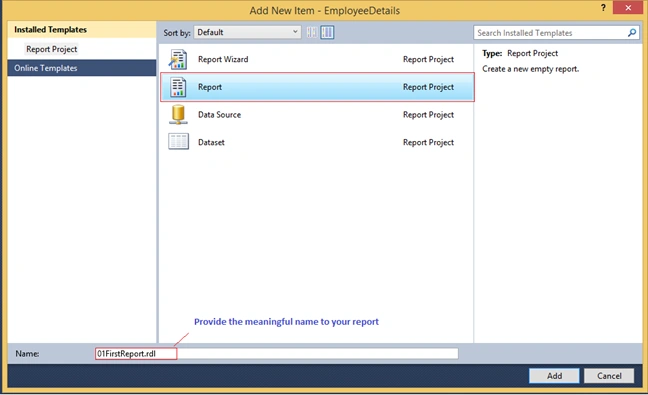
- How to add a report to your Project.
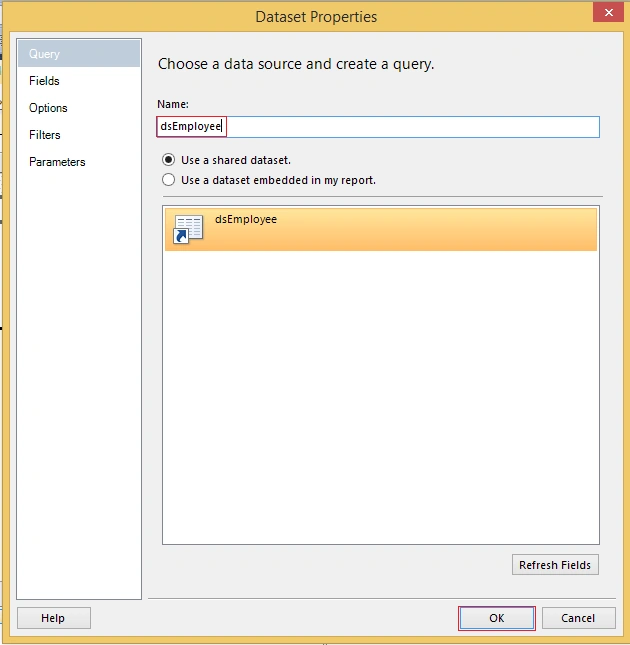
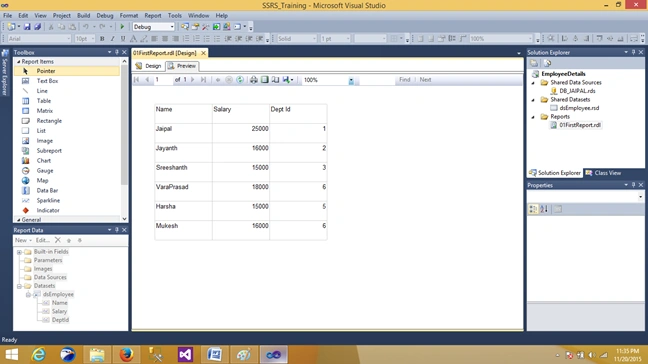
- How to populate the data by using a shared dataset.
Here are the steps to create a simple report in SSRS,
Step 1. If you're using a Microsoft SQL server, then go to Start and click on Search and select SQL Server Data Tools.
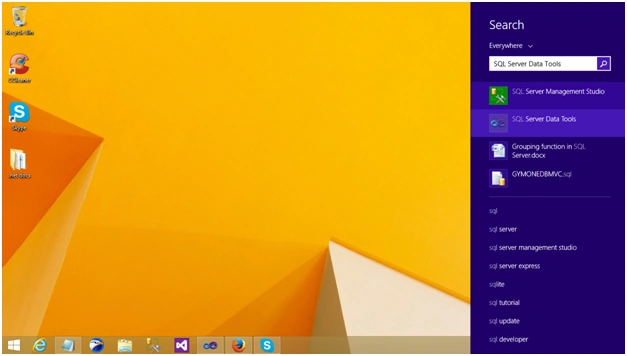
If you're using SQL server 2008r2 or earlier versions, go to Start, Microsoft SQL Server, and select SQL server Business Intelligence studio.
Step 2. Click on File Menu, and expand New, then select Project,
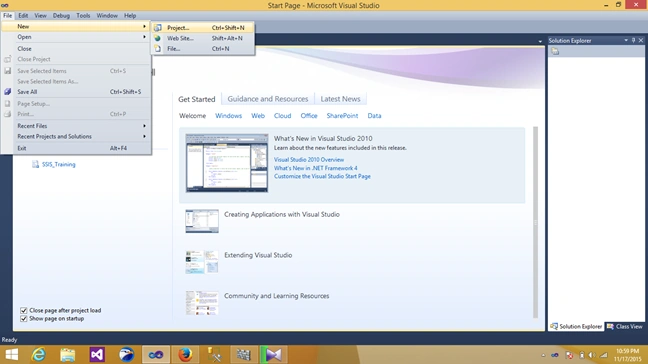
After that, expand Business Intelligence and select Reporting Services and Report Server Project Wizard. Give a meaningful name to your Solution and Project. Specify an appropriate location for where you want to save this Project by clicking on Browse.
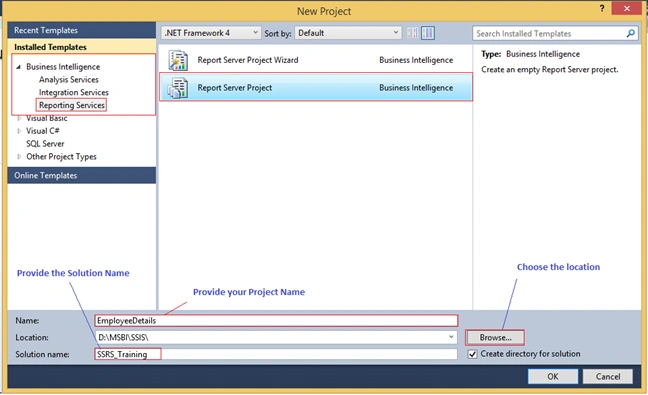
Step 3. Create Shared DataSource
Go to Solution Explorer and right-click on Shared Data Sources, expand Add, then click on New Item.
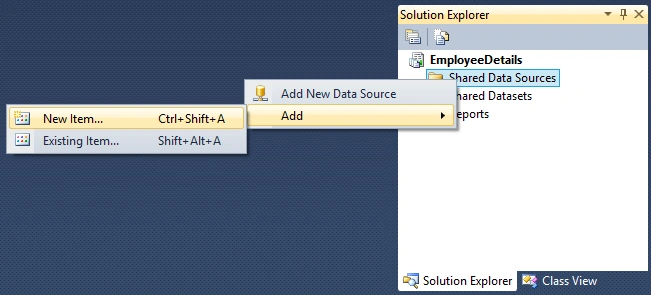
Then you will see the following wizard. Provide the data source name in this article. I gave it as DB_Jaipal. And then, click on Edit to make the connectionString.
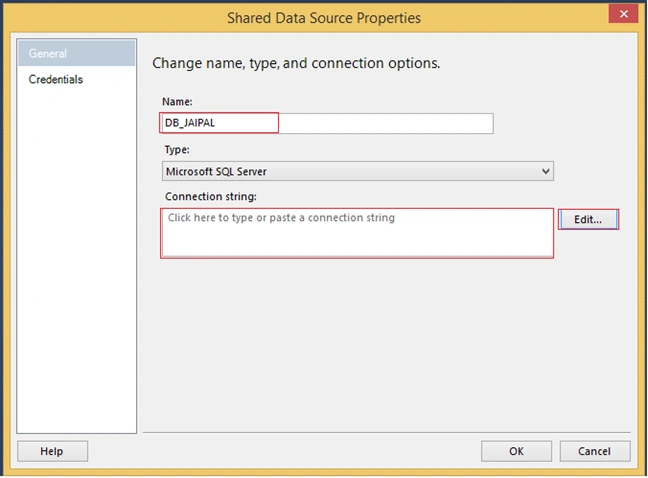
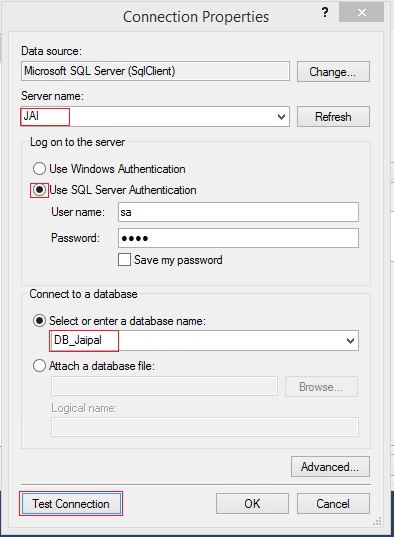
After clicking on Edit, we have to provide the following Connection Properties,
- Select the Server name.
- Select the "Use SQL Server Authentication" radio button.
- Enter the User name and Password in the password text box.
- Check the "Save my password" checkbox.
- Select the "Select or enter a database name:" radio button.
- Select the database to which you want to set the connection.
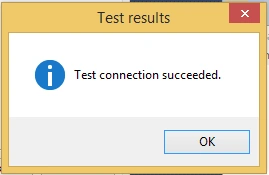
- Click on the "Test Connection" button to ensure the connection can be established.


Manav PandyaPosted Sep 10, 2016, 1:07 PM
Im using vs2013 and SQL Server 2014 what and how to do ?
SubashPosted Aug 20, 2016, 7:32 PM
Good
Hari ShankerPosted Apr 22, 2016, 7:11 AM
Hi jaipal i am using VS2013 i am unable to drag the table on the design surface ..please need an advice
Jaipal ReddyPosted Dec 8, 2015, 3:41 AM
Thank you Yugandhar.
yugandhar suraganiPosted Dec 8, 2015, 3:15 AM
its good
Jaipal ReddyPosted Nov 28, 2015, 3:02 AM
Thank you sir.
Santhakumar MunuswamyPosted Nov 28, 2015, 2:31 AM
Nice share
Jaipal ReddyPosted Nov 23, 2015, 5:18 AM
Thank you Sibeesh Sir.
Sibeesh VenuPosted Nov 23, 2015, 4:10 AM
Nice Share
Jaipal ReddyPosted Nov 23, 2015, 3:21 AM
Thank you Rithesh
Jaipal ReddyPosted Nov 23, 2015, 3:21 AM
Thank you Harshad.
Harshad PansuriyaPosted Nov 23, 2015, 2:53 AM
Nice one
Jaipal ReddyPosted Nov 23, 2015, 2:47 AM
Thank you Raja Sir.
Raja TPosted Nov 23, 2015, 2:08 AM
Nice, thanks for sharing
rithesh reddyPosted Nov 23, 2015, 12:42 AM
Thank you Jaipal Reddy
Humayun Kabir MamunPosted Nov 23, 2015, 12:26 AM
Nice...
Jaipal ReddyPosted Nov 23, 2015, 12:21 AM
Thank you Mukesh Kumar.
Mukesh KumarPosted Nov 22, 2015, 11:44 PM
Nice One ...
Jaipal ReddyPosted Nov 21, 2015, 11:47 PM
Thank you Anoop Kumar Sharma.
Anoop Kumar SharmaPosted Nov 21, 2015, 10:57 PM
Nice Article..!! Thanks for sharing.
Jaipal ReddyPosted Nov 21, 2015, 10:08 PM
Thank you Santhakumar Munuswamy sir.
Santhakumar MunuswamyPosted Nov 21, 2015, 9:25 AM
Good One