Note: this article is published on 04/26/2021.
These will be a series of articles about Design Patterns. We start from MVC Pattern:
- Design Pattern (0), Overview
- Design Pattern (1), MVC
- Design Pattern (2), MVVM --- this article
- Design Pattern (3), Singleton
- Design Pattern (4), Desposal
- Design Pattern (5), Dependency Injection
Introduction
After writing Design Pattern, MVC, my next design pattern article had to be MVVM for sure. Especially, I used this pattern and tried to train my team to use this pattern several years ago. However, I wonder, for this important, popular, and valuable pattern, why Microsoft does not make a physical pattern like MVC (for MVC, we have MS Visual Studio Web MVC module for more than 10 years, actually from 2008). On the other hand, if we search online, we can get a lot of papers to introduce and discuss MVVM pattern.
I realize the MVVM pattern still lives while Microsoft does not have a formal physical pattern (although there was one call MVVM Light ToolKit for WPF and Silverlight for a while) must be because this pattern is quite complex with more variations, therefore it is hard to make a formal pattern.
That is true, when I tried to discuss MVVM pattern, it seems to me that the first thing I need to do is to define the pattern, ..., so, this article will be starting by discussing the definition of MVVM, and then giving a simplest sample to demo MVVM.
The discussions in this article will be as following,
- A: History
- B: What is MVVM Pattern:
- C: Make a Project Demo
- C-0: Make a WPF app
- C-1: Make a Separation between Model and View
- C-2: Make Synchronization between ViewModel and View
- C-3: Use ICommand from View to Call back
- D: What is MVVM Pattern again:
- Physical module to Conceptual module
A: History
Model–view–viewmodel (MVVM) is a software architectural pattern that facilitates the separation of the development of the graphical user interface (the view) from the development of the business logic or back-end logic (the model) so that the view is not dependent on any specific model platform.
The view model of MVVM is a value converter, meaning the view model is responsible for exposing (converting) the data objects from the model in such a way that objects are easily managed and presented. In this respect, the view model is more model than view, and handles most if not all of the view's display logic. The view model may implement a mediator pattern, organizing access to the back-end logic around the set of use cases supported by the view.
MVVM was invented by Microsoft architects Ken Cooper and Ted Peters specifically to simplify event-driven programming of user interfaces. The pattern was incorporated into WPF and Silverlight. John Gossman, one of Microsoft's WPF and Silverlight architects, announced MVVM on his blog in 2005.[4]
Model–view–viewmodel is also referred to as model–view–binder, especially in implementations not involving the .NET platform.
B: What is MVVM
MVVM is a variation of MVC module, we can say MVVM module is derived from MVC in concept. The difference is that MVVM used most likely for WPF or Silverlight apps without an endpoint for controller access, but with strong data binding between the View and middle tier, the "Controller". So, this introduces the ViewModel to replace the position of Controller of MVC module.
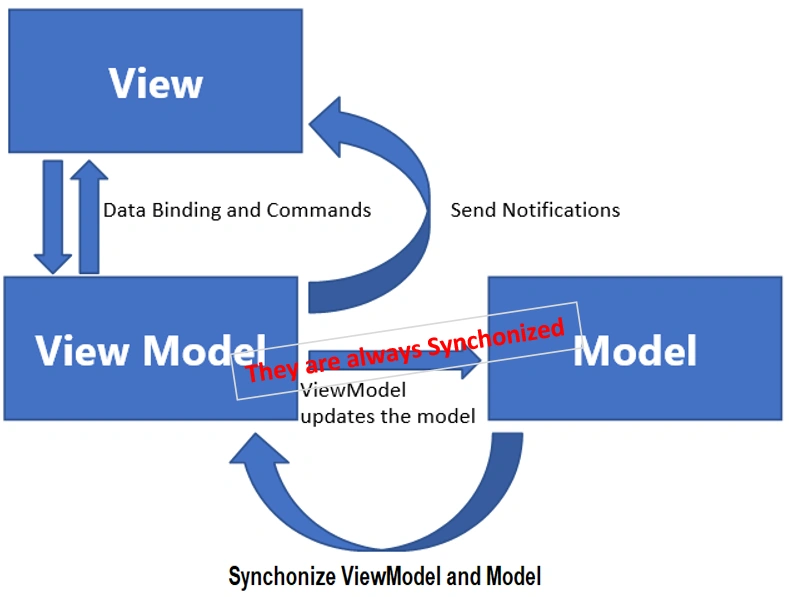
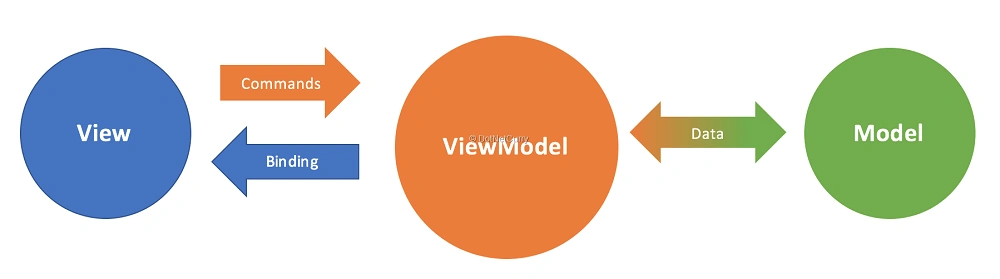
MVVM stands for Model, View, and ViewModel. MVVM separates an application into three components - Model, View, and ViewModel, associated with One Operation: Data Binding that have two features: Synchronization and Command Calling Back.
Three Components of MVVM: the following understanding it from my previous article: Design Pattern (1), MVC
- Model: What --- Data
- View: What Look like --- Format (with data)
- ViewModel: How --- operation through Data Binding
One Operation of MVVM with Two Features,
- Data Binding: Between View and ViewModel with two features:
- Synchronization: View and ViewModel (ViewModel and Model are always synchronized)
- Command: Calling back from View to ViewModel
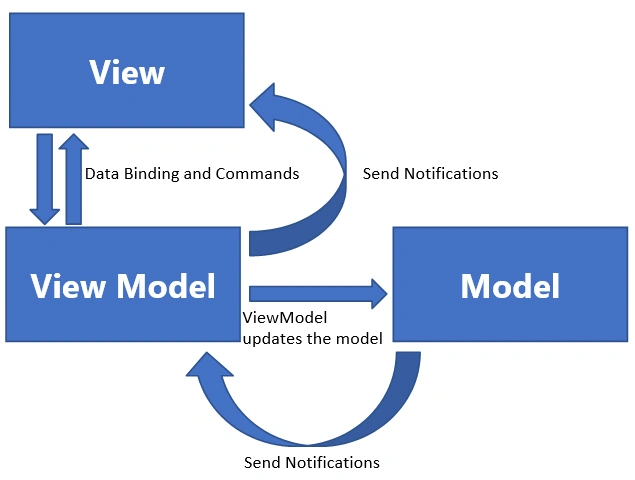
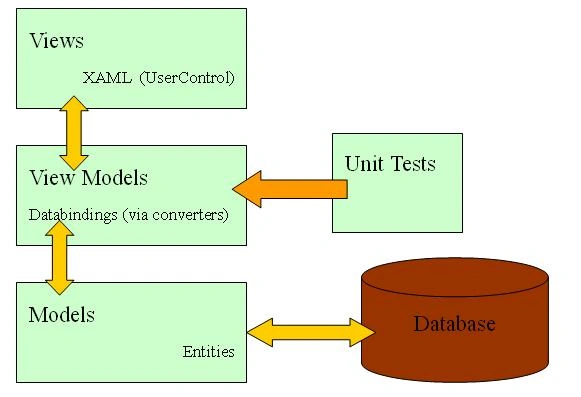
Conceptual Module
Note:
For the conceptual model above, someone argued that the MVVM model is a front end model, it should not directly talk to Database as the graph shown above. That is true, the MVVM model and the MVC model are all front end model for sure. MVC is a new replacement of the old ASP.NET web application, while MVVM is a new version of Windows Forms, and on the top of WPF. At this point, if we say the MVVM model is a data holder in this model, and it links to Data Source, provided such as by Web API or some other middle tier. I have modified the photo a little bit below to make the point clear:
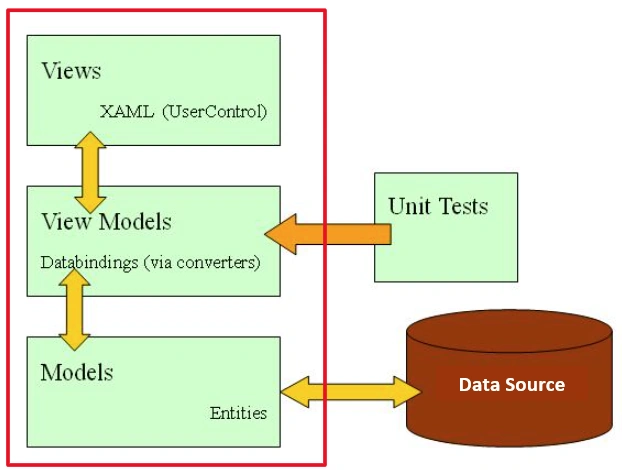
We will be based on the MVVM conceptual module to build out physical module.
C: Make a MVVM WPF Demo
From online, a lot of articles claim that they made a simplest sample of MVVM pattern, which suggests how difficult to make a simple model for MVVM. In this article, we want to introduce the concept of the MVVM, so we want the simplest model. Instead of making one, we use one from MVVM for Beginners (thanks to the author). With some explanations, we try to make the context clue very clear to demo the MVVM concept.
- Step 1: Create a View
- Step 2: Create a Model
- Step 3: Create a Binder
- Step 4: Create a DataContext
- Step 5: Create a ViewModel
- Step 6: Create a Synchronization
- Step 7: Create a Command
We use the current version of Visual Studio 2019 16.9.4 and NET Framework 4.8 to build the app:
- Start Visual Studio and select Create a new project.
- In the Create a new project dialog,
- on the left side panel select Windows,
- on the right Select WPF Application (.NET Framework)
- Named as SamplesMVVM > OK.
Step 1: Create a View
Open MainWidow.xaml and add replace the
<Grid> tag with:- <Grid>
- <Grid.ColumnDefinitions>
- <ColumnDefinition Width="150"/>
- <ColumnDefinition Width="5"/>
- <ColumnDefinition Width="*"/>
- </Grid.ColumnDefinitions>
- <DockPanel>
- <TextBlock Text="Added Names"
- DockPanel.Dock="Top" Margin="5,3"/>
- <ListBox></ListBox>
- </DockPanel>
- <GridSplitter Grid.Column="1"
- VerticalAlignment="Stretch" Width="5"
- Background="Gray" HorizontalAlignment="Left" />
- <Grid Grid.Column="2">
- <Grid.ColumnDefinitions>
- <ColumnDefinition Width="Auto"/>
- <ColumnDefinition Width="*"/>
- </Grid.ColumnDefinitions>
- <Grid.RowDefinitions>
- <RowDefinition Height="Auto"/>
- </Grid.RowDefinitions>
- <TextBlock Grid.Row="0" Text="Name" Margin="5,3"/>
- <TextBox Grid.Row="0" Grid.Column="1" Margin="5,3"/>
- <TextBlock Grid.Row="1" Text="Your name is:" Margin="5,3"/>
- <TextBlock Grid.Row="1" Grid.Column="1" Margin="5,3"/>
- <Button Grid.Row="2" Grid.ColumnSpan="2" HorizontalAlignment="Left"
- Content="Add Me" Margin="5,3" MinWidth="75" />
- </Grid>
- </Grid>
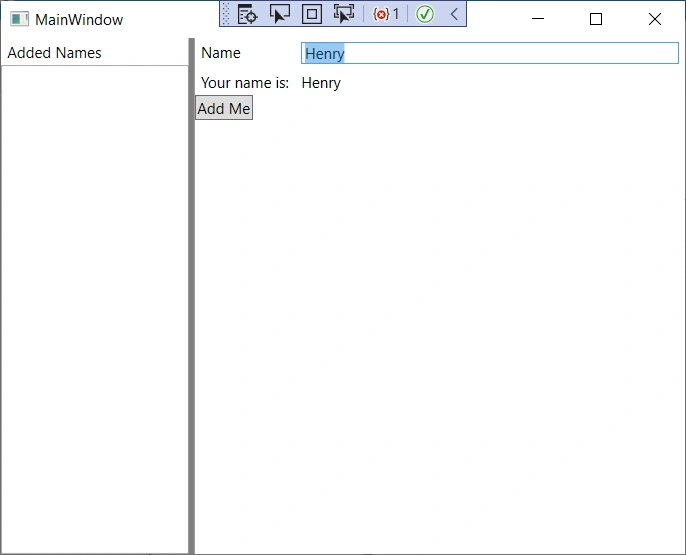
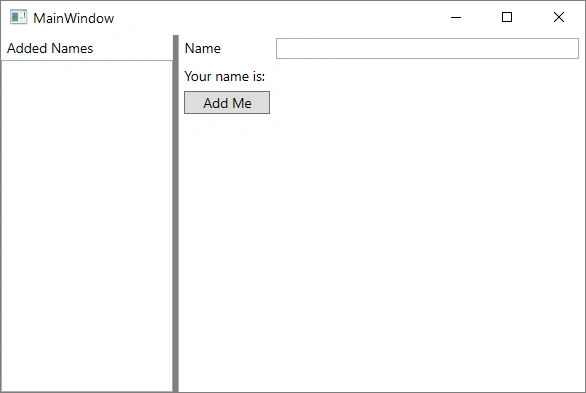
Run the app (F5), you should see the following,

When one clicks the button or edits the text box, nothing happens! Let's fix that in the following steps.
C-1: Make a Separation between Model and View
Step 2: Create a Model
Right Click project > Add > Class, Choose Class Name as Model.cs
- public class Model
- {
- public string CurrentName { get; set; }
- public ObservableCollection<string> AddedNames { get; } = new ObservableCollection<string>();
- }
Step 3: Create a Binder
We modify MainWidow.xaml file to bind the list box, TextBox and BlockBox to the Model Data:
- <Grid>
- <Grid.ColumnDefinitions>
- <ColumnDefinition Width="150"/>
- <ColumnDefinition Width="5"/>
- <ColumnDefinition Width="*"/>
- </Grid.ColumnDefinitions>
- <DockPanel>
- <TextBlock Text="Added Names" DockPanel.Dock="Top" Margin="5,3"/>
- <!--<ListBox></ListBox>-->
- <ListBox ItemsSource="{Binding AddedNames}"></ListBox>
- </DockPanel>
- <GridSplitter Grid.Column="1"
- VerticalAlignment="Stretch" Width="5"
- Background="Gray" HorizontalAlignment="Left" />
- <Grid Grid.Column="2">
- <Grid.ColumnDefinitions>
- <ColumnDefinition Width="Auto"/>
- <ColumnDefinition Width="*"/>
- </Grid.ColumnDefinitions>
- <Grid.RowDefinitions>
- <RowDefinition Height="Auto"/>
- </Grid.RowDefinitions>
- <!--<TextBlock Grid.Row="0" Text="Name" Margin="5,3"/>
- <TextBox Grid.Row="0" Grid.Column="1" Margin="5,3"/>
- <TextBlock Grid.Row="1" Text="Your name is:" Margin="5,3"/>
- <TextBlock Grid.Row="1" Grid.Column="1" Margin="5,3"/>-->
- <TextBlock Grid.Row="0" Text="Name" Margin="5,3"/>
- <TextBox Grid.Row="0" Grid.Column="1"
- Text="{Binding CurrentName,
- UpdateSourceTrigger=PropertyChanged}" Margin="5,3"/>
- <TextBlock Grid.Row="1" Text="Your name is:" Margin="5,3"/>
- <TextBlock Grid.Row="1" Grid.Column="1"
- Text="{Binding CurrentName}" Margin="5,3"/>
- <Button Grid.Row="2" Grid.ColumnSpan="2" HorizontalAlignment="Left"
- Content="Add Me" Margin="5,3" MinWidth="75" />
- </Grid>
- </Grid>
Step 4: Create a DataContext
MainWindow constructor, it will be available to all controls. - public partial class MainWindow : Window
- {
- public MainWindow()
- {
- InitializeComponent();
- this.DataContext = new Model();
- //this.DataContext = new ViewModel(new Model());
- }
- }

Let us fix it by making a middle operational tier, ViewModel:
Step 5: Create a ViewModel
- public class ViewModel
- {
- private Model _model;
- public ViewModel(Model model)
- {
- _model = model;
- }
- public string CurrentName
- {
- get { return _model.CurrentName; }
- set
- {
- if (value == _model.CurrentName)
- return;
- _model.CurrentName = value;
- }
- }
- public ObservableCollection<string> AddedNames
- {
- get { return _model.AddedNames; }
- }
- }
Step 4-1: Modify DataContext to ViewModel
- public partial class MainWindow : Window
- {
- public MainWindow()
- {
- InitializeComponent();
- //this.DataContext = new Model();
- this.DataContext = new ViewModel(new Model());
- }
- }
Now, the result will the same as previously, however, the concept is totally different that we introduce a middle tier ViewModel, and Model and View are separated.
C-2: Make Synchronization between ViewModel and View
From Step 1, we have successfully separated View and Model to each other. At the same time, when we run the app, we found out the input name synchronously appears on the BlockBox below the Text Input Box. However, this synchronous action might not happen for all controls on the View, for example, the Add Me button is not affected. We need to implement the INotifyPropertyChanged or/and INotifyCollectionChanged interfaces to make them happen.
Note
For more info or test case, please see Explain INotifyPropertyChanged In WPF - MVVM --- c-sharpcorner.
Step 6: Make a Synchronization
Let ViewModel derived from INotifyPropertyChanged interface to enforce the notification to the View when ViewModel has any changes.
- public class ViewModel : INotifyPropertyChanged
- {
- private Model _model;
- public ViewModel(Model model)
- {
- _model = model;
- }
- public string CurrentName
- {
- get { return _model.CurrentName; }
- set
- {
- if (value == _model.CurrentName)
- return;
- _model.CurrentName = value;
- OnPropertyChanged();
- }
- }
- public ObservableCollection<string> AddedNames
- {
- get { return _model.AddedNames; }
- }
- public event PropertyChangedEventHandler PropertyChanged;
- void OnPropertyChanged([CallerMemberName] string propertyName = null)
- {
- PropertyChanged?.Invoke(this, new PropertyChangedEventArgs(propertyName));
- }
- }
Step 7: Make a Command:
Button and other actionable items (such as MenuItem) work through an interface named ICommand. One glaring omission of WPF is that it doesn't provide an out of the box, simple, model friendly ICommand implementation. One could refer here to the seminal RelayCommand by Josh Smith... but since it's a very simple interface and I don't want to use any third party, we are just going to implement it inline.... Add this to the Model class: - public ViewModel(Model model)
- {
- AddCommand = new AddNameCommand(this);
- }
- class AddNameCommand : ICommand
- {
- ViewModel parent;
- public AddNameCommand(ViewModel parent)
- {
- this.parent = parent;
- parent.PropertyChanged += delegate { CanExecuteChanged?.Invoke(this, EventArgs.Empty); };
- }
- public event EventHandler CanExecuteChanged;
- public bool CanExecute(object parameter) { return !string.IsNullOrEmpty(parent.CurrentName); }
- public void Execute(object parameter)
- {
- parent.AddedNames.Add(parent.CurrentName); ;
- parent.CurrentName = null;
- }
- }
- public ICommand AddCommand { get; private set; }
The final code for ViewModel will be like this
- using System;
- using System.Collections.ObjectModel;
- using System.ComponentModel;
- using System.Runtime.CompilerServices;
- using System.Windows.Input;
- namespace SimplestMVVM
- {
- public class ViewModel : INotifyPropertyChanged
- {
- private Model _model;
- public ViewModel(Model model)
- {
- AddCommand = new AddNameCommand(this);
- _model = model;
- }
- public string CurrentName
- {
- get { return _model.CurrentName; }
- set
- {
- if (value == _model.CurrentName)
- return;
- _model.CurrentName = value;
- OnPropertyChanged();
- }
- }
- public ObservableCollection<string> AddedNames
- {
- get { return _model.AddedNames; }
- }
- public event PropertyChangedEventHandler PropertyChanged;
- void OnPropertyChanged([CallerMemberName] string propertyName = null)
- {
- PropertyChanged?.Invoke(this, new PropertyChangedEventArgs(propertyName));
- }
- class AddNameCommand : ICommand
- {
- ViewModel parent;
- public AddNameCommand(ViewModel parent)
- {
- this.parent = parent;
- parent.PropertyChanged += delegate { CanExecuteChanged?.Invoke(this, EventArgs.Empty); };
- }
- public event EventHandler CanExecuteChanged;
- public bool CanExecute(object parameter) { return !string.IsNullOrEmpty(parent.CurrentName); }
- public void Execute(object parameter)
- {
- parent.AddedNames.Add(parent.CurrentName); ;
- parent.CurrentName = null;
- }
- }
- public ICommand AddCommand { get; private set; }
- }
- }
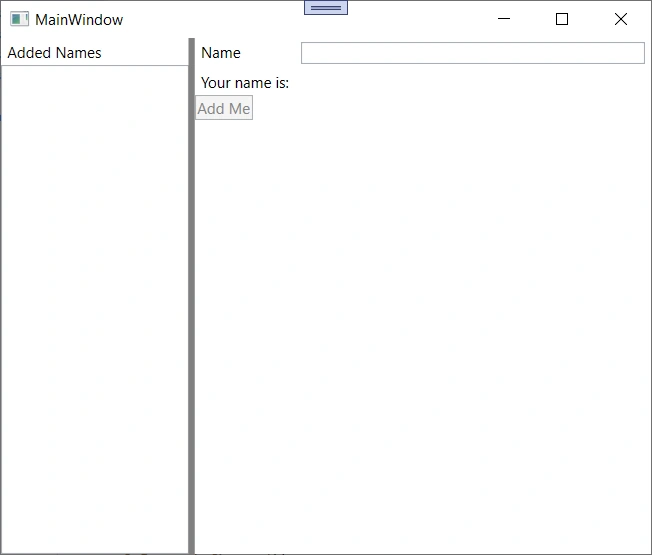
Run the app: when with no name typed in, the Add Me button is gray out,

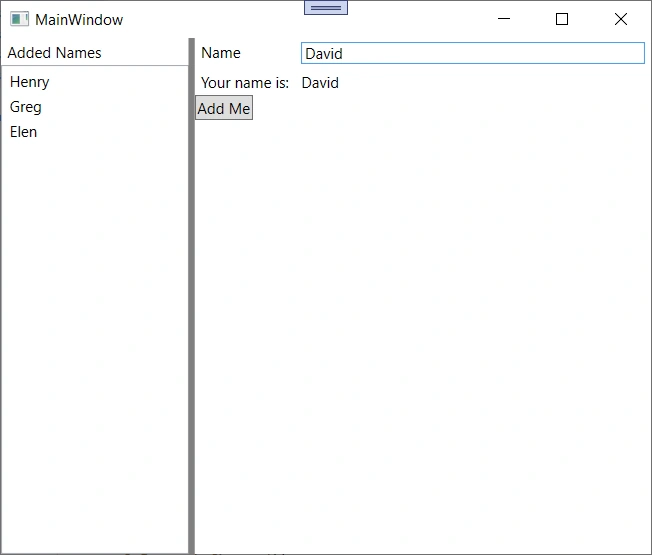
while when a name typed in, the Add Me button is on, Click the button, the item will be added into the List Box on the left panel:

D: What is MVVM again
Accordingly, the physical module we built, we do not agree the following concept module of MVVM:
Out modifications are,
- ViewModel and Model are always synchronized;
- Notification to client (View) happens only in the middle tier, ViewModel, instead of in Model.

Summary
This article discussed MVVM design pattern,
Three Components of MVVM:
- Model: What --- Data
- View: What Look like --- Format (with data)
- ViewModel: How --- operation through Data Binding
One Operation of MVVM with Two Features:
- Data Binding: Between View and ViewModel with two features:
- Synchronization: View and ViewModel (ViewModel and Model are always synchronized)
- Command: Calling back from View to ViewModel
Reference
Bind and trigger the binding,
- How to: Create a Simple Binding --- MS
- Data binding overview (WPF .NET) --- MS
- Binding.UpdateSourceTrigger Property --- MS
- UpdateSourceTrigger Enum --- MS
INotifyPropertyChanged or INotifyCollectionChanged Interfaces, and samples:
- INotifyPropertyChanged Interface --- MS
- Explain INotifyPropertyChanged In WPF - MVVM --- c-sharpcorner
The samples for implementations of MVVM:
- MVVM for Beginners --- codeproject, Simplest Demo
- Simple MVVM Pattern in WPF --- c-sharpcorner
- Getting started with Model-View-ViewModel (MVVM) pattern using Windows Presentation Framework (WPF) --- IntelliTect.
- The World's Simplest C# WPF MVVM Example --- markwithall
- A Practical Quick-start Tutorial on MVVM in WPF --- codeproject
- MVVM - Demo --- codeproject


Mariusz PostolPosted Jul 1, 2024, 8:11 PM
I am confused about how the comments work, but my first comments are dated June 10, 2024 - a few weeks ago. You mentioned that you are going to introduce some modifications. Before submitting try to check out my article - it is not published on CSharpCorner jet (only submitted) but a similar one is available in the GitHub repository at <https://github.com/mpostol/TP/blob/ExDMUdemy/ExDataManagement/GraphicalData/README.MVVM.md#mvvm-program-design-pattern->. It will be subject to change because I am still working on the GUI subject.
Mariusz PostolPosted Jul 1, 2024, 8:00 PM
@George Thanks for your responses. You did ask me for advice. My advice is that "Programming in Practice - GUI - MVVM Program Design Pattern" - my new article submitted, not yet published.
Mariusz PostolPosted Jul 1, 2024, 1:46 PM
What is the "formal physical pattern" you mentioned?
Mariusz PostolPosted Jun 10, 2024, 7:39 PM
If you are talking about the program architecture are you talking about design time or run-time alternatively? The same relates to communication is it design time or run-time activity? We must distinguish both although closely related, namely, the program describes behavior.
Mariusz PostolPosted Jun 10, 2024, 7:35 PM
You have connected the Model Layer to the Database in the conceptual model. You also mentioned that MVVM is part of WPF - Windows Presentation Foundation - as the name says the presentation layer. What about Data and Logic (Business Logic or Service ) layers? It looks like inconsistency. My point is that the MVVM model is three sublayers of the presentation layer and must not be used to gain access to a database.