Introduction
When developing solutions in Microsoft Dataverse, there are situations where we need to export a solution from a Power Platform environment and extract its components into individual files.
This becomes particularly useful when solution components need to be maintained in a source-control repository.
Microsoft Power Platform CLI provides the pac solution command group for working with Dataverse solution projects. Two commands we will focus on are:
pac solution export
and
pac solution unpack
Microsoft documents pac solution export as exporting a solution from Dataverse, while pac solution unpack extracts solution components from a solution ZIP onto the local file system.
In this article, we will walk through the process step by step with a practical example.
Prerequisites
Before continuing, make sure you have:
Verify PAC CLI:
pac
Example Scenario
For this example, assume that our Development environment contains a solution:
ContosoCore
We want to:
Connect PAC CLI to our Development environment.
Find the solution.
Export the solution.
Save the solution ZIP locally.
Unpack the solution.
Inspect the extracted source files.
Replace the example environment and solution names with your actual values.
Step 1: Check the Current Authentication Profile
Before working with a solution, check the current PAC CLI authentication context.
Run:
pac auth list

If you maintain multiple profiles for DEV, TEST, and UAT, select the appropriate Development profile before exporting the solution.
For example:
pac auth select --index 3

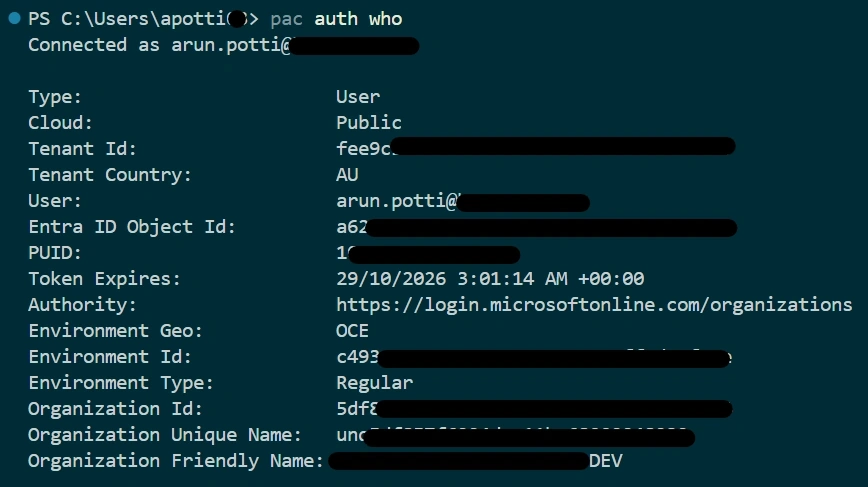
Then verify your connection:
pac auth who
Step 2: List Dataverse Solutions
Once connected to the correct environment, let's see which solutions are available.
Run:
pac solution list
Microsoft defines pac solution list as listing all solutions from the current Dataverse organization.

Look for the solution you want to export.
For our example:
ContosoCore

Step 3: Understand pac solution export
Using the below command, we can download the Unmanaged Dataverse solution.
Run:
pac solution export --name "ContosoCore"
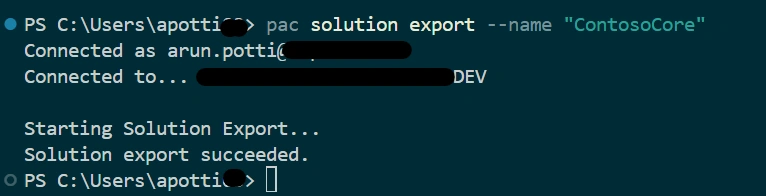
Solution will be exported as ConstosoCore.zip to the C:\Users\apotti folder.
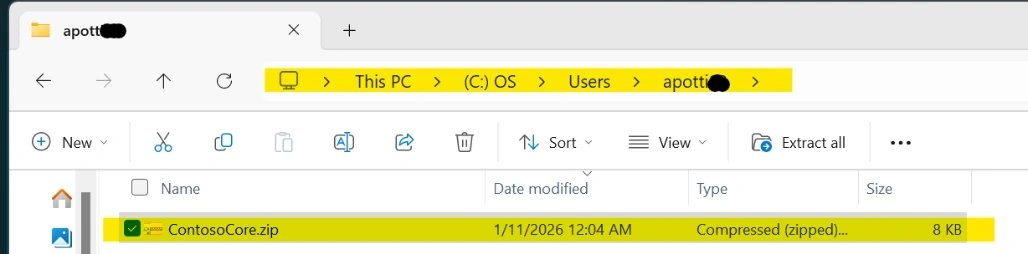
Note: You can create your own folder structure to download the Solution, instead of using default path.
Step 4: Understand pac solution unpack
The purpose of unpacking the Dataverse solution is to decompose the solution into files that can be worked with locally.
Microsoft explains that the underlying SolutionPackager capability can reversibly decompose a compressed Dataverse solution file into XML and other files, which can then be managed using source control.
Step 5: Unpack the Solution
Use:
pac solution unpack --zipfile "ContosoCore.zip" --folder "c:\Solution\"
Note: Downloaded Unmanaged file is in C:\Users\apotti folder and unpacked the solution to C:\Solution folder.
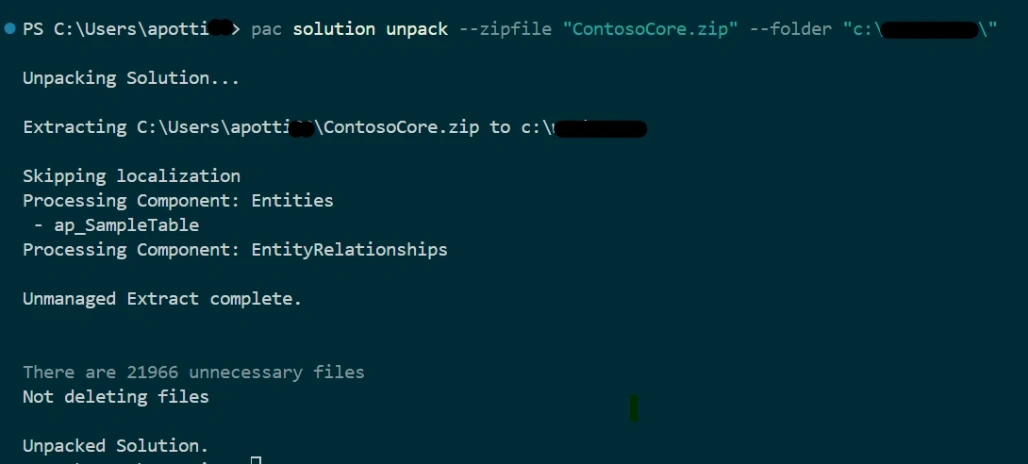
Solution unpacked successfully.

You can now inspect the solution artifacts created by the unpack process.
This is the key difference between keeping only a solution ZIP and unpacking the solution for development/source-control purposes.
Conclusion
In this article, we explored how Microsoft Power Platform CLI can be used to take a Dataverse solution from an environment and prepare its components for local development and source control.


Join the conversation! Your thoughts help the community grow.