

This article shows how to bind and perform edit, update, and delete operations on a Datalist Control in 3 tiers in ASP.NET using C#.
Initial chamber
Step 1. Open Visual Studio 2010 and create an Empty Website, giving it a suitable name (DataList_demo).
Step 2. In Solution Explorer, you will get your empty website. Add a web form, SQL Database, and 3 class files as in the following.
For web form
DataList_demo (your empty website), right-click and Add New Item, Web Form. Name it datalist_demo.aspx.
For SQL Server Database
DataList_demo (your empty website), right-click and Add New Item, SQL Server Database (Add the database inside the App_Data_folder).
For 3 Class Files
DataList_demo (your empty website), right-click and Add New Item, Class (add 3 class files, add your class file in the App_code folder), they provide the names as:
- Common functions.cs
- BAL_user_operation.cs
- DAL_user_operation.cs
Database chamber
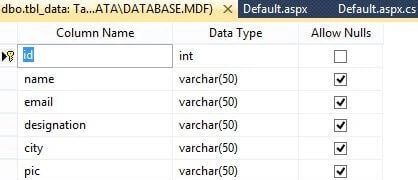
Step 3. In Server Explorer, click on your database (Database.mdf), Tables, and Add New Table. Make the table as in the following:
- Table, tbl_data (Don't Forget to make ID as IS Identity -- True).
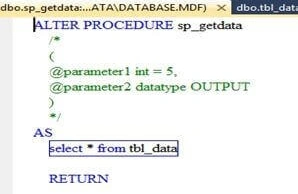
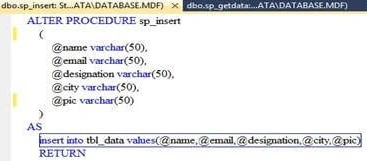
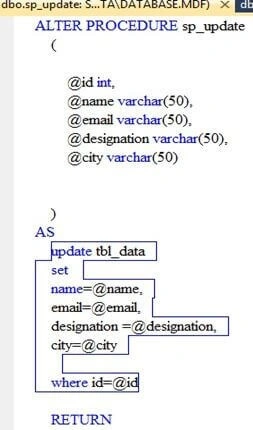
- Add a Stored Procedure to edit, update, insert, and delete data by going to the database (Database.mdf), Store Procedures, and right-click, then add some new Stored Procedures as in the following.
- sp_getdata()
- sp_insert()
- sp_update()
- sp_delete()
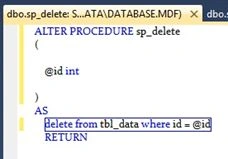
- These are all the Stored Procedures that we will use for updating, deleting, and editing our data in the DataList.
Design code
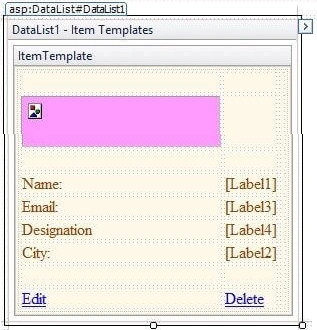
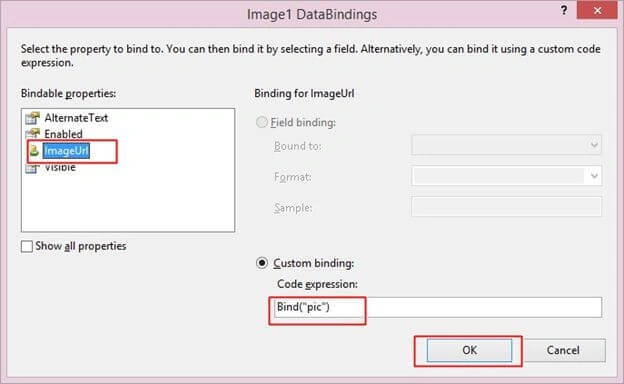
Step 4. It's time for the serious design in the DataList. Let's begin by opening your Datalist.aspx page and try the code as in the following.
<%@ Page Language="C#" AutoEventWireup="true" CodeFile="Default.aspx.cs" Inherits="_Default" %>

<!DOCTYPE html PUBLIC "-//W3C//DTD XHTML 1.0 Transitional//EN" "http://www.w3.org/TR/xhtml1/DTD/xhtml1-transitional.dtd">
<html xmlns="http://www.w3.org/1999/xhtml">
<head runat="server">
    <title></title>
    <style type="text/css">
        .style1
        {
            width: 75px;
        }
        .style3
        {
            width: 82px;
        }
        .style4
        {
            width: 234px;
        }
        .style5
        {
            width: 19px;
        }
        .style6
        {
            text-decoration: underline;
            font-size: large;
            color: #3333CC;
        }
    </style>
</head>
<body>
    <form id="form1" runat="server">
    <div>
    </div>
    <table style="width:100%;">
        <caption class="style6">
            <strong>DataList Control in Asp.Net</strong></caption>
        <tr>
            <td>
                 </td>
            <td>
                 </td>
            <td>
                 </td>
        </tr>
        <tr>
            <td>
                 </td>
            <td>
                 </td>
            <td>
                 </td>
        </tr>
        <tr>
            <td>
                 </td>
            <td>
    <asp:DataList ID="DataList1" runat="server" BackColor="#DEBA84"
        BorderColor="#DEBA84" BorderStyle="None" BorderWidth="1px" CellPadding="3"
        CellSpacing="2" DataKeyField="id" GridLines="Both"
        oncancelcommand="DataList1_CancelCommand"
        ondeletecommand="DataList1_DeleteCommand" oneditcommand="DataList1_EditCommand"
        onupdatecommand="DataList1_UpdateCommand" RepeatDirection="Horizontal">
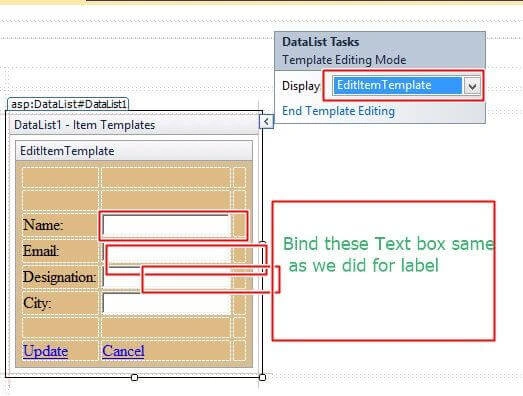
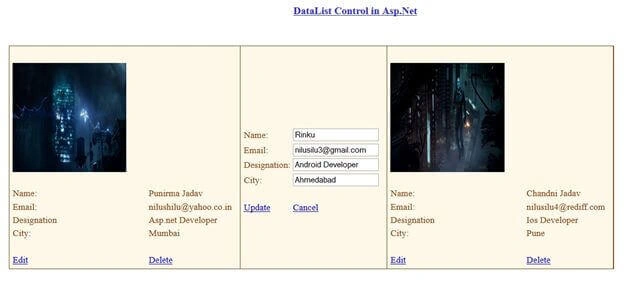
        <EditItemTemplate>
            <table style="width:100%;">
                <tr>
                    <td class="style1">
                          </td>
                    <td class="style3">
                          </td>
                    <td>
                          </td>
                </tr>
                <tr>
                    <td class="style1">
                          </td>
                    <td class="style3">
                          </td>
                    <td>
                          </td>
                </tr>
                <tr>
                    <td class="style1">
                        Name:</td>
                    <td class="style3">
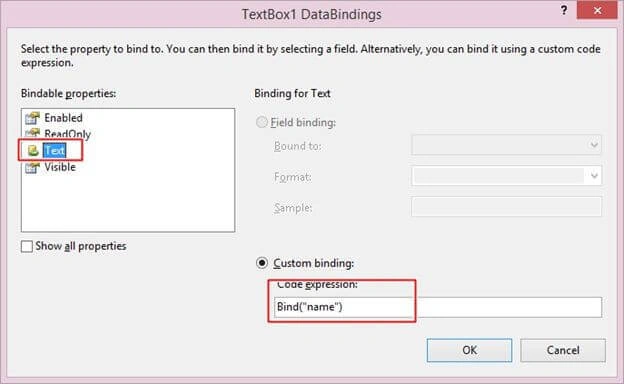
                        <asp:TextBox ID="TextBox1" runat="server" Text='<%# Bind("name") %>'></asp:TextBox>
                    </td>
                    <td>
                          </td>
                </tr>
                <tr>
                    <td class="style1">
                        Email:</td>
                    <td class="style3">
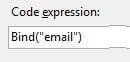
                        <asp:TextBox ID="TextBox3" runat="server" Text='<%# Bind("email") %>'></asp:TextBox>
                    </td>
                    <td>
                          </td>
                </tr>
                <tr>
                    <td class="style1">
                        Designation:</td>
                    <td class="style3">
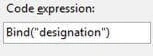
                        <asp:TextBox ID="TextBox4" runat="server" Text='<%# Bind("designation") %>'></asp:TextBox>
                    </td>
                    <td>
                          </td>
                </tr>
                <tr>
                    <td class="style1">
                        City:</td>
                    <td class="style3">
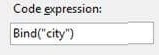
                        <asp:TextBox ID="TextBox2" runat="server" Text='<%# Bind("city") %>'></asp:TextBox>
                    </td>
                    <td>
                          </td>
                </tr>
                <tr>
                    <td class="style1">
                          </td>
                    <td class="style3">
                          </td>
                    <td>
                          </td>
                </tr>
                <tr>
                    <td class="style1">
                        <asp:LinkButton ID="LinkButton1" runat="server" CommandName="Update">Update</asp:LinkButton>
                    </td>
                    <td class="style3">
                        <asp:LinkButton ID="LinkButton2" runat="server" CommandName="Cancel">Cancel</asp:LinkButton>
                    </td>
                    <td>
                          </td>
                </tr>
            </table>
        </EditItemTemplate>
        <FooterStyle BackColor="#F7DFB5" ForeColor="#8C4510" />
        <HeaderStyle BackColor="#A55129" Font-Bold="True" ForeColor="White" />
        <ItemStyle BackColor="#FFF7E7" ForeColor="#8C4510" />
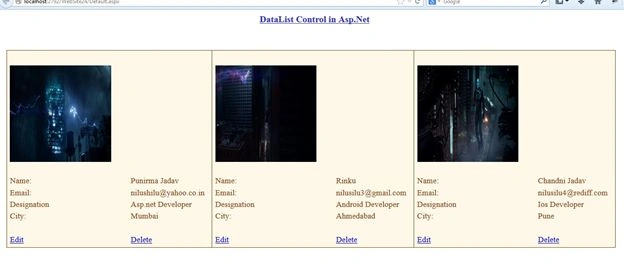
        <ItemTemplate>
            <table style="width:100%;">
                <tr>
                    <td class="style4">
                          </td>
                    <td class="style5">
                          </td>
                    <td>
                          </td>
                </tr>
                <tr>
                    <td class="style4">
                        <asp:Image ID="Image1" runat="server" BackColor="#FF99FF" BorderColor="#993399"
                            Height="191px" ImageAlign="AbsBottom" ImageUrl='<%# Bind("pic") %>'
                            Width="199px" />
                    </td>
                </tr>
                <tr>
                    <td class="style4">
                        Name:</td>
                    <td class="style5">
                        <asp:Label ID="Label1" runat="server" Text='<%# Bind("name") %>'></asp:Label>
                    </td>
                    <td>
                          </td>
                </tr>
                <tr>
                    <td class="style4">
                        Email:</td>
                    <td class="style5">
                        <asp:Label ID="Label3" runat="server" Text='<%# Bind("email") %>'></asp:Label>
                    </td>
                    <td>
                          </td>
                </tr>
                <tr>
                    <td class="style4">
                        Designation</td>
                    <td class="style5">
                        <asp:Label ID="Label4" runat="server" Text='<%# Bind("designation") %>'></asp:Label>
                    </td>
                    <td>
                          </td>
                </tr>
                <tr>
                    <td class="style4">
                        City:</td>
                    <td class="style5">
                        <asp:Label ID="Label2" runat="server" Text='<%# Bind("city") %>'></asp:Label>
                    </td>
                    <td>
                          </td>
                </tr>
                <tr>
                    <td class="style4">
                          </td>
                    <td class="style5">
                          </td>
                    <td>
                          </td>
                </tr>
                <tr>
                    <td class="style4">
                        <asp:LinkButton ID="LinkButton3" CommandName="Edit" runat="server">Edit</asp:LinkButton>
                    </td>
                    <td class="style5">
                        <asp:LinkButton ID="LinkButton4"  CommandName="Delete" runat="server">Delete</asp:LinkButton>
                    </td>
                    <td>
                          </td>
                </tr>
            </table>
        </ItemTemplate>
        <SelectedItemStyle BackColor="#738A9C" Font-Bold="True" ForeColor="White" />
    </asp:DataList>
            </td>

        </tr>
    </table>
    </form>
</body>
</html>
Arul RPosted Oct 28, 2015, 5:44 AM
Nice share!!!
Jaipal ReddyPosted Jun 19, 2015, 12:33 AM
Nice one Nilesh.
Abdul Momin Tasleem AnsariPosted Jun 11, 2015, 6:10 AM
Nice Post...
Amol SarkatePosted Jun 4, 2015, 2:11 PM
nice
NitinPosted Jun 3, 2015, 5:08 AM
nice
Saineshwar BageriPosted Jun 3, 2015, 2:12 AM
Going good
RakeshPosted Jun 3, 2015, 2:07 AM
Good explain Nilesh
Santhakumar MunuswamyPosted Jun 2, 2015, 3:01 PM
Thanks for nice one