

In our previous article, Configuring NAT on VPN Gateway, we covered the configuration on the Azure side (click here to read the article). In this article, we will focus on the AWS configuration. Once the Azure side is configured, no additional NAT configuration is required on the AWS side.
AWS Side Configuration
| VPC | 172.31.0.0/16 |
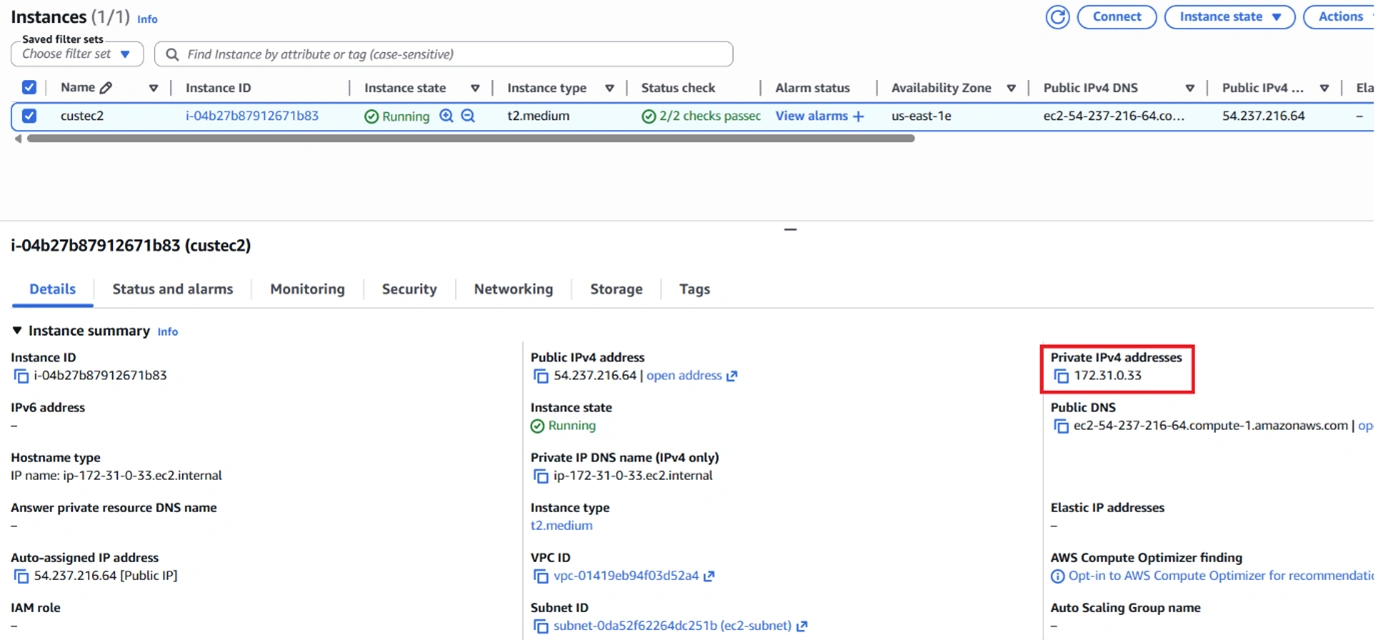
| EC2 | 172.31.0.33 |
| Virtual Private Gateways | 18.208.10.83 |
| Site-to-Site Connection | 192.168.0.0/16 |
| Route Tables | 192.168.0.0/16 |
| Security Groups | 192.168.0.0/16 |
Step 1: Create and Verify the VPC
Confirm that the AWS VPC is configured with the CIDR range 172.31.0.0/16 and that the EC2 instance is assigned the IP address 172.31.0.33.
The EC2 instance will communicate with Azure virtual machines using the translated address range 192.168.0.0/16, not Azure’s actual 10.0.0.0/16 range.
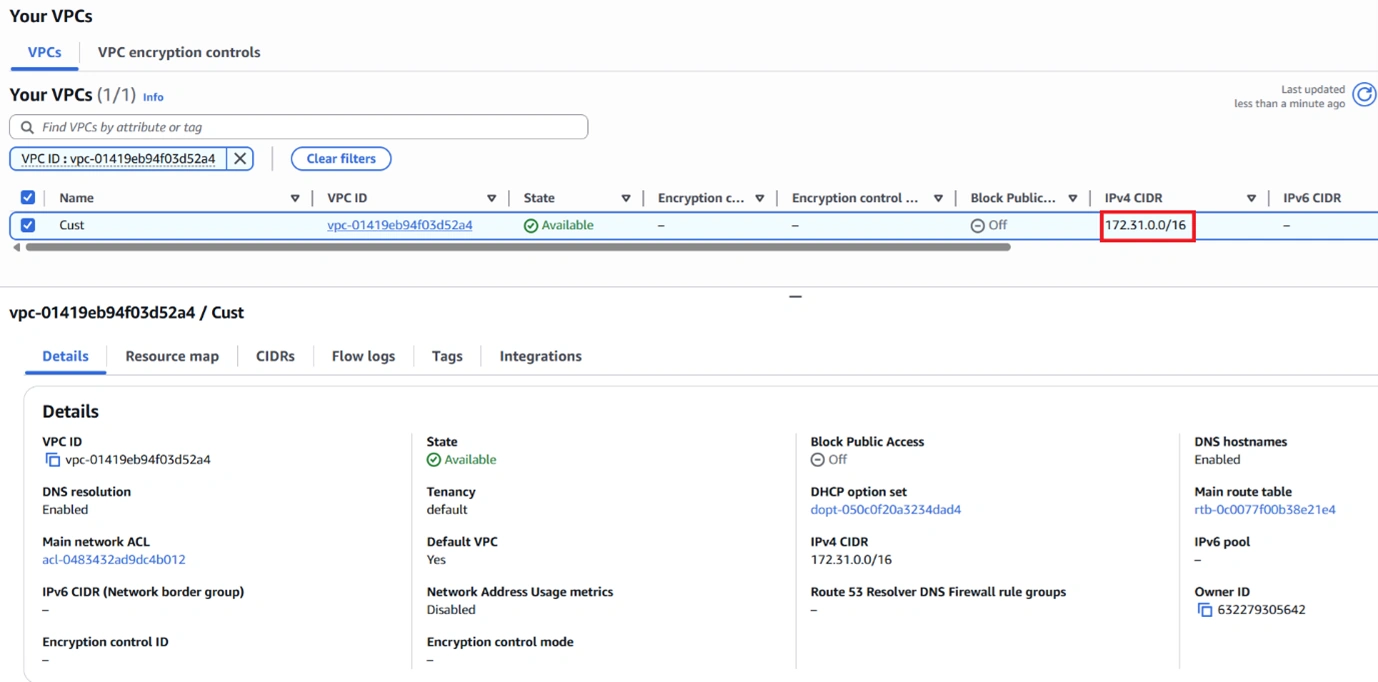
EC2 Verification
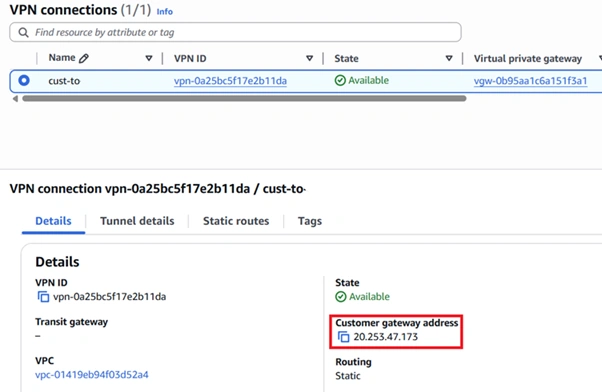
Step 2: Create the Customer Gateway
On the AWS side, create a Customer Gateway and configure it with the Azure VPN Gateway public IP address 20.253.47.173.
Set the routing type to Static, as this setup uses static routing.

Step 3: Create the Site-to-Site VPN Connection
Create a Site-to-Site VPN Connection between the AWS Virtual Private Gateway and the Customer Gateway. Configure the following:
Routing Type: Static
Destination CIDR (Remote Network): 192.168.0.0/16 (this is the NAT-translated Azure range, not 10.0.0.0/16)
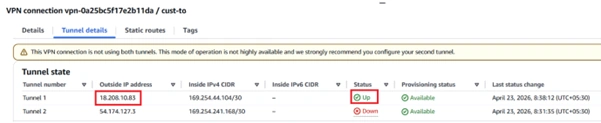
AWS will generate two tunnel endpoints (for redundancy). Note both public IP addresses—one will act as the active tunnel.
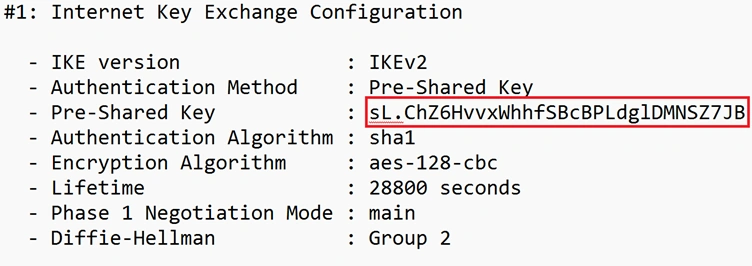
Step 4: Download and Verify the Pre-Shared Key (PSK)
Download the VPN configuration from AWS and verify the Pre-Shared Key (PSK). Ensure that the same PSK is configured on the Azure VPN Gateway for successful tunnel establishment.
Step 5: Verify the Tunnel Status
Check the VPN connection status in AWS and confirm that at least one tunnel is UP. You can monitor tunnel health, data in/out, and status from the AWS console.
Step 6: Configure Static Routes
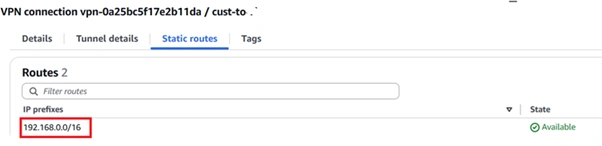
In the VPN Connection settings, add a static route for the Azure network:
Destination: 192.168.0.0/16
Target: Virtual Private Gateway (VGW)
This ensures that traffic destined for Azure is routed through the VPN tunnel.
Step 7: Update Security Groups
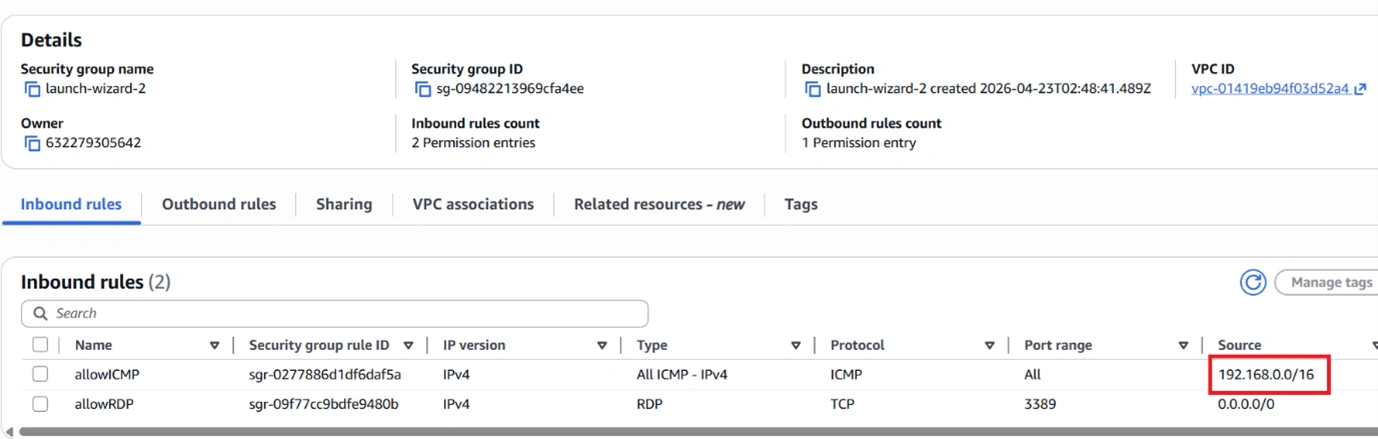
Update the EC2 instance’s Security Group to allow traffic from the Azure translated network:
Add an inbound rule to allow traffic from 192.168.0.0/16
Ensure outbound rules also allow traffic to 192.168.0.0/16
Without these rules, traffic will be blocked even if the VPN tunnel is active.
Verification: Azure VM Response
Ping/connectivity test from Azure VM → should reach AWS EC2 at 172.31.0.33
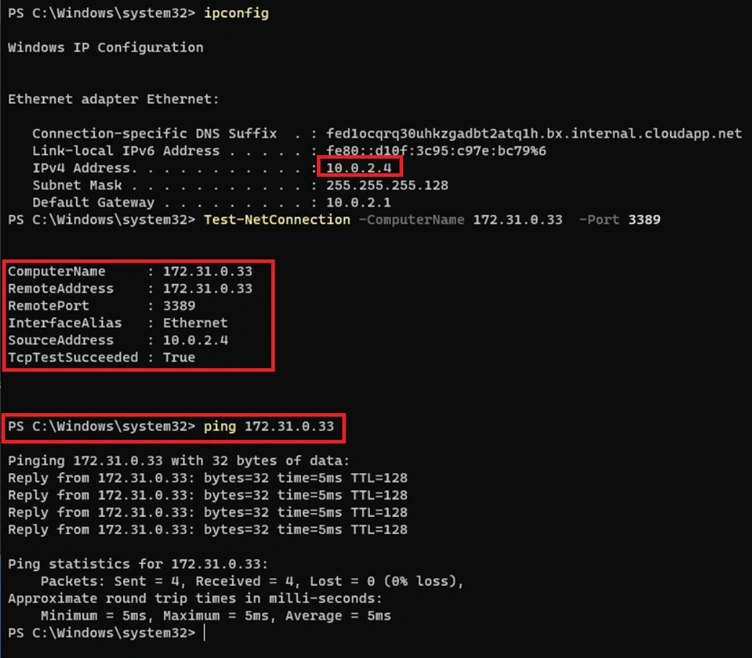
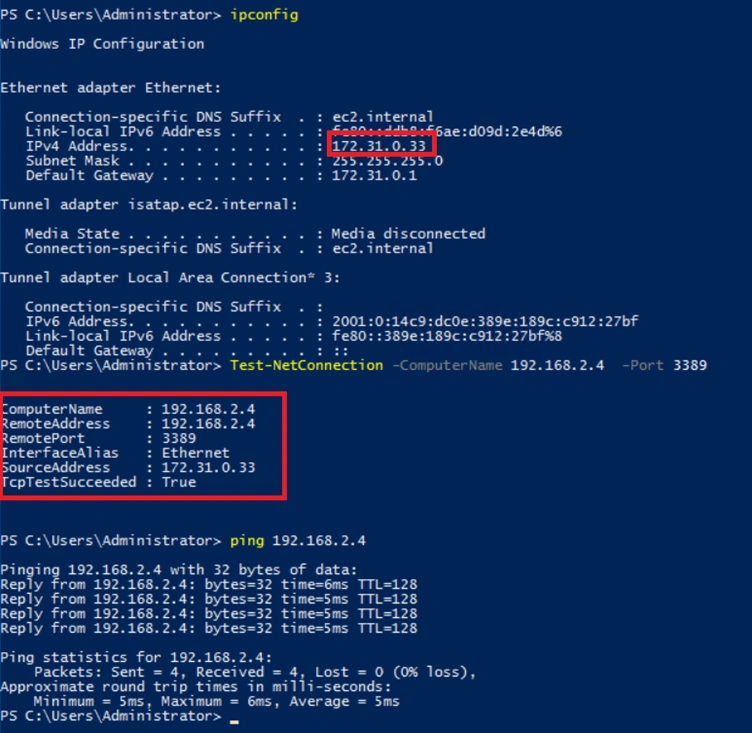
Verification: AWS VM Response
Ping / connectivity test from AWS EC2 → should reach Azure VM using 192.168.2.4 (the translated IP, not 10.0.2.4)
Summary
In this article, we cover the AWS VPN configuration. This is a continuation of the previous article and completes the end-to-end Azure-to-AWS VPN setup with the NAT solution. In the next article, we will focus on scenarios where AWS needs to hide the original IP address.
Join the conversation! Your thoughts help the community grow.