

Note: this article is published on 08/25/2024.
This series of articles will discuss SQL Server Reporting Services, including the related Services:
- SSRS (1) --- Server Setup: SSIS, SSAS, and SSRS
- SSRS (2) --- Client Setup: SSDT and Report Builder
- SSRS (3) --- Report Build and Deploy as a VS Project
- SSRS (4) --- SQL Server Database Project in Visual Studio--- this article
A - Introduction
The services discussed include:
- SSIS --- SQL Server Integration Services
- SSAS --- SQL Server Analysis Services
- SSRS --- SQL Server Reporting Services
- SSDT --- SQL Server Data Tools
This article actually is a Visual Studio Project, with the pre-condition to install the SSDT components for Visual Studio. Use SQL Server Database Project, we can save SQL Server objects, such as Stored Procedure and Function, into Source Control (Repository) easily. The content of this article:
- A - Introduction
- B - Create a SQL Server Database Project in Visual Studio
- C - Setup Database Connection
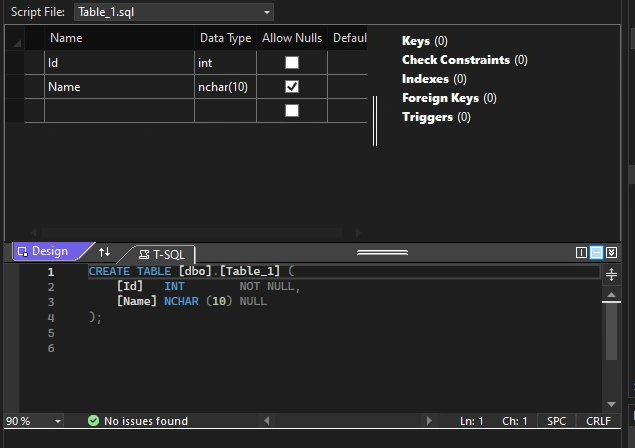
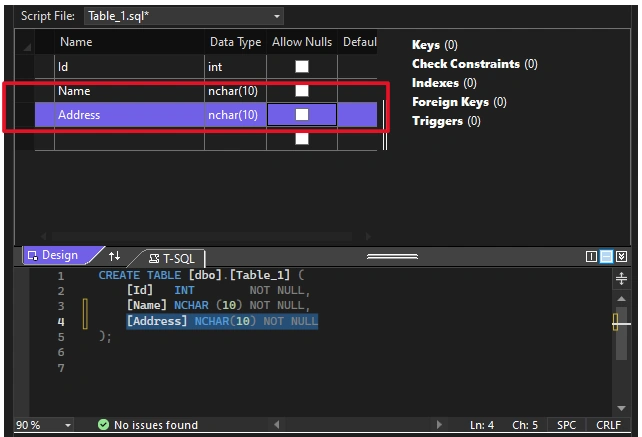
- D - Modify Database Schema in Project
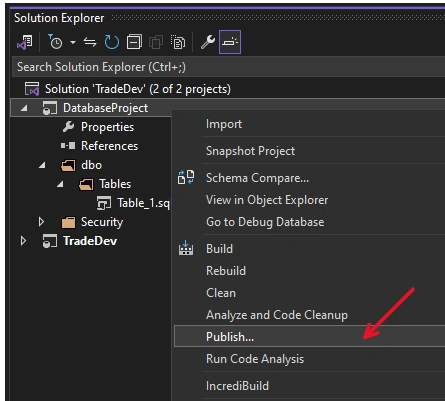
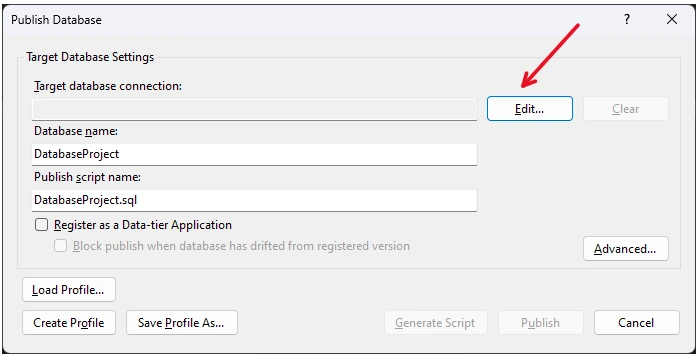
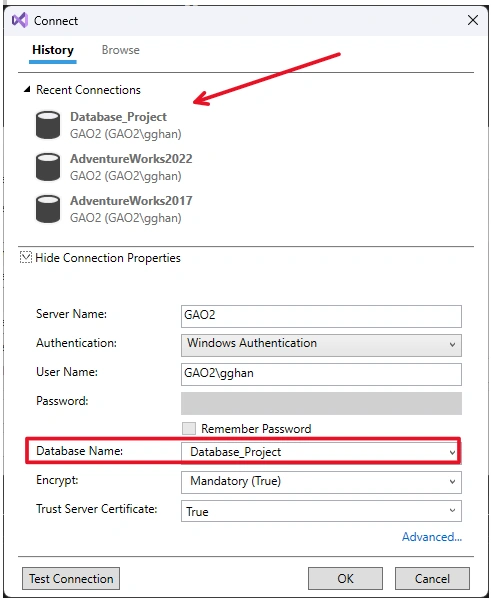
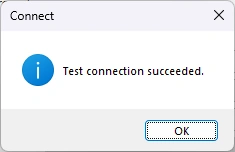
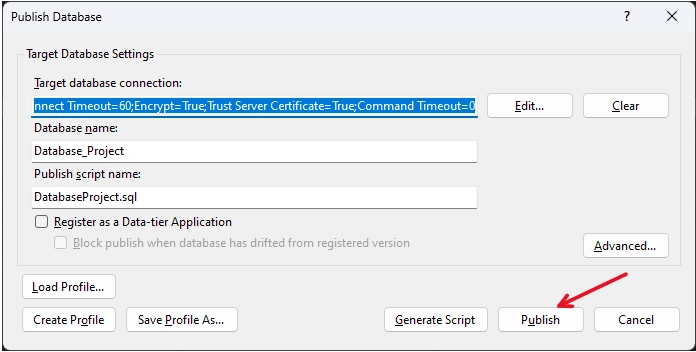
- E - Deploy the Change to Server
B - Create a SQL Server Database Project in Visual Studio
The pre-condition is to install the SSDT components in your Visual Studio installation process:

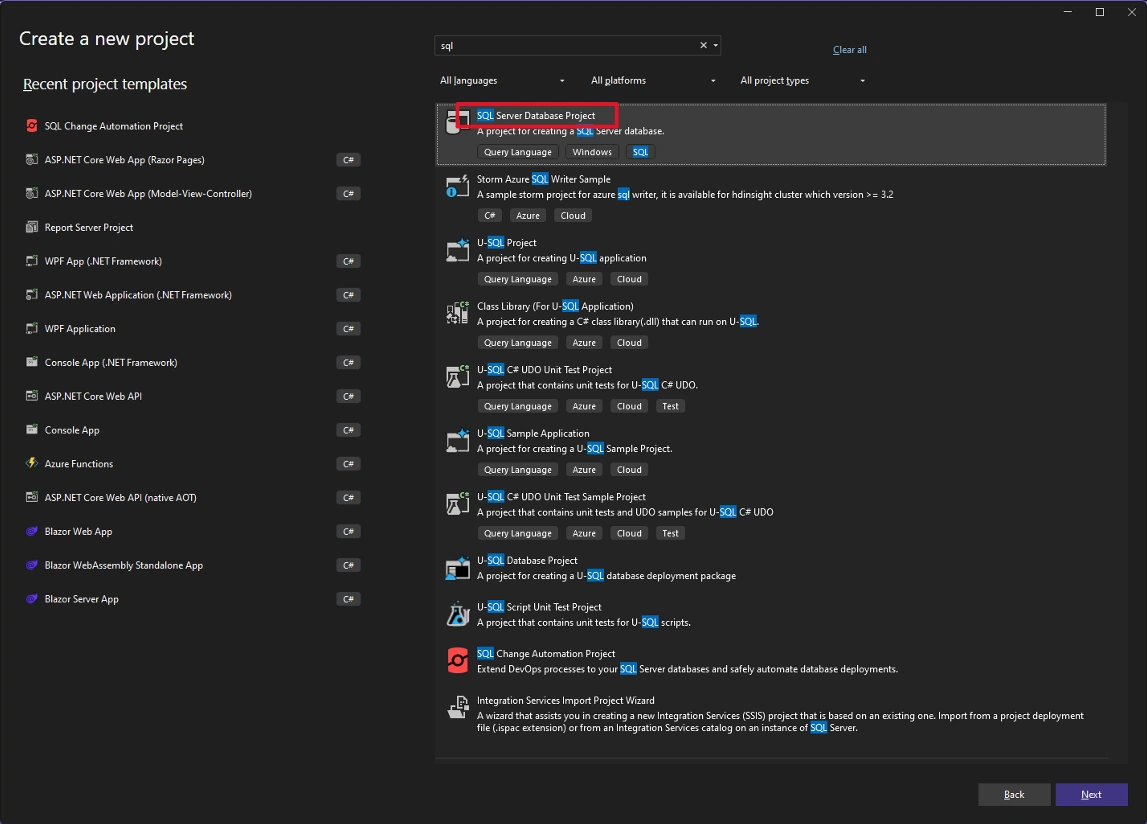
Create a SQL Server Database Project --- you may search for SQL Server....
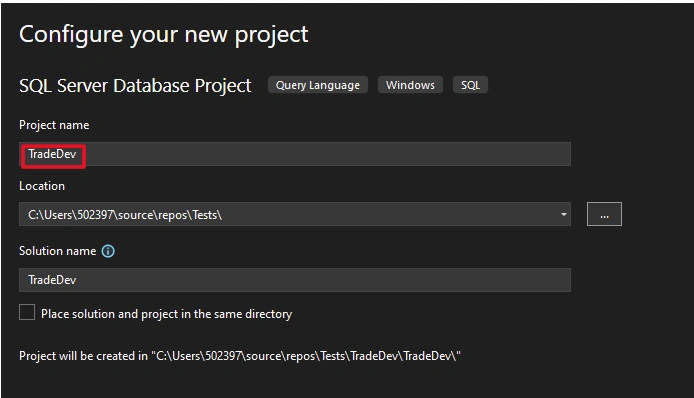
Name the Project as TradeDev:
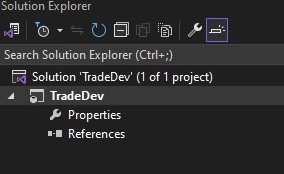
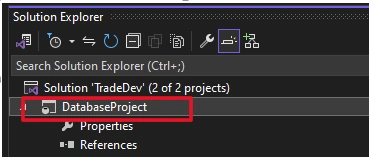
Project created:
C - Setup Database Connection
Right Click Project => Import => Database
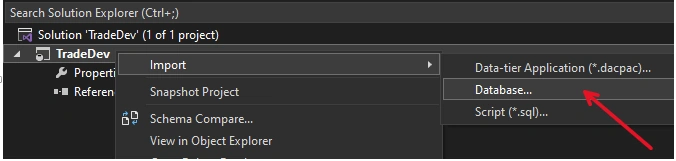
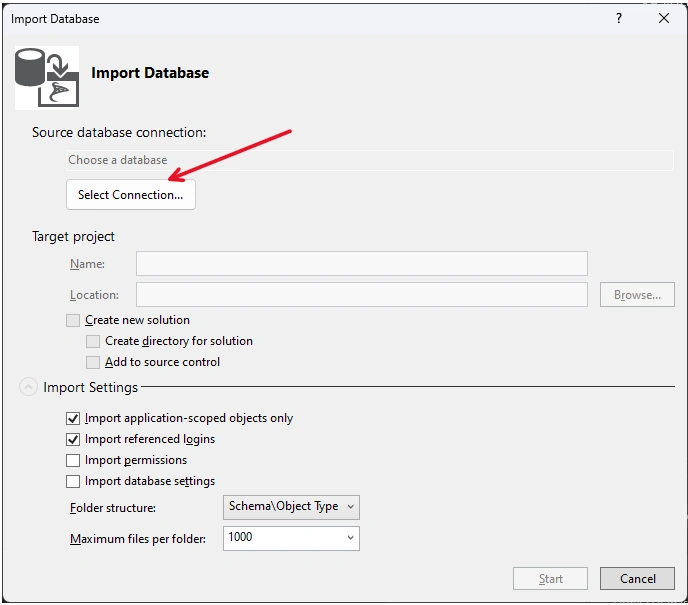
Open the Import Database window => Select Connection:
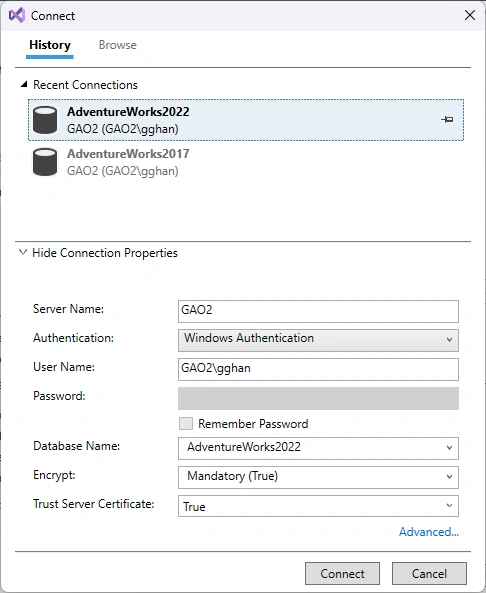
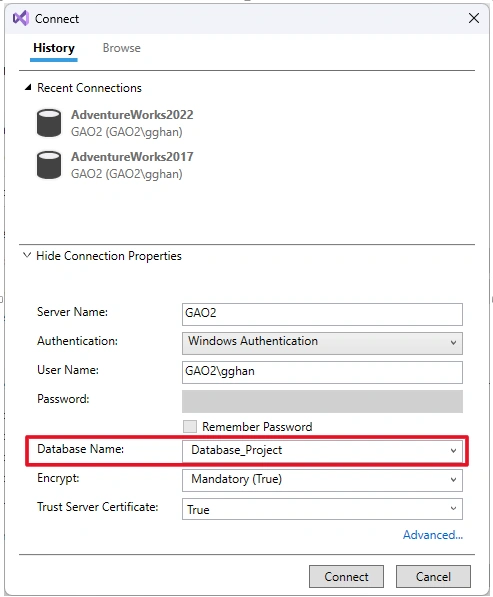
in the Connect page, you can either setup a new database connection or use the existing ones:
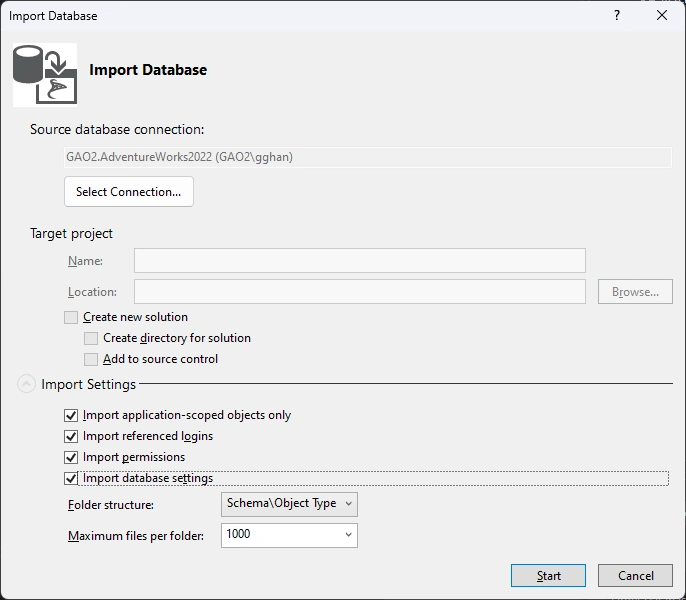
After setup the database connectioin, check all boxes => Start
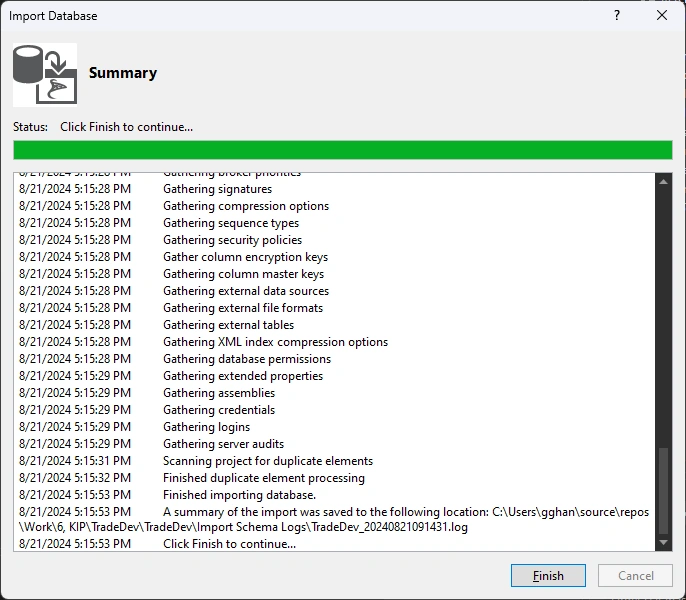
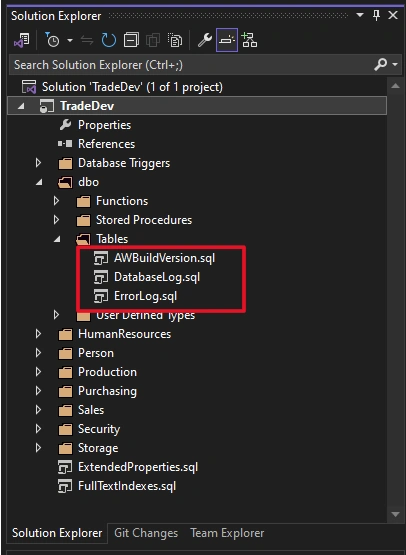
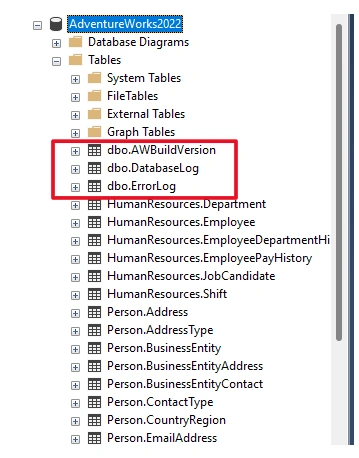
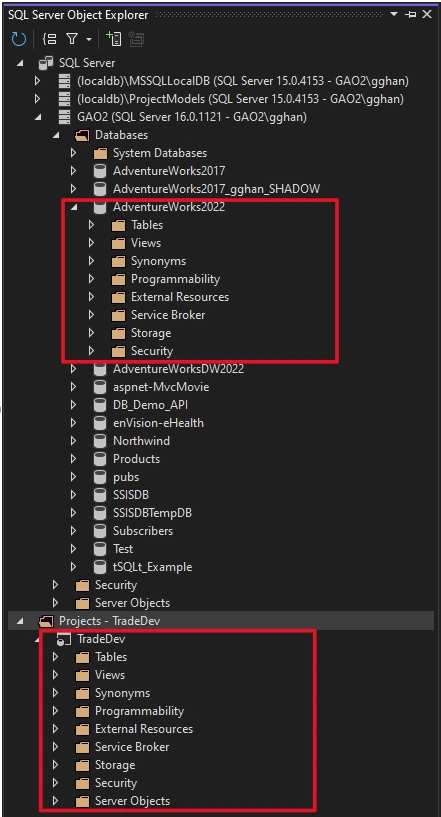
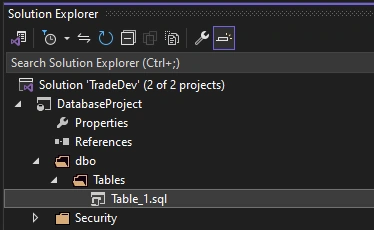
Import the database into the Project:
mbasitPosted Aug 25, 2024, 12:52 PM
You can generate the script of database in sql server 2014