

In this article, we will learn how to add an action button on the list items view using column formatting which will trigger an MS Flow based on some conditions. This article will cover the below use cases.
- Usage of column formatting to add an action button.
- Trigger MS flow from list item view's action button.
- MS flow to get user input before MS flow starts.
The first thing we will do is to setup MS Flow for our example. We won't go into details of how to create a Microsoft Flow as there are a lot of articles available to cover this topic. Some of them are mentioned below.
MS Flow Setup - Step 1
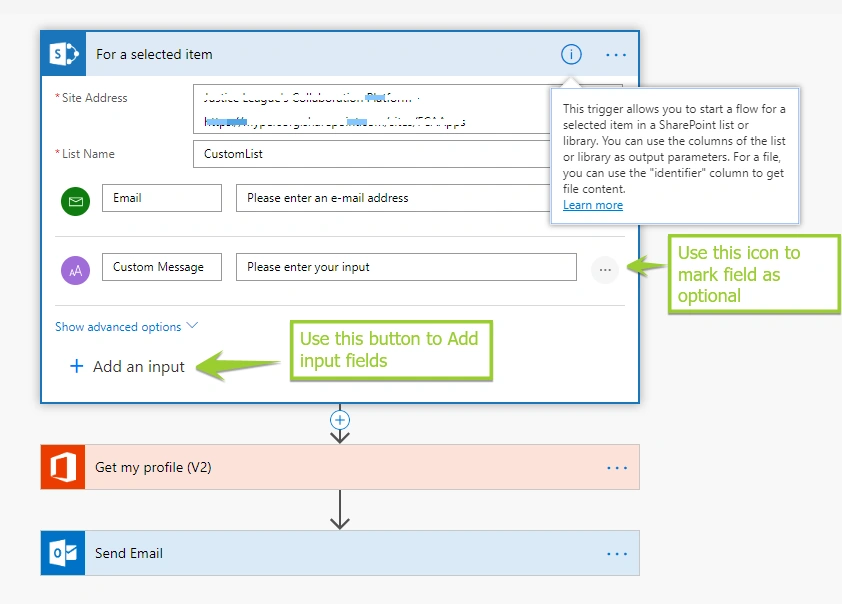
I have created an MS Flow with trigger point as 'For selected items'. Below is the configuration of the triggering point. We have added two optional input fields using the 'Add input' button as marked below in the screenshot.
MS Flow Setup - Step 2
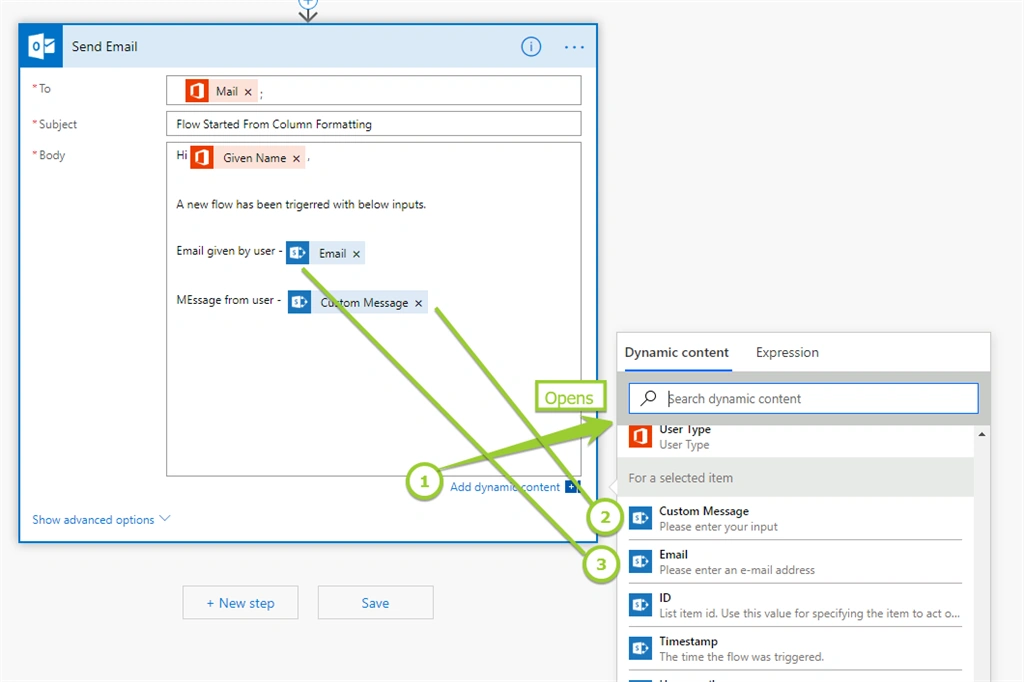
The next action item is to send mail, (you can ignore GetmyProfile action item from the above screenshot for this example). In this action Send Mail, we will send email to a particular user and add input forms entered by the user in the email body. Below is a screenshot for your reference.
MS Flow Setup - Step 3
Save MS Flow. The next item is to get the MS Flow ID which will be used later in the column formatting step. On the "Edit MS Flow" page, we will get MS Flow ID in URL. For example, for the above flow, below was the URL (obviously, changed GUIDs).
https://india.flow.microsoft.com/manage/environments/Default-5b9dueb0-1ek3-46psd-8da3-6ba895467b9/flows/2abcd334-z897-460a-92s8-461d43p97fd0
Text marked in red is your MS flow id. Note it down.
Now, let us set up our list to be used for this example.
Setup List - Step 1
- Create a List named 'CustomList'
- Add Status column as a choice with 'Pending', 'In progress' and 'Completed'
- Add StartFlow column as a calcuated column with formula ="". Here, we are setting up a dummy column as we will be using other fields to populate values in this field.
Setup List - Step 2
Next, we will use column formatting options to format our StartFlow column. Edit column again and paste the below JSON value in column formatting options.
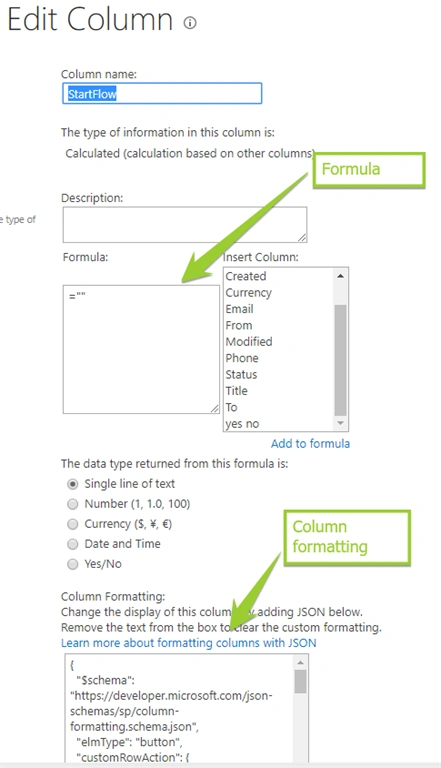
Let us understand what are we doing here in JSON.
- We are using customRowAction with action executeFlow and passing actionParams to pass the id of MS flow(as noted in above step)
Note
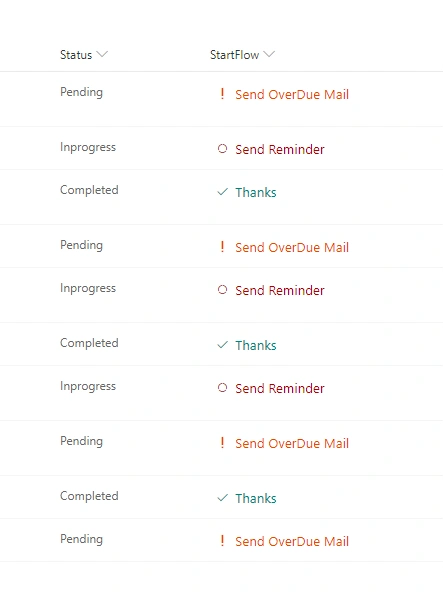
Here, we are using Excel-based expression to check Status column value and passing id accordingly. For this example, I am passing the same id for all the cases. This to demonstrate we can trigger different flow based on fields values.
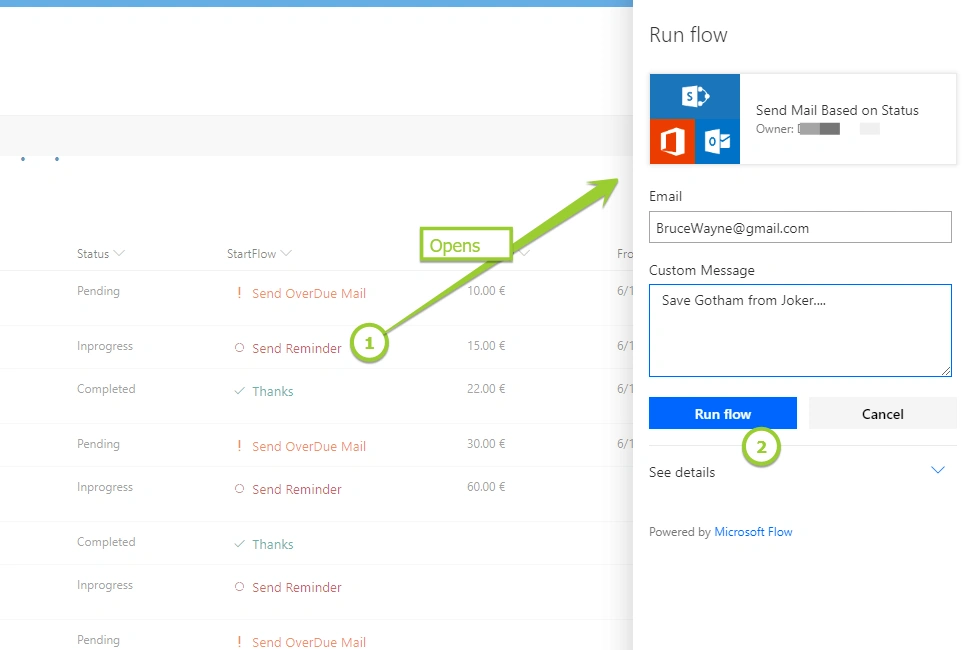
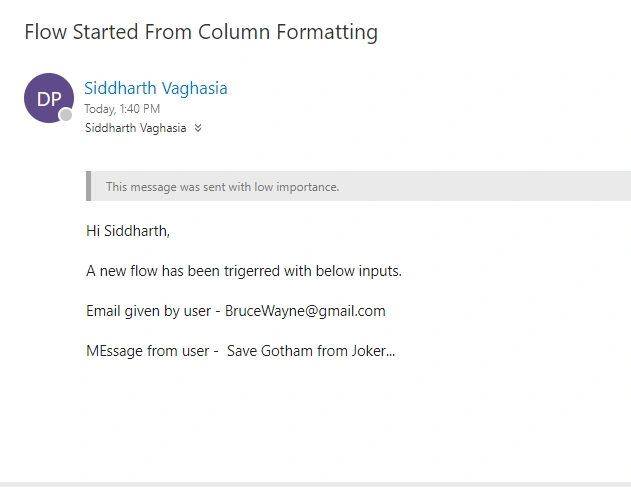
Ashish KohalePosted Jun 10, 2020, 12:29 PM
Please help me with instant type flow issue explained in the link: https://powerusers.microsoft.com/t5/I-Found-A-Bug/Instant-Type-workflow-not-running-on-other-than-the-default/m-p/586835#M7281
Former memberPosted Mar 23, 2020, 2:54 AM
Great article, but I have one problem: When i logged in with another user (Who is not the owner of the flow) and click on column formatting button flow was not triggered.
eric holmPosted Aug 16, 2019, 10:45 AM
Hi Siddharth, - I have a question about the launching of the Flow from the SP list. Is there any way to avoid that side panel activating and asking to run the Flow? I just want the flow to run silently in the background. It can update the list and the formatting and reflect that to give feedback to the user.