Deploying modern .NET applications is no longer just about running a web app on a server. With cloud-native architectures, microservices, and distributed systems becoming the norm, deployment has evolved into a strategic phase of the software lifecycle. .NET Aspire simplifies this complexity by offering a consistent and developer-friendly model to build, compose, and deploy applications across environments.
.NET Aspire empowers developers to,
- Transition seamlessly from local development to production deployment.
- Package services and dependencies using containerization.
- Configure services dynamically using environment-specific settings.
- Integrate with cloud services like Azure with minimal effort.
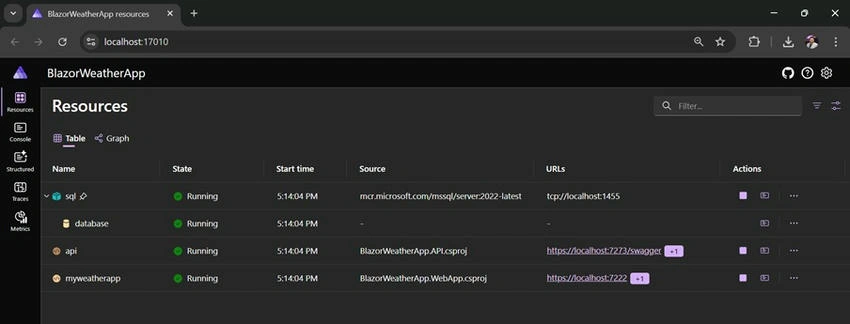
We have an Aspire Application running on my local system. We have created this in the previous chapters.
If you are new here, I would highly recommend checking out all the previous chapters for a better understanding.
- How to Get Started with .NET Aspire
- .NET Aspire: Setting Up Your Environment
- Core Concepts of .NET Aspire
- Enhancing Real-World Microservices with Resiliency in .NET Aspire
- Understanding Resiliency in .NET Aspire
- Service Orchestration in .NET Aspire
- Observability with the Aspire Dashboard
- .NET Aspire Service Discovery and Environment Configuration
- .NET Aspire integrations (SQL Server integration in Aspire Applications)
- End-to-end integration testing with .NET Aspire
Step-by-Step Walkthrough
Deploying an Aspire app to Azure using the Azure Developer CLI (azd) simplifies the end-to-end process—from authentication to provisioning infrastructure and deploying services. Here’s how you can do it.
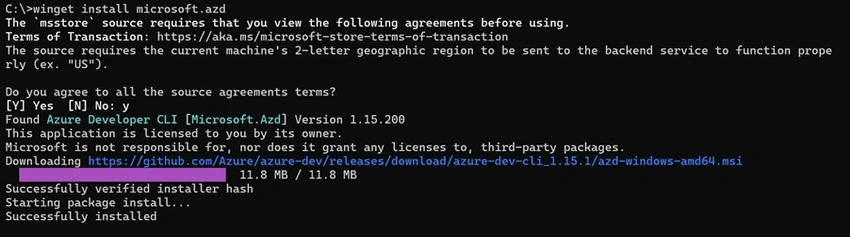
Step 1. Install Azure Developer CLI.
The first step is to install the Azure Developer CLI on your machine using Winget.
winget install microsoft.azd
You’ll be prompted to accept Microsoft Store source agreements. Once accepted, the CLI installs the required binaries. A successful installation message confirms readiness.
Step 2. Verify Project Structure.
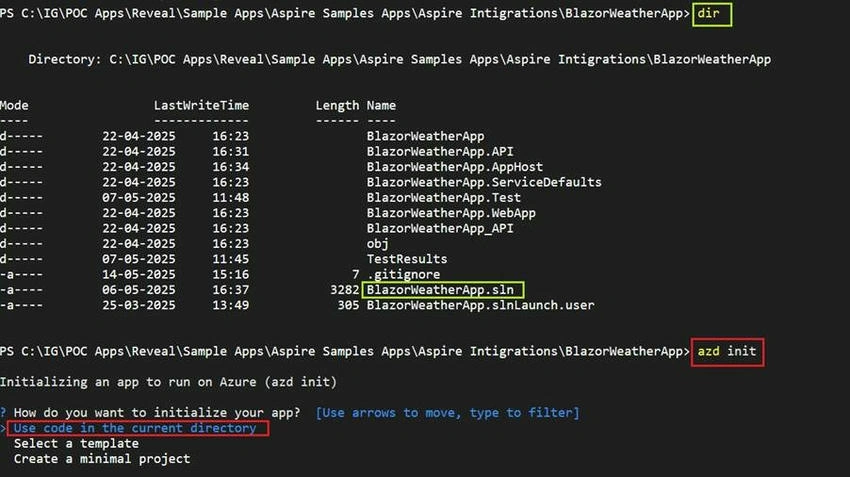
Navigate to your Aspire solution folder. Ensure your .sln file and all Aspire projects (like AppHost, API, WebApp, etc.) are present.
cd path\to\BlazorWeatherApp
dir
Step 3. Initialize the Azure Deployment Project.
Run the following command to initialize the app for deployment.
azd init
You'll be prompted to choose.
- The source of the app → Select "Use code in the current directory"
- Detected services → It should recognize .NET (Aspire) via your AppHost .csproj
- Confirm initialization
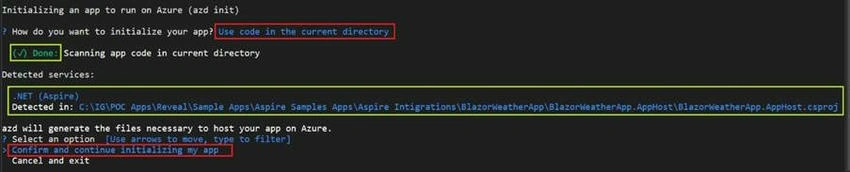
After confirmation, azd will generate two files.
- azure.yaml: Defines the app’s service topology and infrastructure
- next-steps.md: Offers guidance on what to do next
Also, you’ll be asked to enter an environment name. Use a meaningful one like “BlazorWeatherApp-prod”.

Step 4. Login and Choose Subscription.
Before deploying, authenticate with your Azure account.
azd auth login
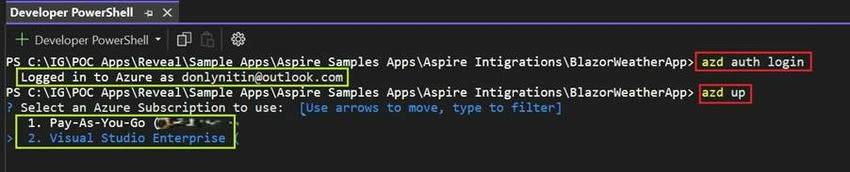
After logging in, run.
azd up
This command performs 3 major steps.
- Packaging the application
- Provisioning Azure resources (like Resource Groups, Container Registry, etc.)
- Deploying the services
You’ll be prompted to,
- Select an Azure subscription
- Enter secured values (e.g., database password)
- Choose an Azure region (e.g., East US 2)
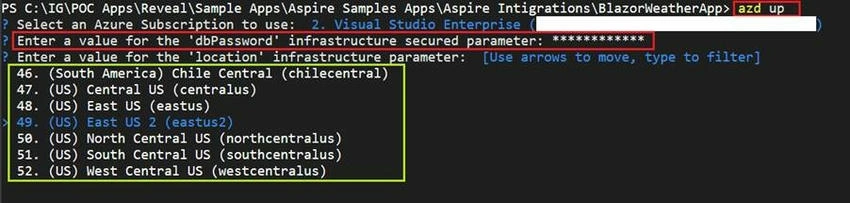
Step 5. Resource Creation & Deployment.
Azure resources are provisioned as defined in azure.yaml. In your case, this includes.
- Resource Group: rg-BlazorWeatherApp-prod
- Container Registry
- Log Analytics workspace
- Container App Environment
- Individual Container Apps (API, SQL, Web App)
You’ll then see successful deployments with accessible endpoints for each service.
- API: https://api.internal.[region].azurecontainerapps.io
- WebApp: https://myweatherapp.[region].azurecontainerapps.io
- SQL: Internal access via container apps
Additionally, a hosted Aspire Dashboard link is generated for observability.
“https://aspire-dashboard.ext.[region].azurecontainerapps.io”
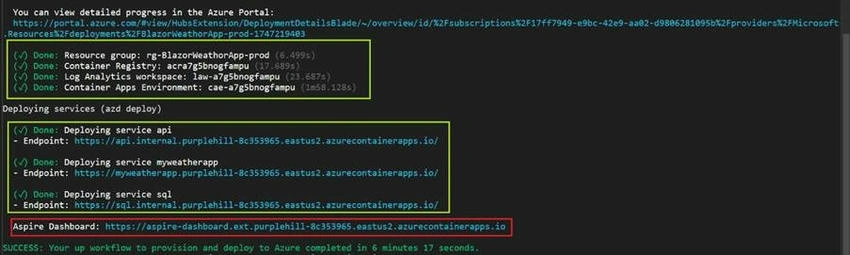
Step 6. Verify in Azure Portal.
Open the Azure Portal and navigate to the newly created resource group (rg-BlazorWeatherApp-prod). You’ll find all provisioned services neatly categorized.
Each service
- Is independently deployed
- Uses containerized infrastructure
- It is wired for observability and secure identity

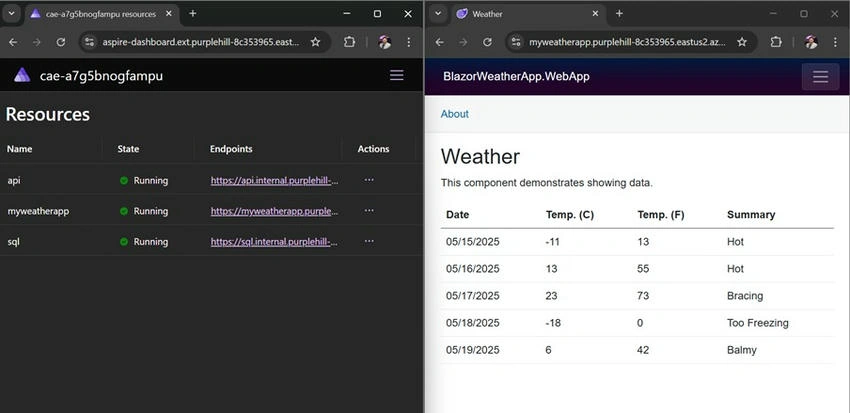
Step 7. App Running in the Cloud.
Open the public URL of your Web App (e.g., https://myweatherapp...azurecontainerapps.io) to view your deployed .NET Aspire app running live in Azure.
The Aspire Dashboard also confirms that all services (API, SQL, Web App) are healthy and connected.
Why Use Aspire for Deployment?
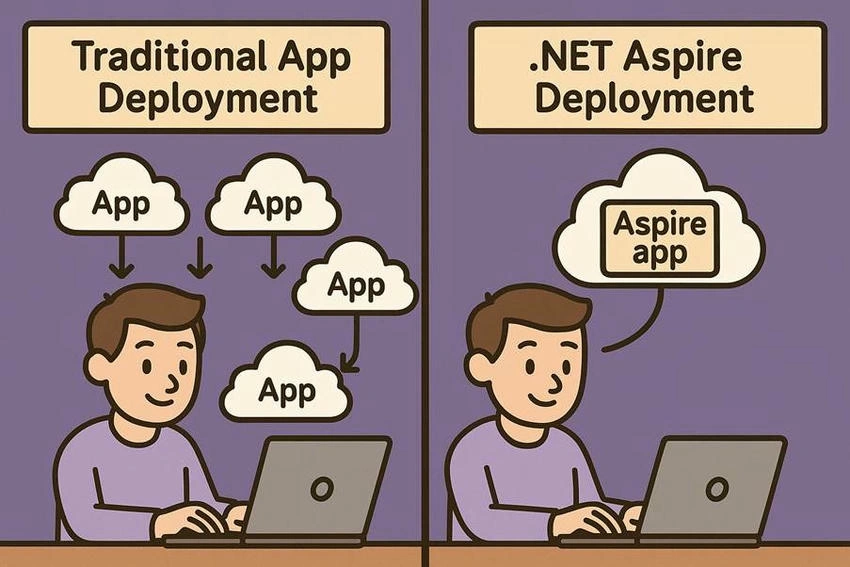
Traditionally, deploying applications meant managing multiple services separately—each with its own deployment pipeline, infrastructure configuration, secrets management, and monitoring setup. With Aspire, that complexity is abstracted and unified.
Here’s how deploying with Aspire differs from the traditional approach.
Aspire vs Traditional Deployment
| Feature |
Traditional Deployment |
.NET Aspire Deployment |
| Service Coordination |
Manual orchestration, often via YAML or scripts |
Automatic via AppHost and Aspire Orchestrator |
| Secrets Management |
External vaults or config files per app |
Built-in secure environment config via Aspire model |
| Environment Setup |
Manual per-service setup |
Unified through Aspire’s application model |
| Observability |
Needs separate setup for logs, metrics, tracing |
Built-in with Aspire Dashboard |
| CI/CD Complexity |
One pipeline per service |
Centralized through azd and unified YAML configs |
| Cloud Resource Provisioning |
Manual ARM/Bicep/Terraform setup |
Auto-generated via azd provisioning |
| Local Debugging |
Requires Docker Compose or K8s simulation |
Single-command local orchestration with dashboard |
Benefits of Deploying with Aspire
- Faster Time-to-Deploy: One command (azd up) provisions resources, deploys all services, and links observability.
- Consistency Across Environments: Aspire standardizes deployment patterns across dev, staging, and production.
- Reduced DevOps Overhead: Developers focus on code, while Aspire handles wiring, environment management, and infrastructure.
- First-Class Azure Integration: Azure Developer CLI + Aspire = seamless containerized deployment with built-in support for container apps, identity, logs, and scaling.
Recommendation
If you’re building distributed .NET applications, Aspire is not just an orchestrator—it’s a deployment accelerator.
Summary
This walkthrough shows how seamless it is to deploy Aspire apps to Azure using Azure Developer CLI:
- No manual Azure Portal steps
- Built-in environment secrets
- Auto-provisioned infrastructure
- Hosted observability with Aspire Dashboard
You can find the source code for this whole solution from my GitHub link below.
Check Out Git Hub Download


Join the conversation! Your thoughts help the community grow.