


In this article we will see in detail how to create a simple MVC Pivot HTML grid using AngularJS. In my previous article, I have explained how to create a Dynamic Project Scheduling. In that article I have used Stored Procedure to display the Pivot result from SQL Query.
In real time projects we need to generate many type of reports and we need to display the row wise data to be displayed column wise. In this article I will explain how to create a Pivot Grid to display from actual data in front end using AngularJS.
For example, let’s consider the following example here. I have Toy Type (Category) and Toys Name with sales price per day.
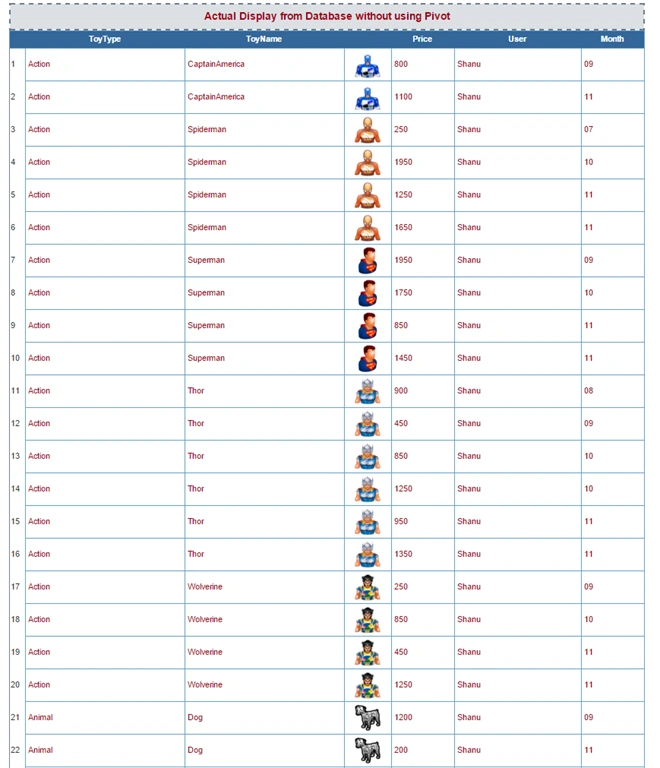
In our database we insert every record of toy details with price details. The raw data which inserted in database will look like this.
Toy Sales Detail Table
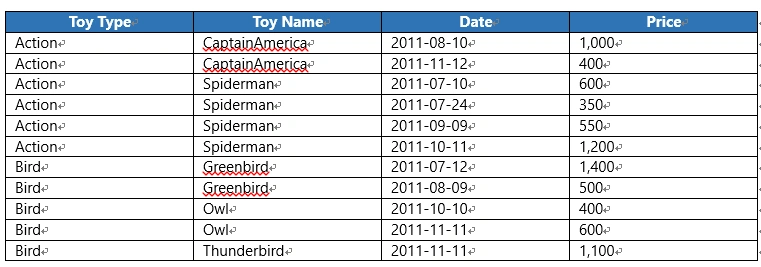
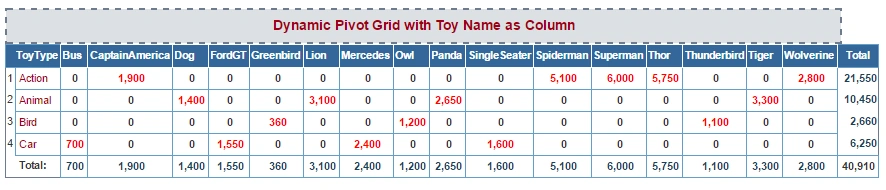
Here we can see there is total 11 Records. There is repetition of Toy Name and Toy Type for each date. Now if I want to see the total sales for each Toy Name of Toy Type, then I need to create a pivot result to display the record with total sum of each Toy Name per Toy Type. The required output will look like the following,
Pivot with Price Sum by Toy Name

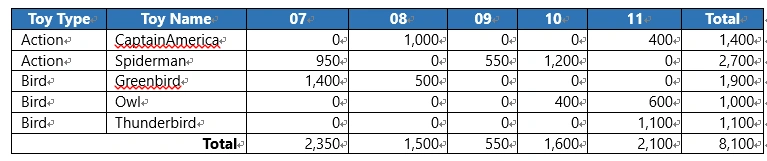
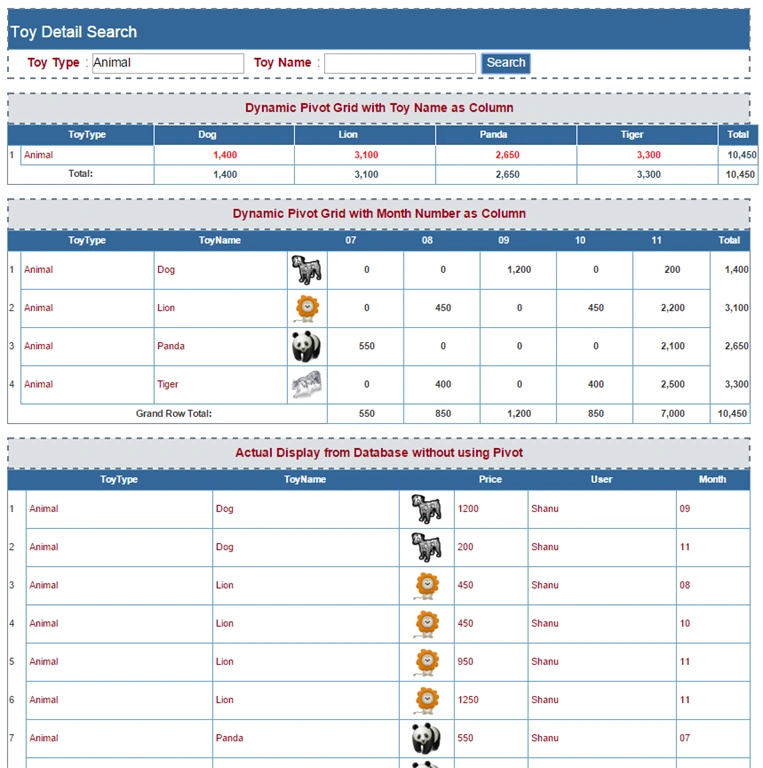
Here we can see this is much easier to view the Total Sales per Toy Name. Here in Pivot we can also add the Column and row Total. By adding the Total it will be easy to find which item has the highest sales.
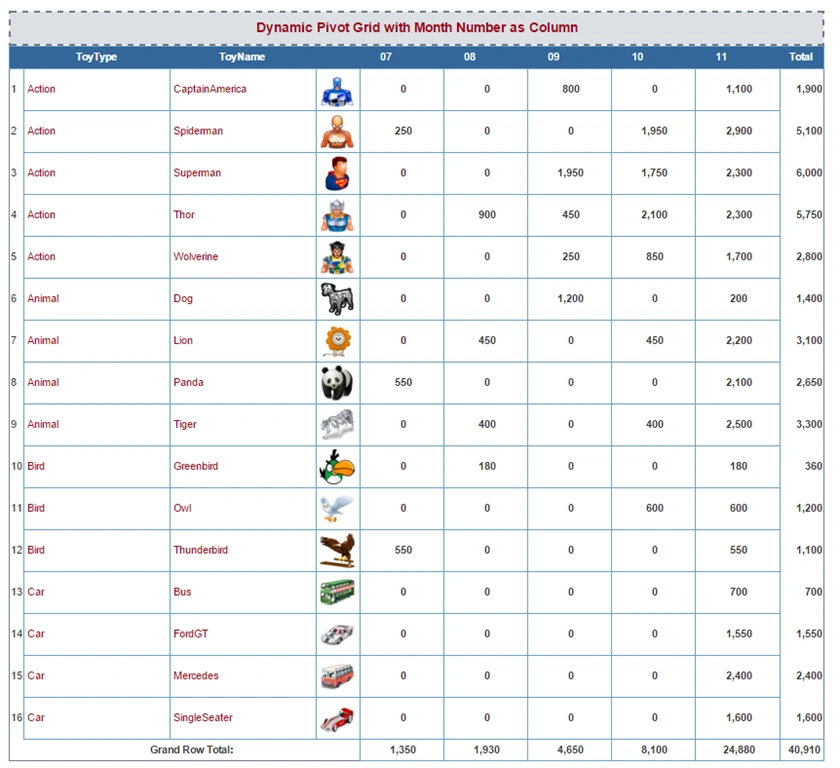
Pivot result has many kind, we can see one more pivot report with Toy Sales Monthly per year. Here we display the pivot result Monthly starting from 07 (July) to 11 (November).
Pivot with Price Sum by Monthly
In this article we will see 2 kind of Pivot report.
- Pivot result to display the Price Sum by Toy Name for each Toy Type.
- Pivot result to display the Price Sum by Monthly for each Toy Name.
Visual Studio 2015 - You can download it from here.
You can also view my previous articles related to AngularJS using MVC and the WCF Rest Service.
- MVC AngularJs and WCF Rest Service For Mind Reader Quiz
- MVC, AngularJs and WCF Rest Service For Master Detail Grid
- AngularJs Filter, Sorting and Animation Using MVC and WCF Rest
- AngularJs Shopping Cart Using MVC and WCF Rest Service
- AngularJs Dynamic Menu Creation Using MVC and WCF Rest
Previous articles related to AngularJS, MVC and WEB API:
Create Database and Table
In the first step, we will create a a sample database and table to be used in our project .The following is the script to create a database, table and sample insert query.
Run the following script in your SQL Server. I have used SQL Server 2014.
- -- =============================================
- -- Author : Shanu
- -- Create date : 2015-11-20
- -- Description : To Create Database,Table and Sample Insert Query
- -- Latest
- -- Modifier : Shanu
- -- Modify date : 2015-11-20
- -- =============================================
- --Script to create DB,Table and sample Insert data
- USE MASTER;
- -- 1) Check for the Database Exists .If the database is exist then drop and create new DB
- IF EXISTS (SELECT [name] FROM sys.databases WHERE [name] = 'ToysDB' )
- BEGIN
- ALTER DATABASE ToysDB SET SINGLE_USER WITH ROLLBACK IMMEDIATE
- DROP DATABASE ToysDB ;
- END
- CREATE DATABASE ToysDB
- GO
- USE ToysDB
- GO
- -- 1) //////////// ToysDetails table
- -- Create Table ToysDetails ,This table will be used to store the details like Toys Information
- IF EXISTS ( SELECT [name] FROM sys.tables WHERE [name] = 'ToysSalesDetails' )
- DROP TABLE ToysSalesDetails
- GO
- CREATE TABLE ToysSalesDetails
- (
- Toy_ID int identity(1,1),
- Toy_Type VARCHAR(100) NOT NULL,
- Toy_Name VARCHAR(100) NOT NULL,
- Toy_Price int NOT NULL,
- Image_Name VARCHAR(100) NOT NULL,
- SalesDate DateTime NOT NULL,
- AddedBy VARCHAR(100) NOT NULL,
- CONSTRAINT [PK_ToysSalesDetails] PRIMARY KEY CLUSTERED
- (
- [Toy_ID] ASC
- )WITH (PAD_INDEX = OFF, STATISTICS_NORECOMPUTE = OFF, IGNORE_DUP_KEY = OFF, ALLOW_ROW_LOCKS = ON, ALLOW_PAGE_LOCKS = ON) ON [PRIMARY]
- ) ON [PRIMARY]
- GO
- --delete from ToysSalesDetails
- -- Insert the sample records to the ToysDetails Table
- Insert into ToysSalesDetails(Toy_Type,Toy_Name,Toy_Price,Image_Name,SalesDate,AddedBy) values('Action','Spiderman',1650,'ASpiderman.png',getdate(),'Shanu')
- Insert into ToysSalesDetails(Toy_Type,Toy_Name,Toy_Price,Image_Name,SalesDate,AddedBy) values('Action','Spiderman',1250,'ASpiderman.png',getdate()-6,'Shanu')
- Insert into ToysSalesDetails(Toy_Type,Toy_Name,Toy_Price,Image_Name,SalesDate,AddedBy) values('Action','Superman',1450,'ASuperman.png',getdate(),'Shanu')
- Insert into ToysSalesDetails(Toy_Type,Toy_Name,Toy_Price,Image_Name,SalesDate,AddedBy) values('Action','Superman',850,'ASuperman.png',getdate()-4,'Shanu')
- Insert into ToysSalesDetails(Toy_Type,Toy_Name,Toy_Price,Image_Name,SalesDate,AddedBy) values('Action','Thor',1350,'AThor.png',getdate(),'Shanu')
- Insert into ToysSalesDetails(Toy_Type,Toy_Name,Toy_Price,Image_Name,SalesDate,AddedBy) values('Action','Thor',950,'AThor.png',getdate()-8,'Shanu')
- Insert into ToysSalesDetails(Toy_Type,Toy_Name,Toy_Price,Image_Name,SalesDate,AddedBy) values('Action','Wolverine',1250,'AWolverine.png',getdate(),'Shanu')
- Insert into ToysSalesDetails(Toy_Type,Toy_Name,Toy_Price,Image_Name,SalesDate,AddedBy) values('Action','Wolverine',450,'AWolverine.png',getdate()-3,'Shanu')
- Insert into ToysSalesDetails(Toy_Type,Toy_Name,Toy_Price,Image_Name,SalesDate,AddedBy) values('Action','CaptainAmerica',1100,'ACaptainAmerica.png',getdate(),'Shanu')
- Insert into ToysSalesDetails(Toy_Type,Toy_Name,Toy_Price,Image_Name,SalesDate,AddedBy) values('Action','Spiderman',250,'ASpiderman.png',getdate()-120,'Shanu')
- Insert into ToysSalesDetails(Toy_Type,Toy_Name,Toy_Price,Image_Name,SalesDate,AddedBy) values('Action','Spiderman',1950,'ASpiderman.png',getdate()-40,'Shanu')
- Insert into ToysSalesDetails(Toy_Type,Toy_Name,Toy_Price,Image_Name,SalesDate,AddedBy) values('Action','Superman',1750,'ASuperman.png',getdate()-40,'Shanu')
- Insert into ToysSalesDetails(Toy_Type,Toy_Name,Toy_Price,Image_Name,SalesDate,AddedBy) values('Action','Thor',900,'AThor.png',getdate()-100,'Shanu')
- Insert into ToysSalesDetails(Toy_Type,Toy_Name,Toy_Price,Image_Name,SalesDate,AddedBy) values('Action','Thor',850,'AThor.png',getdate()-50,'Shanu')
- Insert into ToysSalesDetails(Toy_Type,Toy_Name,Toy_Price,Image_Name,SalesDate,AddedBy) values('Action','Wolverine',250,'AWolverine.png',getdate()-80,'Shanu')
- Insert into ToysSalesDetails(Toy_Type,Toy_Name,Toy_Price,Image_Name,SalesDate,AddedBy) values('Action','CaptainAmerica',800,'ACaptainAmerica.png',getdate()-60,'Shanu')
- Insert into ToysSalesDetails(Toy_Type,Toy_Name,Toy_Price,Image_Name,SalesDate,AddedBy) values('Action','Superman',1950,'ASuperman.png',getdate()-80,'Shanu')
- Insert into ToysSalesDetails(Toy_Type,Toy_Name,Toy_Price,Image_Name,SalesDate,AddedBy) values('Action','Thor',1250,'AThor.png',getdate()-30,'Shanu')
- Insert into ToysSalesDetails(Toy_Type,Toy_Name,Toy_Price,Image_Name,SalesDate,AddedBy) values('Action','Wolverine',850,'AWolverine.png',getdate()-20,'Shanu')
- Insert into ToysSalesDetails(Toy_Type,Toy_Name,Toy_Price,Image_Name,SalesDate,AddedBy) values('Animal','Lion',1250,'Lion.png',getdate(),'Shanu')
- Insert into ToysSalesDetails(Toy_Type,Toy_Name,Toy_Price,Image_Name,SalesDate,AddedBy) values('Animal','Lion',950,'Lion.png',getdate()-4,'Shanu')
- Insert into ToysSalesDetails(Toy_Type,Toy_Name,Toy_Price,Image_Name,SalesDate,AddedBy) values('Animal','Tiger',1900,'Tiger.png',getdate(),'Shanu')
- Insert into ToysSalesDetails(Toy_Type,Toy_Name,Toy_Price,Image_Name,SalesDate,AddedBy) values('Animal','Tiger',600,'Tiger.png',getdate()-2,'Shanu')
- Insert into ToysSalesDetails(Toy_Type,Toy_Name,Toy_Price,Image_Name,SalesDate,AddedBy) values('Animal','Panda',650,'Panda.png',getdate(),'Shanu')
- Insert into ToysSalesDetails(Toy_Type,Toy_Name,Toy_Price,Image_Name,SalesDate,AddedBy) values('Animal','Panda',1450,'Panda.png',getdate()-1,'Shanu')
- Insert into ToysSalesDetails(Toy_Type,Toy_Name,Toy_Price,Image_Name,SalesDate,AddedBy) values('Animal','Dog',200,'Dog.png',getdate(),'Shanu')
- Insert into ToysSalesDetails(Toy_Type,Toy_Name,Toy_Price,Image_Name,SalesDate,AddedBy) values('Animal','Lion',450,'Lion.png',getdate()-20,'Shanu')
- Insert into ToysSalesDetails(Toy_Type,Toy_Name,Toy_Price,Image_Name,SalesDate,AddedBy) values('Animal','Tiger',400,'Tiger.png',getdate()-90,'Shanu')
- Insert into ToysSalesDetails(Toy_Type,Toy_Name,Toy_Price,Image_Name,SalesDate,AddedBy) values('Animal','Panda',550,'Panda.png',getdate()-120,'Shanu')
- Insert into ToysSalesDetails(Toy_Type,Toy_Name,Toy_Price,Image_Name,SalesDate,AddedBy) values('Animal','Dog',1200,'Dog.png',getdate()-60,'Shanu')
- Insert into ToysSalesDetails(Toy_Type,Toy_Name,Toy_Price,Image_Name,SalesDate,AddedBy) values('Animal','Lion',450,'Lion.png',getdate()-90,'Shanu')
- Insert into ToysSalesDetails(Toy_Type,Toy_Name,Toy_Price,Image_Name,SalesDate,AddedBy) values('Animal','Tiger',400,'Tiger.png',getdate()-30,'Shanu')
- Insert into ToysSalesDetails(Toy_Type,Toy_Name,Toy_Price,Image_Name,SalesDate,AddedBy) values('Bird','Owl',600,'BOwl.png',getdate(),'Shanu')
- Insert into ToysSalesDetails(Toy_Type,Toy_Name,Toy_Price,Image_Name,SalesDate,AddedBy) values('Bird','Greenbird',180,'BGreenbird.png',getdate(),'Shanu')
- Insert into ToysSalesDetails(Toy_Type,Toy_Name,Toy_Price,Image_Name,SalesDate,AddedBy) values('Bird','Thunderbird',550,'BThunderbird-v2.png',getdate(),'Shanu')
- Insert into ToysSalesDetails(Toy_Type,Toy_Name,Toy_Price,Image_Name,SalesDate,AddedBy) values('Bird','Owl',600,'BOwl.png',getdate()-50,'Shanu')
- Insert into ToysSalesDetails(Toy_Type,Toy_Name,Toy_Price,Image_Name,SalesDate,AddedBy) values('Bird','Greenbird',180,'BGreenbird.png',getdate()-90,'Shanu')
- Insert into ToysSalesDetails(Toy_Type,Toy_Name,Toy_Price,Image_Name,SalesDate,AddedBy) values('Bird','Thunderbird',550,'BThunderbird-v2.png',getdate()-120,'Shanu')
- Insert into ToysSalesDetails(Toy_Type,Toy_Name,Toy_Price,Image_Name,SalesDate,AddedBy) values('Car','SingleSeater',1600,'CSingleSeater.png',getdate(),'Shanu')
- Insert into ToysSalesDetails(Toy_Type,Toy_Name,Toy_Price,Image_Name,SalesDate,AddedBy) values('Car','Mercedes',2400,'CMercedes.png',getdate(),'Shanu')
- Insert into ToysSalesDetails(Toy_Type,Toy_Name,Toy_Price,Image_Name,SalesDate,AddedBy) values('Car','FordGT',1550,'CFordGT.png',getdate(),'Shanu')
- Insert into ToysSalesDetails(Toy_Type,Toy_Name,Toy_Price,Image_Name,SalesDate,AddedBy) values('Car','Bus',700,'CBus.png',getdate(),'Shanu')
- select *,
- SUBSTRING('JAN FEB MAR APR MAY JUN JUL AUG SEP OCT NOV DEC ', (DATENAME(month, SalesDate) * 4) - 3, 3) as 'Month'
- from ToysSalesDetails
- Where YEAR(SalesDate)=YEAR(getdate())
- Order by Toy_Type,Toy_Name,Image_Name,SalesDate
- -- 1) END //
1. Script to create Stored Procedure
- -- 1) Stored procedure to Select ToysSalesDetails
- -- Author : Shanu
- -- Create date : 2015-11-20
- -- Description : Toy Sales Details
- -- Tables used : ToysSalesDetails
- -- Modifier : Shanu
- -- Modify date : 2015-11-20
- -- =============================================
- -- exec USP_ToySales_Select '',''
- -- =============================================
- CREATE PROCEDURE [dbo].[USP_ToySales_Select]
- (
- @Toy_Type VARCHAR(100) = '',
- @Toy_Name VARCHAR(100) = ''
- )
- AS
- BEGIN
- select Toy_Type as ToyType
- ,Toy_Name as ToyName
- ,Image_Name as ImageName
- ,Toy_Price as Price
- ,AddedBy as 'User'
- ,DATENAME(month, SalesDate) as 'Month'
- FROM ToysSalesDetails
- Where
- Toy_Type like @Toy_Type +'%'
- AND Toy_Name like @Toy_Name +'%'
- AND YEAR(SalesDate)=YEAR(getdate())
- ORDER BY
- Toy_Type,Toy_Name,SalesDate
- END
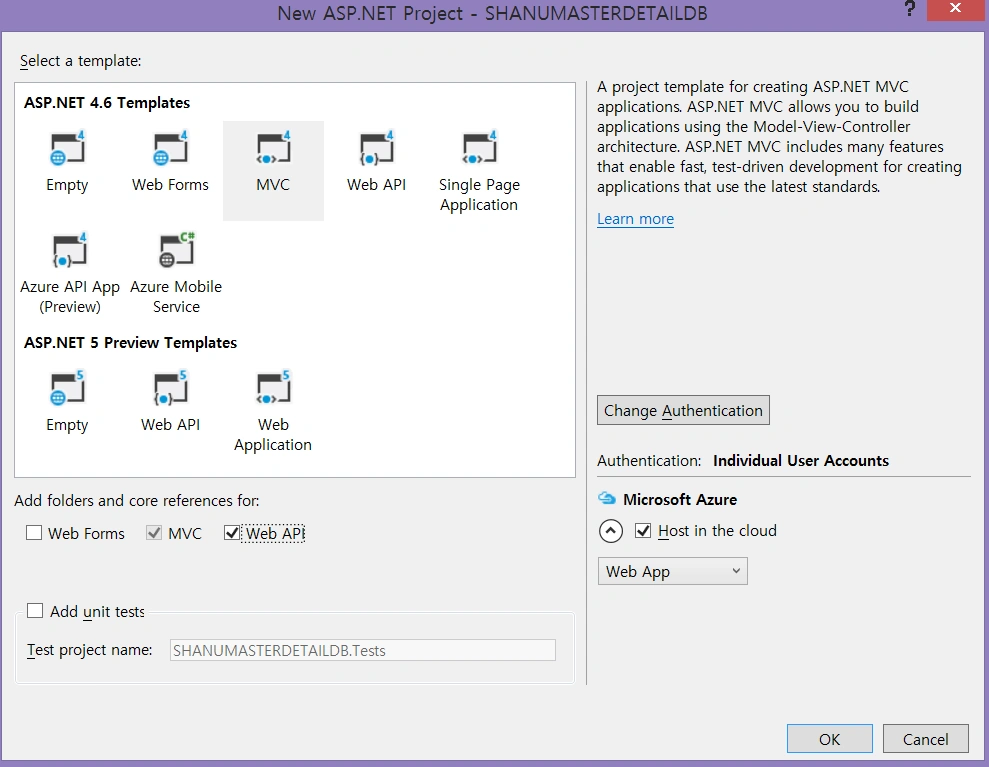
After installing our Visual Studio 2015 click Start, then Programs and select Visual Studio 2015. Click Visual Studio 2015, then New, Project and select Web and click ASP.NET Web Application. Select your project location and enter your web application name.
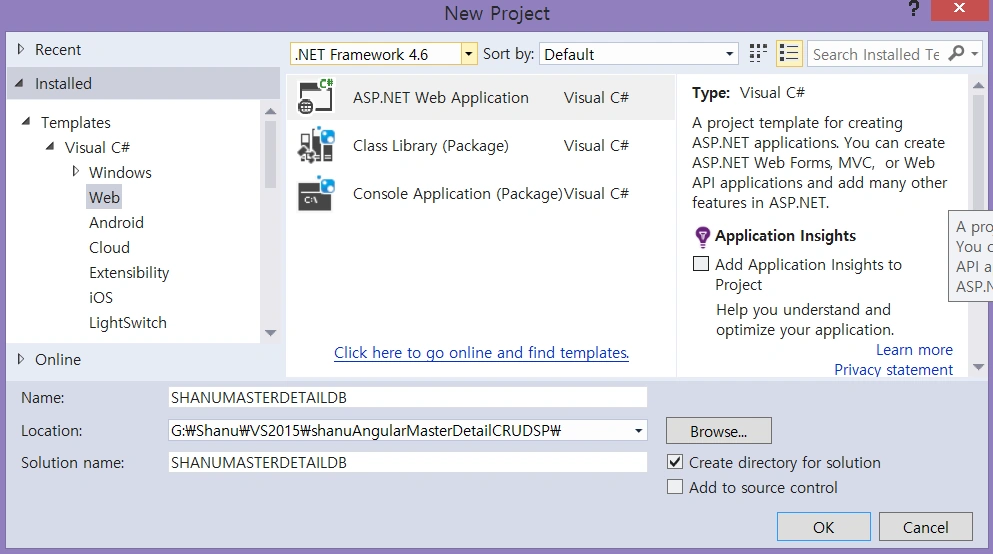
Select MVC and in Add Folders and Core reference for select the Web API and click OK.
Add Database using ADO.NET Entity Data Model
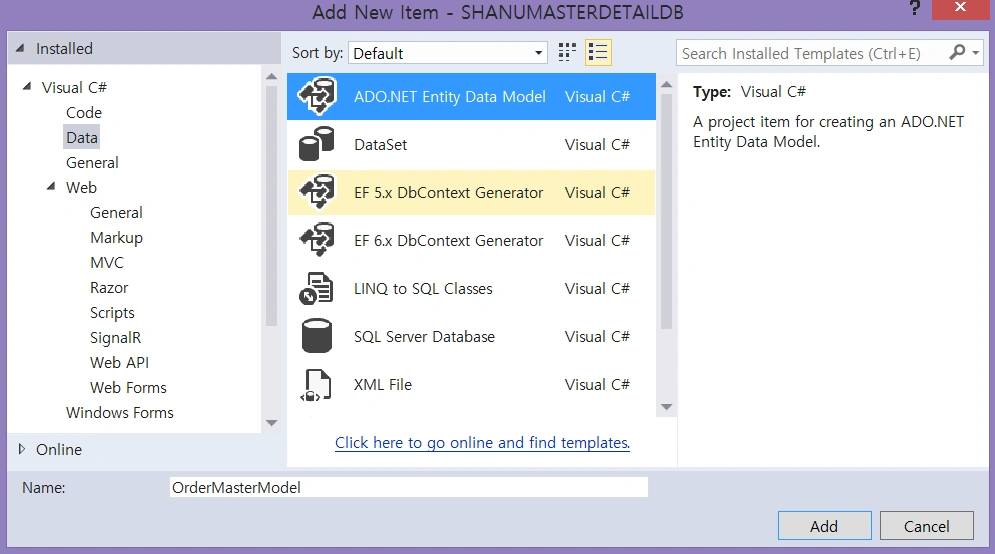
Right click our project and click Add, then New Item.
Select Data, then ADO.NET Entity Data Model and give the name for our EF and click Add.
Select EF Designer from the database and click Next.
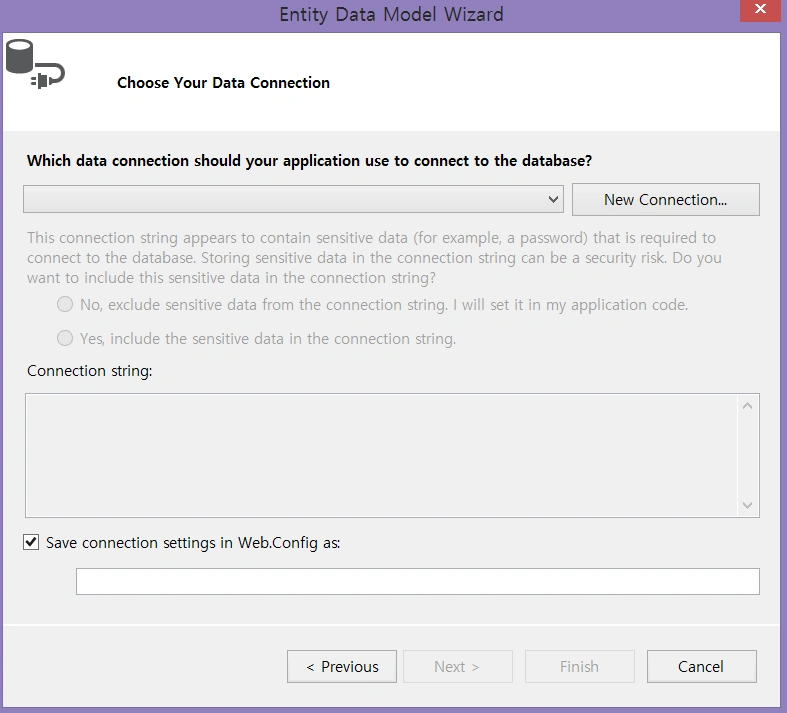
Here click New Connection and provide your SQL Server - Server Name and connect to your database.
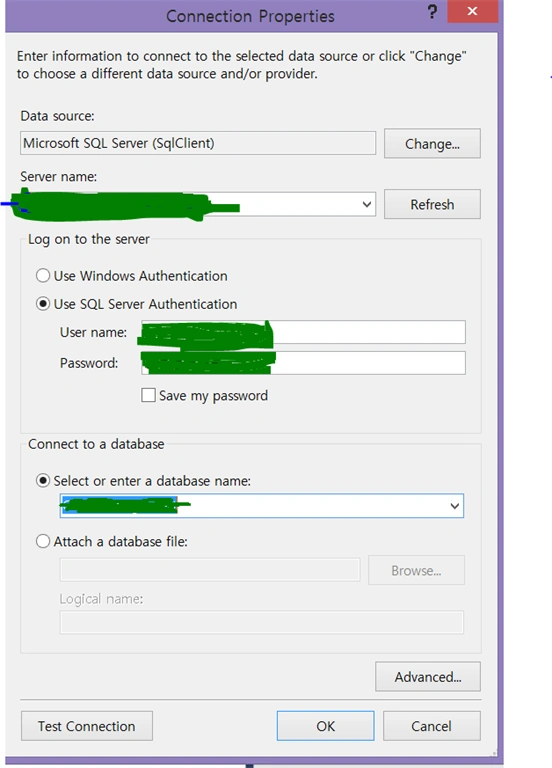
Here we can see I have given my SQL server name, Id and PWD and after it got connected I selected the database as ToysDB as we have created the database using my SQL Script.
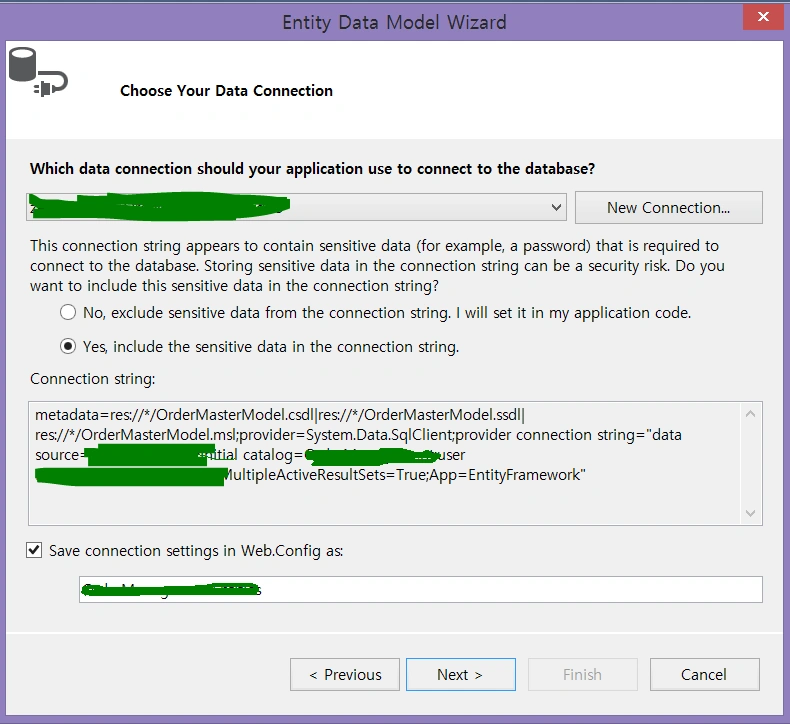
Click next and select the tables and all Stored Procedures need to be used and click finish.
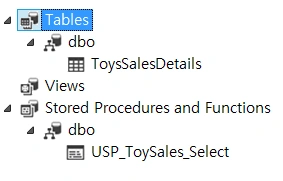
Here we can see now we have created our ToySalesModel.
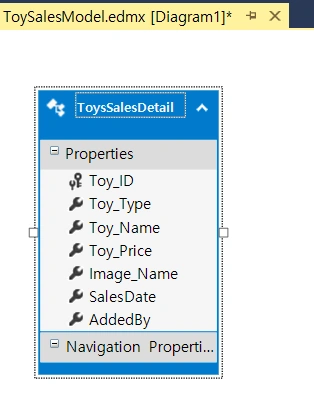
Once the Entity has been created the next step is to add a Web API to our controller and write function to Select/Insert/Update and Delete.
Procedure to add our Web API Controller
Right-click the Controllers folder, click Add and then click Controller.
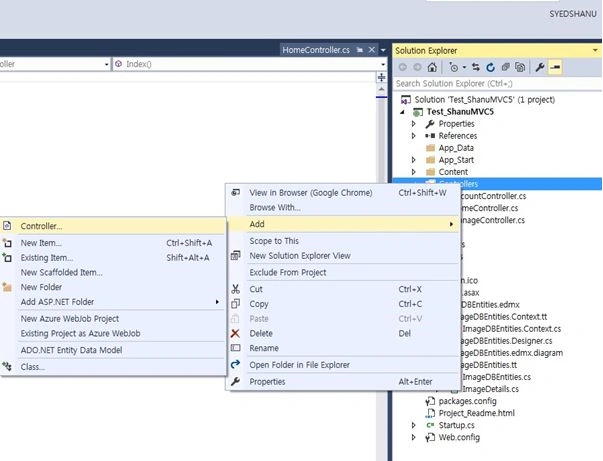
Select Controller and add an Empty Web API 2 Controller. Provide your name to the Web API controller and click OK. Here for my Web API Controller I have given the name “ToyController”. In this demo project I have created 2 different controller for Order master and order Detail.
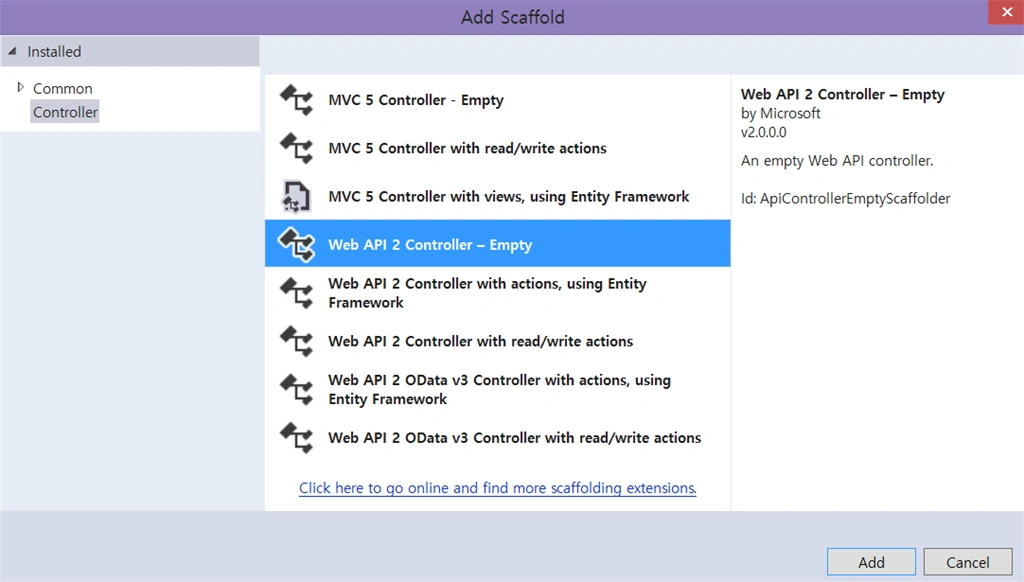
As we have created Web API controller, we can see our controller has been inherited with ApiController.
As we all know Web API is a simple and easy way to build HTTP Services for Browsers and Mobiles.
Web API has the following four methods as Get/Post/Put and Delete where:
Pramod ThakurPosted Feb 21, 2016, 9:36 PM
thanks for sharing...
sreenivasa kPosted Dec 7, 2015, 12:32 PM
really excellent
Ankit BansalPosted Dec 7, 2015, 12:48 AM
You rock man...Really great..
Ankur MistryPosted Dec 2, 2015, 9:42 AM
Nice share. It really helps
Humayun Kabir MamunPosted Dec 1, 2015, 2:40 AM
Nice...
Sibeesh VenuPosted Nov 30, 2015, 1:48 AM
Nice Share
Ravi PatelPosted Nov 30, 2015, 1:04 AM
great article sir thanks for sharing
Anu VPosted Nov 30, 2015, 12:55 AM
nice
Ankur MistryPosted Nov 30, 2015, 12:11 AM
Really helpful.
Banketeshvar NarayanPosted Nov 28, 2015, 3:36 AM
Nice Share
Debasis SahaPosted Nov 26, 2015, 9:48 AM
Nice Article..
Former memberPosted Nov 26, 2015, 3:42 AM
if possible please come with more article on angular with state management and work with various free angular grid. like UI-grid etc.
Former memberPosted Nov 26, 2015, 3:41 AM
Thanks shanu :)
Former memberPosted Nov 26, 2015, 3:06 AM
Why so many zip file is showing for code download with same name. which one i should download to test the code in my pc. let me know. thanks
Mukesh KumarPosted Nov 26, 2015, 12:21 AM
Really Great Article with step by step..
Ajay GandhiPosted Nov 25, 2015, 3:53 AM
Nice
Raja TPosted Nov 25, 2015, 3:46 AM
Nice Sir, Thanks for sharing
Jaipal ReddyPosted Nov 25, 2015, 3:27 AM
Great work sir.