
Word Puzzle Games
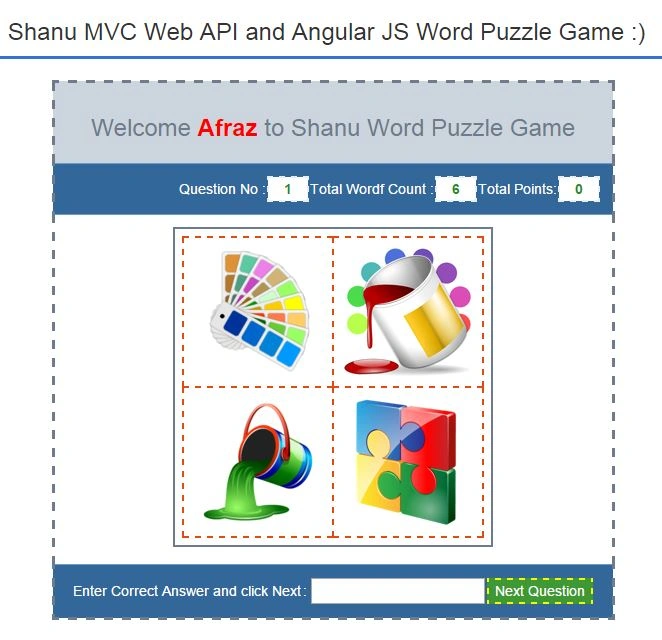
A word puzzle game is an interesting game where, for each question there will be 4 Images displayed. The user must find the hidden name of the matching four images together. The game rule is that, for each game there will be 5 questions asked. The question is very simple since each question will be displayed with 4 sets of images, the user must find the matching word for the 4 image combinations and enter the correct answer and click Next to display the next question. Each question will have 20 points. If the user answers the puzzle then he will get 20 points for each of his correct answers. If the user enters the wrong answer then he will get a negative 10 points. That is, he will get -10 points for each wrong answer. If the user gets a total 100 Points for all 5 questions then he or she is a winner of the game. If the user gets less than 100 Points then he or she loses the game and they can try again. Note, each time the questions will be displayed differently since I will display the questions randomly from the database. So kindly check the image well and answer the questions to avoid negative points. I hope you will love this game, have fun. :)
Prerequisites
Visual Studio 2015. You can download it from here.
You can also view my previous articles related to AngularJs using MVC and the WCF Rest Service.
Previous articles related to AngularJs, MVC and the Web API:
This article will explain in detail how to create an online word puzzle game using MVC, AngularJs and a Web API 2. This article will explain:
- How to create sample tables and database at SQL Server.
- Using Entity Framework to connect to a database.
- Create Web API controller to get the data and select random 5 results using a LINQ query.
- How to install the AngularJs Package into a MVC application.
- How to create our AngularJs application to create our own word puzzle game.
AngularJs
We might be familiar with what the Model, View, View Model (MVVM) and what Model, View and Controller (MVC) are. AngularJs is a JavaScript framework that is purely based on HTML, CSS and JavaScript.
The AngularJs Model View Whatever (MVW) pattern is similar to the MVC and MVVM patterns. In our example I have used Model, View and Service. In the code part let's see how to install and create AngularJs in our MVC application.
If you are interested in reading more about AngularJs then kindly go through the following link.
Code Part
1. Create a database and table.
We will create a wordDetails table in the database "wordGameDB".
Table Column Details:
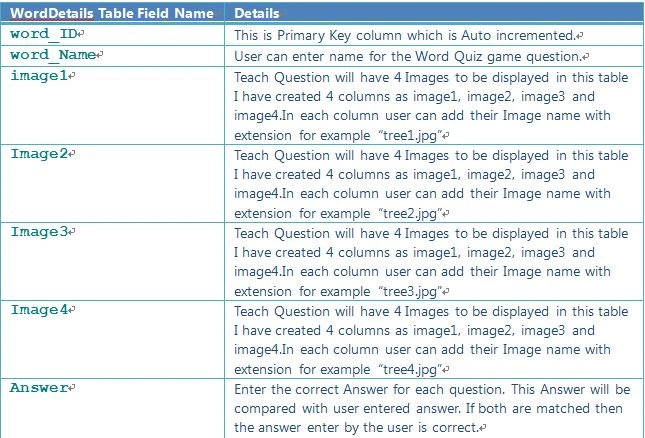
The following is the script to create a database, table and sample insert query. Run this script in your SQL Server. I have used SQL Server 2012.
- USE MASTER
- GO
-
-
-
- IF EXISTS (SELECT [name] FROM sys.databases WHERE [name] = 'wordGameDB' )
-
- DROP DATABASE wordGameDB
-
- GO
-
-
- CREATE DATABASE wordGameDB
-
- GO
-
-
- USE wordGameDB
-
- GO
-
-
-
-
-
-
-
- IF EXISTS ( SELECT [name] FROM sys.tables WHERE [name] = 'wordDetails' )
-
- DROP TABLE wordDetails
-
- GO
-
-
- CREATE TABLE wordDetails
-
- (
- word_ID int identity(1,1),
- word_Name VARCHAR(100) NOT NULL,
- image1 VARCHAR(100) NOT NULL,
- image2 VARCHAR(100) NOT NULL,
- image3 VARCHAR(100) NOT NULL,
- image4 VARCHAR(100) NOT NULL,
- Answer VARCHAR(100) NOT NULL,
- CONSTRAINT [PK_wordDetails] PRIMARY KEY CLUSTERED
- (
- word_ID ASC
- )WITH (PAD_INDEX = OFF, STATISTICS_NORECOMPUTE = OFF, IGNORE_DUP_KEY = OFF, ALLOW_ROW_LOCKS = ON, ALLOW_PAGE_LOCKS = ON) ON [PRIMARY]
- ) ON [PRIMARY]
-
- GO
-
-
-
- Insert into wordDetails(word_Name,image1,image2,image3,image4,Answer) values('Animals','animals-01.png','animals-02.png','animals-03.png','animals-04.png','Animals')
- Insert into wordDetails(word_Name,image1,image2,image3,image4,Answer) values('Anouncement','Anouncement-01.png','Anouncement-02.png','Anouncement-03.png','Anouncement-04.png','Anouncement')
- Insert into wordDetails(word_Name,image1,image2,image3,image4,Answer) values('Colors','colors-01.png','colors-02.png','colors-03.png','colors-04.png','Colors')
- Insert into wordDetails(word_Name,image1,image2,image3,image4,Answer) values('Food','food-01.png','food-02.png','food-03.png','food-04.png','Food')
- Insert into wordDetails(word_Name,image1,image2,image3,image4,Answer) values('Green','Green-01.png','Green-02.png','Green-03.png','Green-04.png','Green')
- Insert into wordDetails(word_Name,image1,image2,image3,image4,Answer) values('Horror','horror-01.png','horror-02.png','horror-03.png','horror-04.png','Horror')
- Insert into wordDetails(word_Name,image1,image2,image3,image4,Answer) values('Java','Java-01.png','Java-02.png','Java-03.png','Java-04.png','Java')
- Insert into wordDetails(word_Name,image1,image2,image3,image4,Answer) values('Network','Network-01.png','Network-02.png','Network-03.png','Network-04.png','Network')
- Insert into wordDetails(word_Name,image1,image2,image3,image4,Answer) values('Night','night-01.png','night-02.png','night-03.png','night-04.png','Night')
- Insert into wordDetails(word_Name,image1,image2,image3,image4,Answer) values('Office','office-01.png','office-02.png','office-03.png','office-04.png','Office')
- Insert into wordDetails(word_Name,image1,image2,image3,image4,Answer) values('Play','play-01.png','play-02.png','play-03.png','play-04.png','Play')
- Insert into wordDetails(word_Name,image1,image2,image3,image4,Answer) values('Science','science-01.png','science-02.png','science-03.png','science-04.png','Science')
- Insert into wordDetails(word_Name,image1,image2,image3,image4,Answer) values('Space','space-01.png','space-02.png','space-03.png','space-04.png','Space')
- Insert into wordDetails(word_Name,image1,image2,image3,image4,Answer) values('Stone','stone-01.png','stone-02.png','stone-03.png','stone-04.png','Stone')
- Insert into wordDetails(word_Name,image1,image2,image3,image4,Answer) values('Tree','tree-01.png','tree-02.png','tree-03.png','tree-04.png','Tree')
- Insert into wordDetails(word_Name,image1,image2,image3,image4,Answer) values('Water','water-01.png','water-02.png','water-03.png','water-04.png','Water')
- Insert into wordDetails(word_Name,image1,image2,image3,image4,Answer) values('Weather','Weather-01.png','Weather-02.png','Weather-03.png','Weather-04.png','Weather')
-
- select * from wordDetails
2. Create our MVC web application in Visual Studio 2015.
After installing our Visual Studio 2015, click Start -> Programs then select Visual Studio 2015 then click Visual Studio 2015.
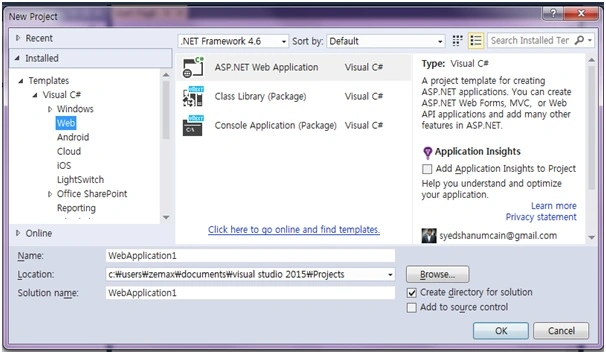
Click New -> Project then select Web -> ASP.NET Web Application. Select your project location and enter your web application name.
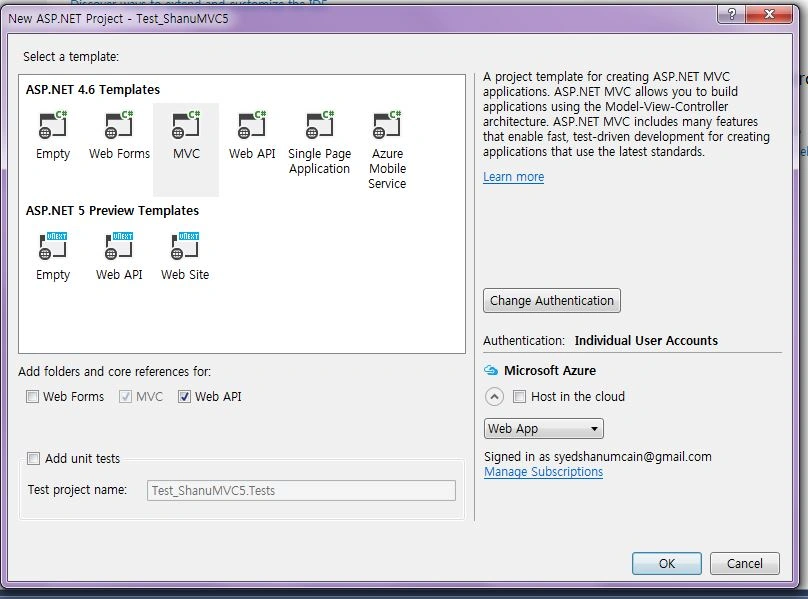
 Select MVC and in Add Folders and Core reference for. Select the Web API and click OK.
Add Database using ADO.NET Entity Data Model
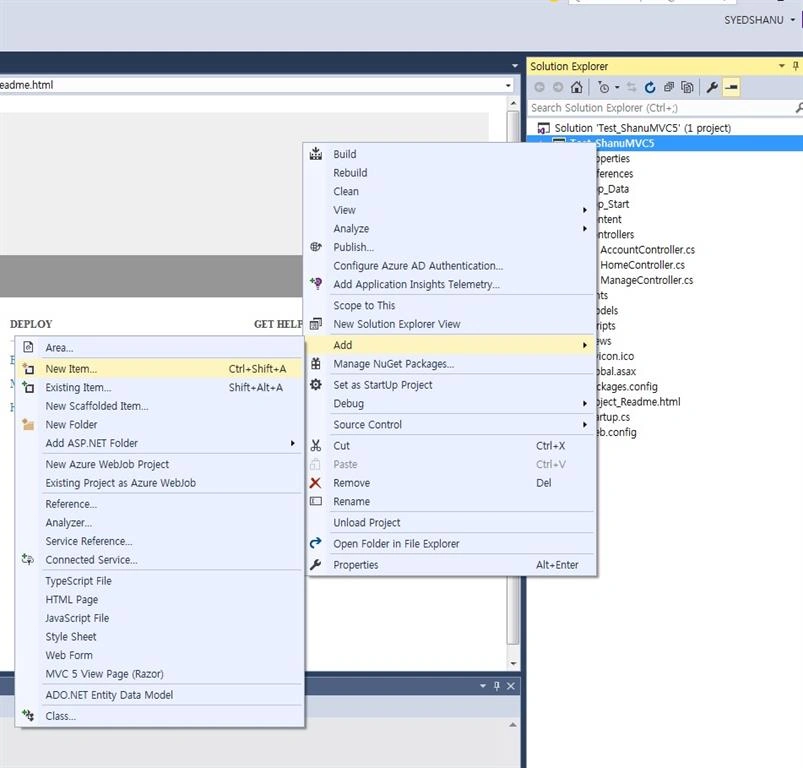
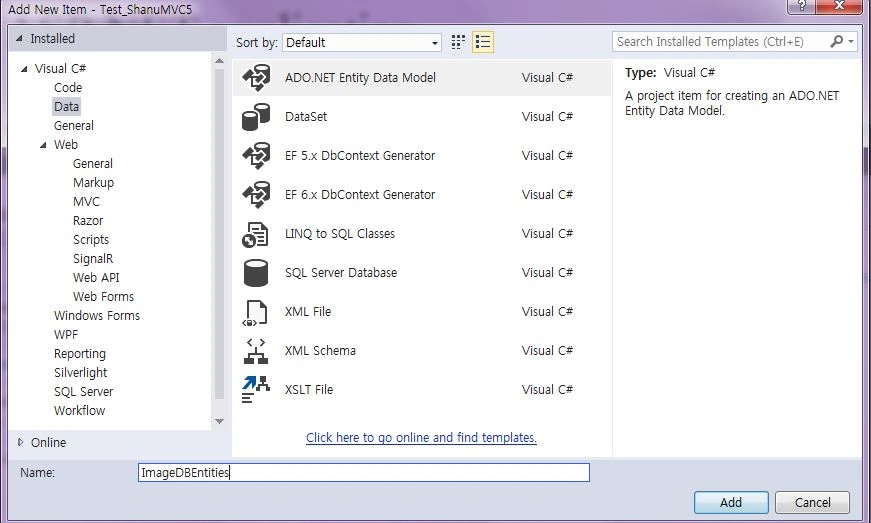
Right-click our project and click Add -> New Item.
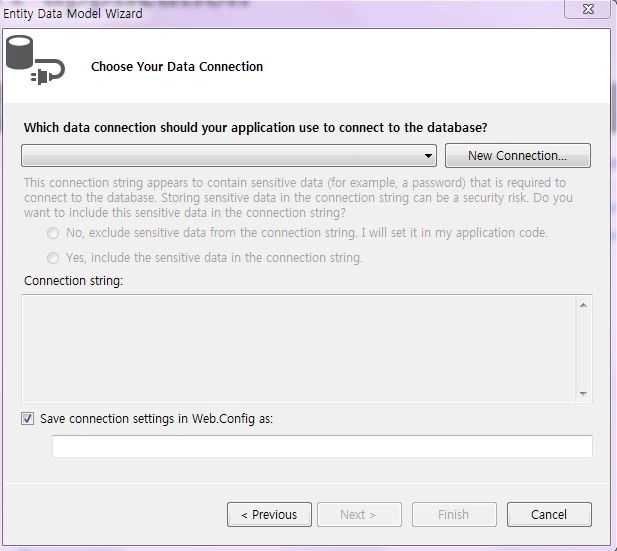
Here click New Connection and provide your SQL Server server name and connect to your database.
Here we can see I have given my SQL Server name, Id and PWD and after it is connected I have selected the database as wordGameDB since we created the database using my SQL Script.
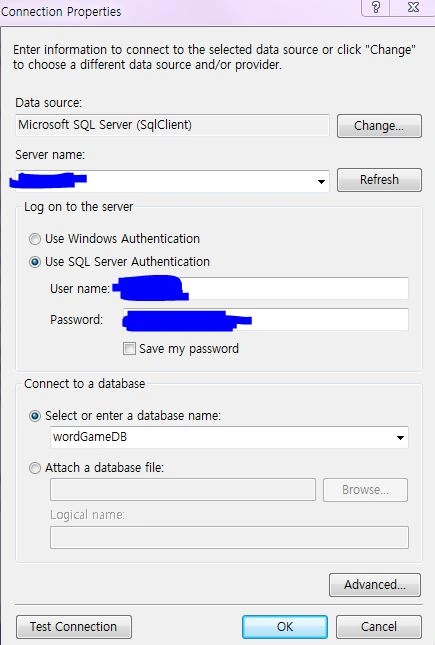
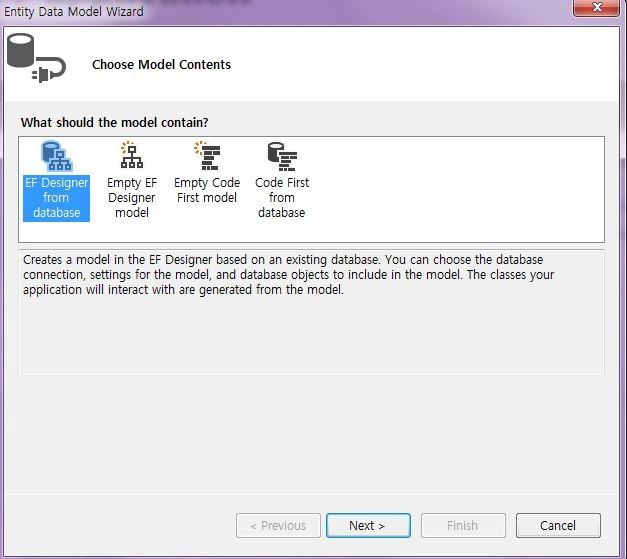
Click next and select the tables to be used and click Finish.
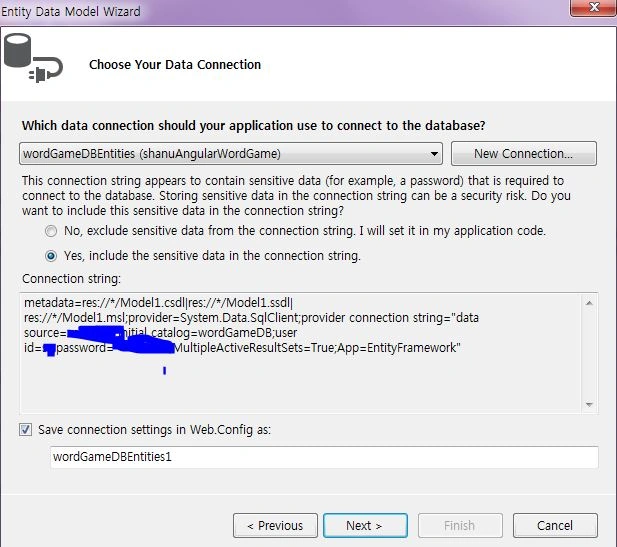
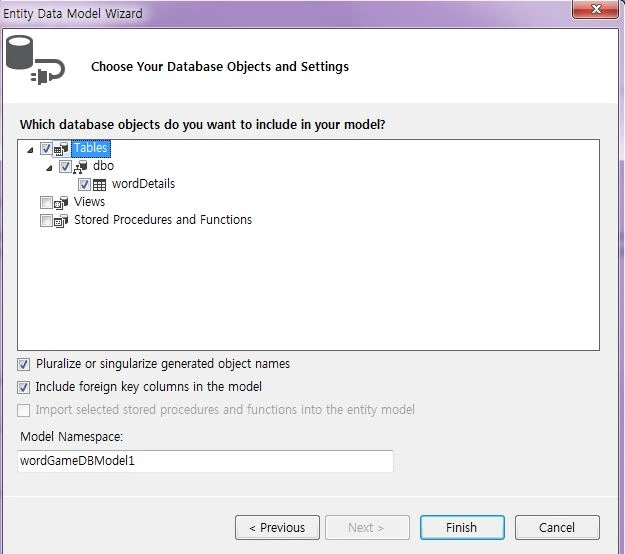
Click Next and select our tables that are necessary and click Finish.
Here we can see now we have created our wordPuzzleModel.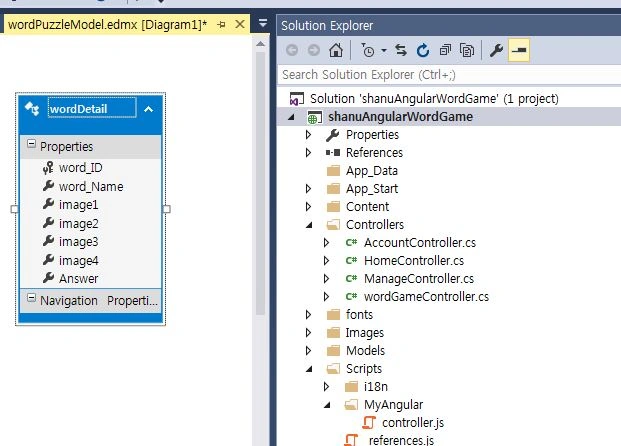
Once the entity has been created the next step is to add Web API to our controller and write the function to select/insert/update and delete.
Procedure to add our Web API Controller
Right-click the Controllers folder then click Add-> Click Controller.
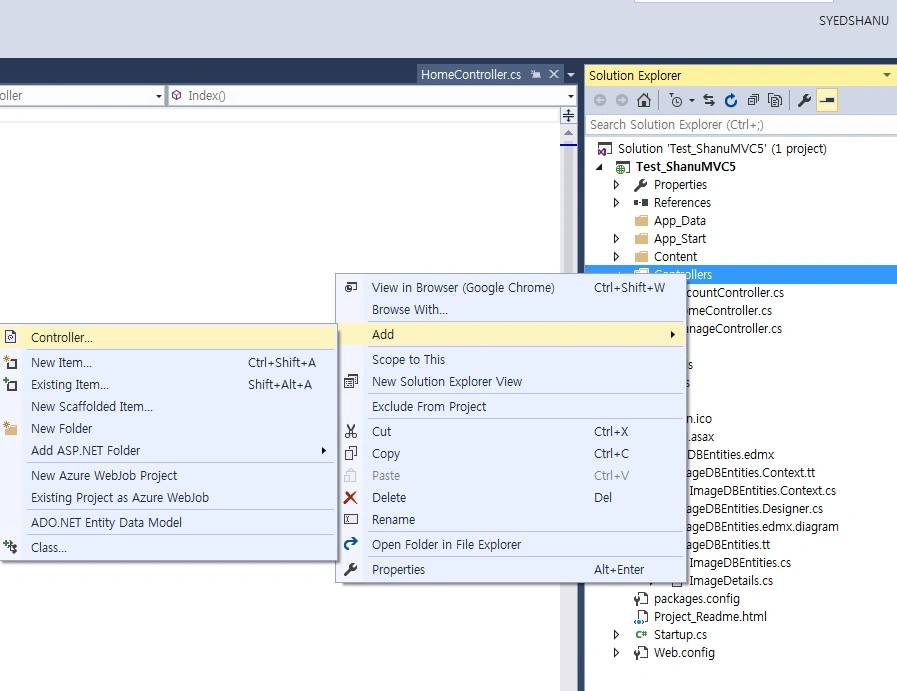
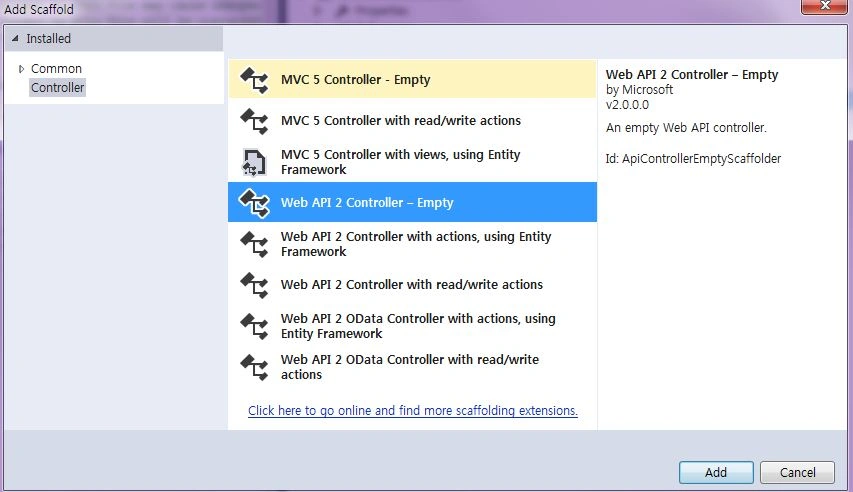
To create the Web API Controller, select Controller and Add Empty Web API 2 Controller. Provide a name for the Web API controller and click OK. Here for my Web API Controller I have given the name “wordGameController”.
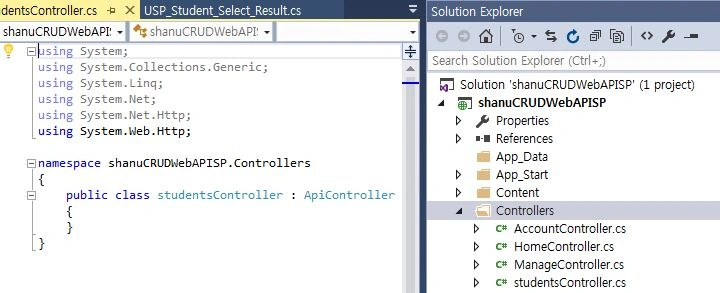
Since we have created a Web API controller, we can see our controller has been inherited ApiController.
We all know that the Web API is simple and it is easy to build HTTP Services for browsers and mobiles.
The Web API has the four methods Get/Post/Put and Delete where:
- Get is to request data (select).
- Post is to create data (insert).
- Put is to update data.
- Delete is to delete data.
In our example we will use the Get method since we need to get all the Puzzle Question details from the database.
Get Method
In our example I have used only the Get method since I am selecting data from the database to display the Word Puzzle game. We need to create an object for our Entity and write our Get Method to perform Select operations.
Select Operation
We use the get method to get all the details of the wordDetail table using an entity object and we return the result as an IEnumerable.
Here we can see in the get method I have used the Take method to display only 5 records from the database.To select a random record from the database I used Guid.NewGuid().
We use this method in our AngularJs and display the result in a MVC HTML page.
- public class wordGameController : ApiController
- {
- wordGameDBEntities objAPI = new wordGameDBEntities();
-
-
- [HttpGet]
- public IEnumerable<shanuAngularWordGame.wordDetail> Get()
- {
-
- return objAPI.wordDetails.OrderBy(x => Guid.NewGuid()).Take(5).AsEnumerable();
-
-
- }
- }
I changed the preceding code, like adding a module and controller as in the following.
If the AngularJs package is missing then add the package to your project.
Right-click your MVC project and click Manage NuGet Packages. Search for AngularJs and click Install.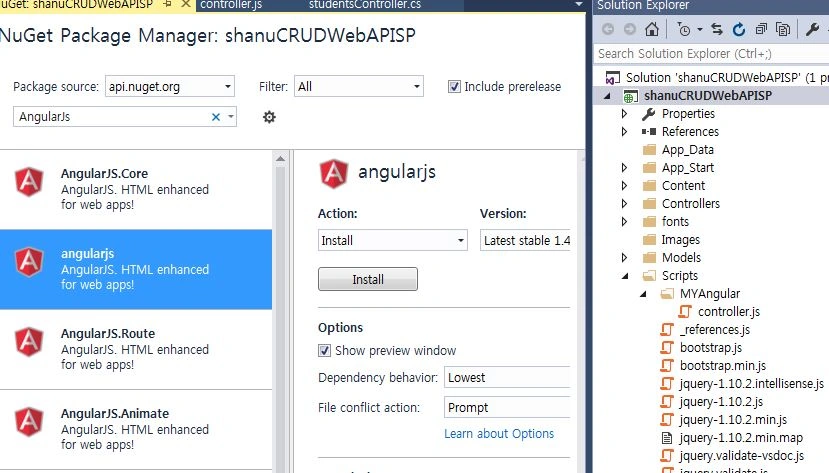
Procedure to Create AngularJs Script Files
Modules.js: here we add the reference to the Angular.js JavaScript and create a Angular Module named “RESTClientModule”.
-
-
-
-
- var app;
- (function () {
- app = angular.module("RESTClientModule", ['ngAnimate']);
- })();
Controllers: In the AngularJs Controller I have done all the business logic and returned the data from the Web API to our MVC HTML page.
1. Variable declarations
First I declared all the local variables that are needed.
- app.controller("AngularJs_ImageController", function ($scope, $timeout, $rootScope, $window, $http) {
-
-
- $scope.date = new Date();
- $scope.MyName = "Shanu";
- $scope.usrName = "";
- $scope.Images;
- $scope.txtAnswer="";
-
-
-
-
-
-
-
- $scope.questionCount = 1;
- $scope.totalPoints = 0
- $scope.wordCount = 0;
- $scope.rowCount = 0;
-
-
-
-
- $scope.Image1 = "";
- $scope.Image2 = "";
- $scope.Image3 = "";
- $scope.Image4 = "";
- $scope.ImageAnswer = "won.png";
- $scope.Answers = "";
- $scope.Resuts = "";
-
-
-
-
- $scope.showGameStart = true;
- $scope.showGame = false;
- $scope.showresult = false;
2. Game Start Function

By default I will display how to play the game and the rules to play the game and the instructions to start the game. The user can enter their name to start the game. The user cannot start the game without entering their name.
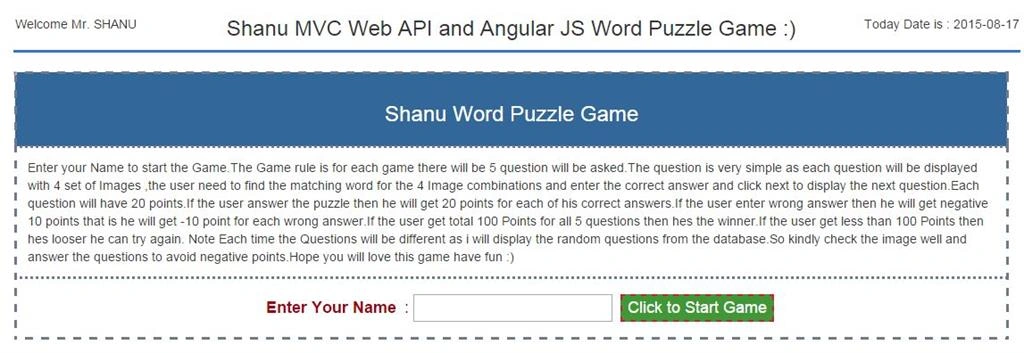 In the Start game button click I call the AngularJs method startGame to check whether the user has entered their name. If the user has not entered their name I will ask to enter the name to start the game. If the user has entered their name then I will call the function to display the first question for the user.
- $scope.startGame = function () {
-
- if($scope.usrName=='')
- {
- alert("Enter Your Name to start the game !");
- $scope.showGameStart = true;
- $scope.showGame = false;
- $scope.showresult = false;
- }
- else
- {
- $scope.questionCount = 1;
- $scope.totalPoints = 0;
- $scope.wordCount = 0;
- $scope.rowCount = 0;
-
- selectGameDetails();
- $scope.showGameStart = false;
- $scope.showGame = true;
- $scope.showresult = false;
- }
- }
selectGameDetails() To display the Each question.
When the user clicks on the Start game button I display questions number 1, the total points as 0 and using the $http.get('/api/wordGame/') I will get 5 random questions from the database and will store the result data to $scope.Images. For the first question the rowcount will be 0, I will display the first question's information with an Answer Word Count.
-
- function selectGameDetails() {
- $http.get('/api/wordGame/').success(function(data) {
- $scope.Images = data;
- if ($scope.Images.length > 0) {
- $scope.Image1 = $scope.Images[$scope.rowCount].image1;
- $scope.Image2 = $scope.Images[$scope.rowCount].image2;
- $scope.Image3 = $scope.Images[$scope.rowCount].image3;
- $scope.Image4 = $scope.Images[$scope.rowCount].image4;
-
- $scope.Answers = $scope.Images[$scope.rowCount].Answer;
-
- $scope.wordCount = $scope.Answers.length;
-
- }
- })
- .error(function() {
- $scope.error = "An Error has occured while loading posts!";
-
- });
- }
Question Details
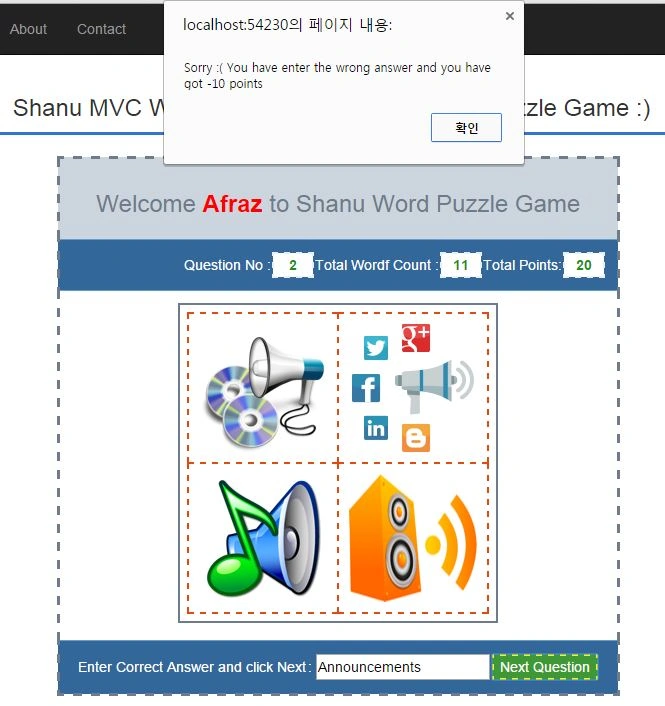
- No question: For each question I will display no questions to the user, by default it will be 1.
- Total Word Count: For each question we can see 4 images. The user must find the matching word for each 4 image combinations. The actual Word Count result I will display as a hint for the user at the top.
- Total Points: For each questions answered by the user I will display the result of each questions points.
Next Question button Click
In the next button I will check for each answer result entered by the user.
Correct Answer: I will check the user entered answer with the database result answer. If both answers are correct then I will display the result to answer and increment the user total points with 20.
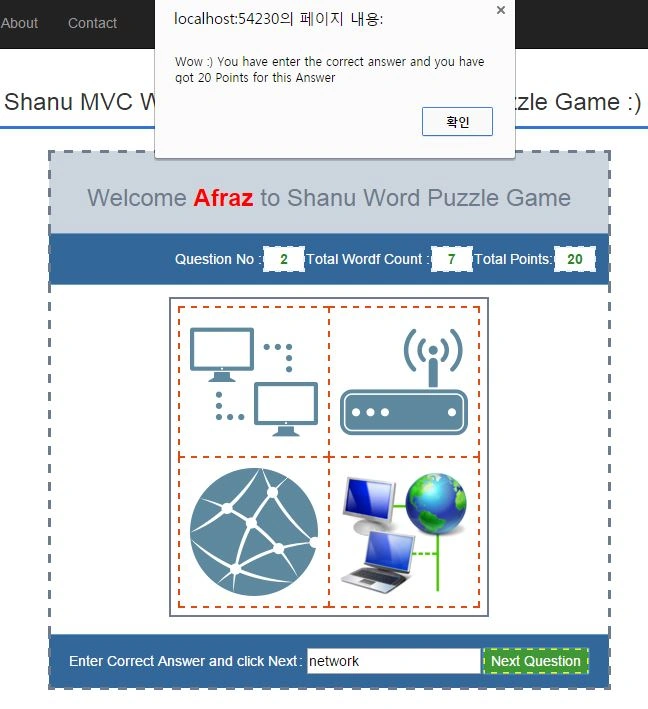 Wrong Answer: I will check the user entered answer with the database result answer. If both answers are incorrect then I will display the result to answer and decrement the user total points with 10 (-10).
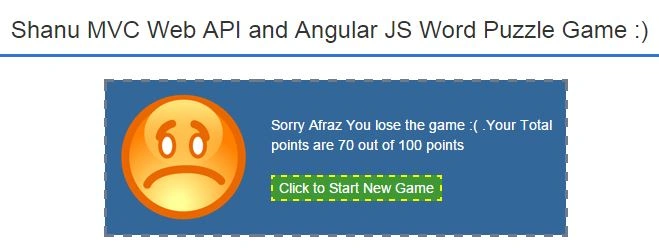
Final Result, the User Losed the Game
When the user has answered all the 5 questions I will check for the result of Total Points for the user and if the points are less than 100 then I will display the message to the user that they have lost the game.
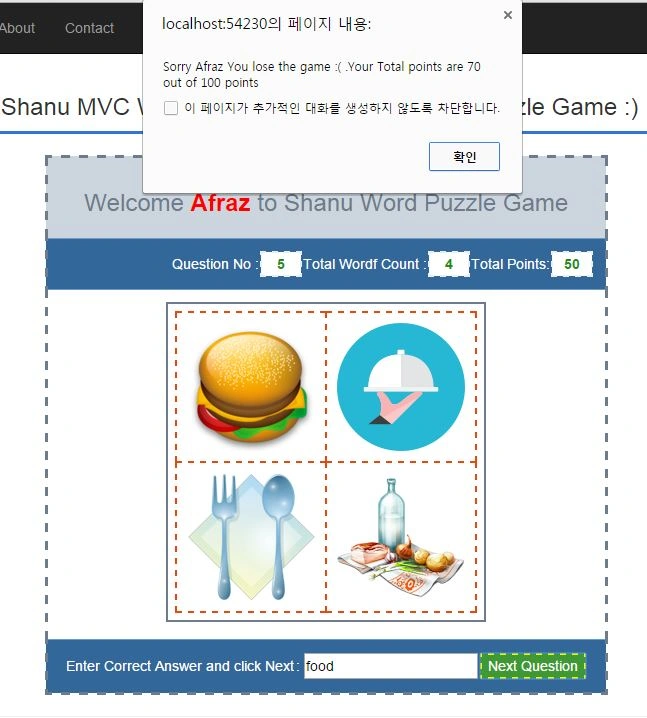
When the user clicks on the alert OK button I will display the User Lose the game message and the user can start a new game from here to play again.
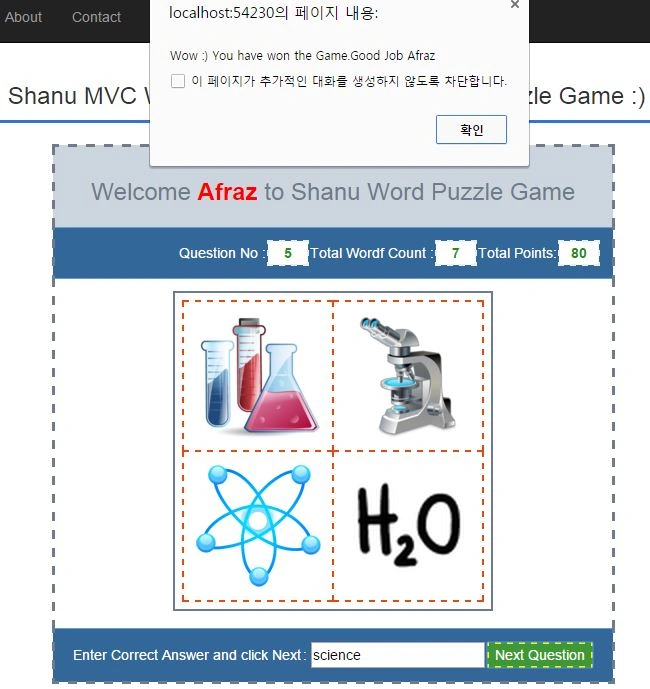
Final Result, the User Won the Game
When the user has answered all 5 questions I will check for the result of Total Points for the user and if the Points are equal to 100 then I will display the message to the user since they have won the game.
When the user clicks on the alert OK button I will display the User Won the game message and the user can start the new game from here to play again. 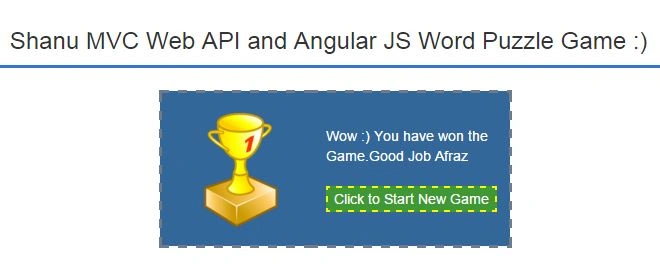
Here is the AngularJs code to check the user result and display the message.
-
- $scope.findAnswer = function() {
-
-
- if ($scope.txtAnswer == "") {
- alert("Enter the Answer");
- return;
- }
-
-
- if ($scope.txtAnswer.toLowerCase() == $scope.Answers.toLowerCase()) {
- alert("Wow :) You have enter the correct answer and you have got 20 Points for this Answer")
-
- $scope.totalPoints = $scope.totalPoints + 20;
-
- } else {
-
- alert("Sorry :( You have enter the wrong answer and you have got -10 points")
- $scope.totalPoints = $scope.totalPoints - 10;
- }
-
- $scope.txtAnswer = "";
-
- if ($scope.questionCount == 5) {
- if ($scope.totalPoints >= 100) {
- $scope.Resuts = "Wow :) You have won the Game.Good Job " + $scope.usrName;
- alert($scope.Resuts)
- $scope.ImageAnswer = "won.png";
- } else {
- $scope.Resuts = "Sorry " + $scope.usrName + " You lose the game :( .Your Total points are " + $scope.totalPoints + " out of 100 points"
-
- alert($scope.Resuts);
- $scope.ImageAnswer = "lose.png";
- }
-
-
- $scope.showGameStart = false;
- $scope.showGame = false;
- $scope.showresult = true;
- return;
- } else {
-
- $scope.questionCount = $scope.questionCount + 1;
-
- $scope.wordCount = 0;
- $scope.rowCount = $scope.rowCount + 1;
-
-
- $scope.Image1 = $scope.Images[$scope.rowCount].image1;
- $scope.Image2 = $scope.Images[$scope.rowCount].image2;
- $scope.Image3 = $scope.Images[$scope.rowCount].image3;
- $scope.Image4 = $scope.Images[$scope.rowCount].image4;
-
-
- $scope.Answers = $scope.Images[$scope.rowCount].Answer;
-
-
-
- $scope.wordCount = $scope.Answers.length;
- }
-
- }
New Game Start method:
After displaying the final result the user can start a new game by clicking the button. In the button click I will call the AngularJs method to start the new game for the user.
-
-
- $scope.NewQuestion = function () {
- $scope.usrName = "";
- $scope.questionCount = 1;
- $scope.totalPoints = 0;
- $scope.wordCount = 0;
- $scope.rowCount = 0;
-
- $scope.showGameStart = true;
- $scope.showGame = false;
- $scope.showresult = false;
- }
Note: you can change the database depending on your connection. All of questions and image names have been displayed from the database. If you want to add a new question then kindly add four Images to your application root folder inside the Image folder then provide the same image name in your database image columns. Add the proper answer in your database for the question. There is no static data in my application, so the user can add their own image and answer into the database. I hope you like this game, have fun.
Supported Browsers: Chrome and Firefox.



Rajesh GamiPosted Apr 27, 2018, 11:51 PM
Its very useful sir.
gaurav pathakPosted Sep 4, 2015, 2:23 AM
Thanks for sharing. Stay Blessed.
Yashwanth MuthineniPosted Aug 27, 2015, 4:41 AM
Nice Share
Vaikesh K PPosted Aug 25, 2015, 2:28 AM
Great work
Upendra Pratap ShahiPosted Aug 24, 2015, 7:03 AM
good one sir
Gowtham KPosted Aug 24, 2015, 3:00 AM
Great work, thanks for sharing
Sumit JoshiPosted Aug 24, 2015, 2:28 AM
Thanks for sharing...good one
Upendra Pratap ShahiPosted Aug 20, 2015, 7:27 AM
nice sir..
Ankit BansalPosted Aug 20, 2015, 1:44 AM
good one...
Karthikeyan KPosted Aug 19, 2015, 11:14 PM
Again Awesome one sir !!
Keyur PatelPosted Aug 19, 2015, 8:19 AM
Excellent !!!
Shridhar SharmaPosted Aug 18, 2015, 5:50 PM
Good one sir.
Santhakumar MunuswamyPosted Aug 18, 2015, 2:33 PM
Good effort. Thanks for sharing
Chervine BhiwooPosted Aug 18, 2015, 11:23 AM
Amazing!
Rahul Kumar SaxenaPosted Aug 18, 2015, 8:45 AM
Super Show ... Love it.. Play it :)
Sibeesh VenuPosted Aug 18, 2015, 8:14 AM
Very interesting. Great Share. Thank you
Abhishek JaiswalPosted Aug 18, 2015, 6:07 AM
Interesting, keep sharing more! Cheers!! :)
Nilesh JadavPosted Aug 18, 2015, 5:27 AM
Thats really nice article
Vaikesh K PPosted Aug 18, 2015, 1:35 AM
Great work :)
Rajeesh MenothPosted Aug 18, 2015, 12:31 AM
Awesome..:)
Karthikeyan KPosted Aug 17, 2015, 11:28 PM
Good one sir...Thanks for sharing